What You Need to Take a Passport Photo at Home
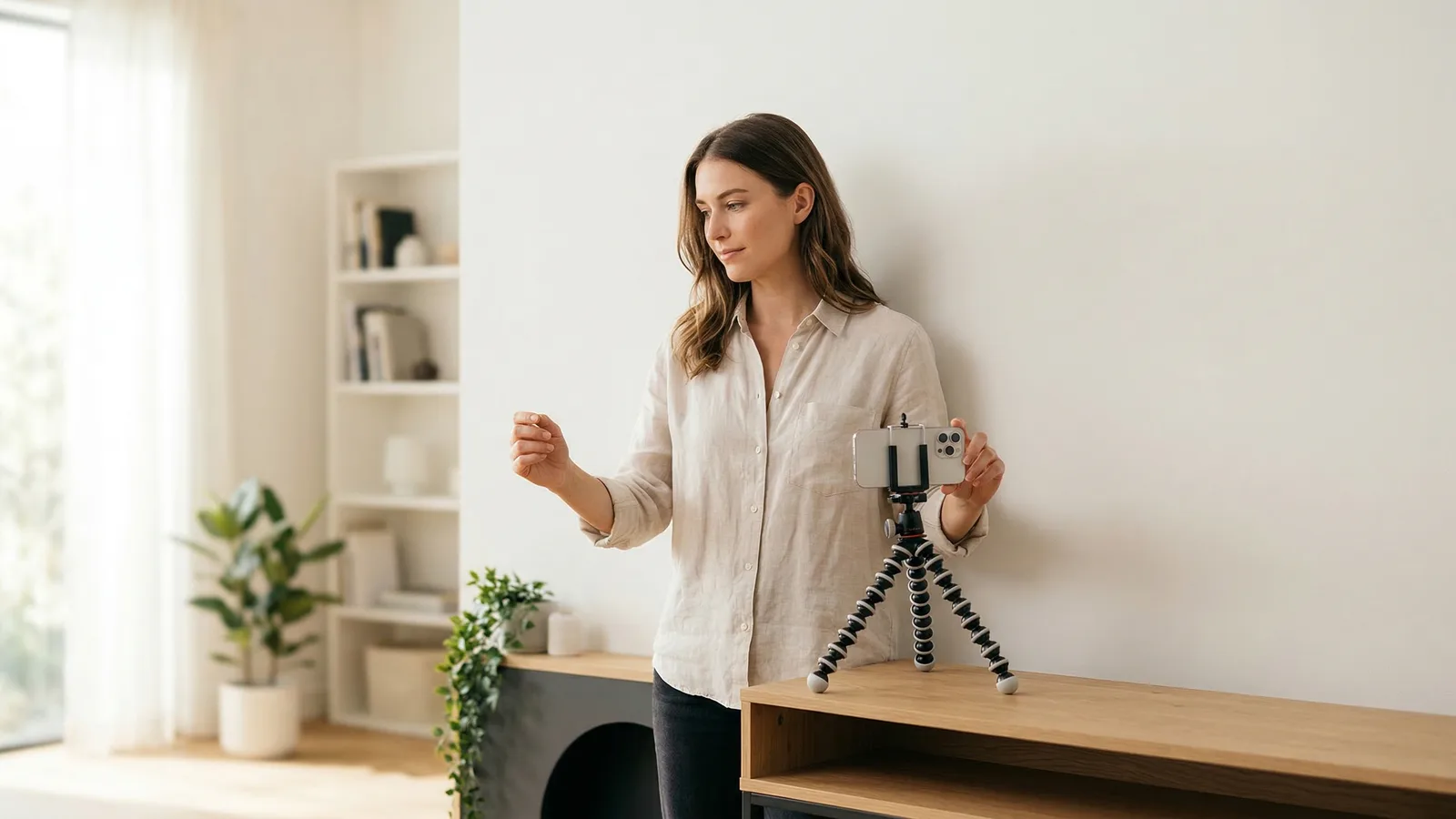
Taking a passport photo at home is simpler than you might think. Here's your equipment list:
- A smartphone with a decent camera (anything from the last 5 years works)
- A plain white wall or a white bedsheet hung flat
- Natural light from a window, or two lamps positioned at 45° angles
- A tripod or stable surface — avoid handheld shots for sharpness
That's it. No studio equipment, no ring lights, no special backgrounds needed.
One caveat: a few countries require light grey backgrounds rather than white (Germany and the UK, for example). Check your country's specific requirements before setting up.
Get a compliant passport photo online
Know Your Country's Requirements First
Before you start shooting, look up the exact requirements for your country. Photo sizes vary significantly:
- US and Canada: 2×2 inches (51×51mm) and 50×70mm respectively
- Most European countries: 35×45mm
- India: 35×35mm (square)
- China: 33×48mm
- Brazil: 50×70mm
Background colour, glasses policy, and expression rules also differ. Most countries require white backgrounds and neutral expressions, but the US permits slight natural smiles and countries like Canada, Germany, and the UK allow prescription glasses under certain conditions. Other countries — including Australia, France, Japan, and India — ban glasses entirely.
Getting the basics wrong wastes your time. Confirm your country's rules first using our country requirements pages, then set up your home studio accordingly.
Step-by-Step: How to Take a Passport Photo at Home
Step 1: Set Up Your Passport Photo Background
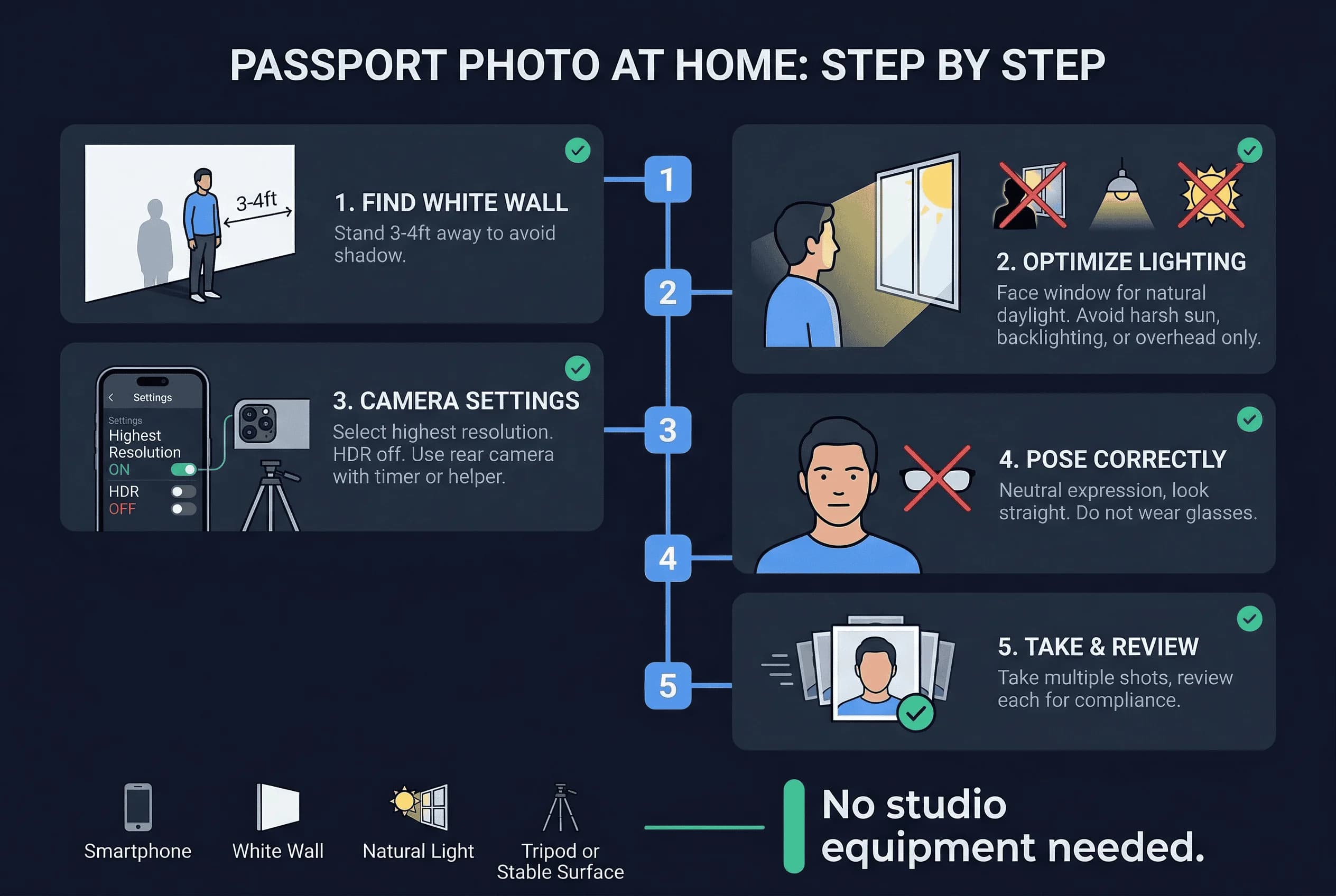
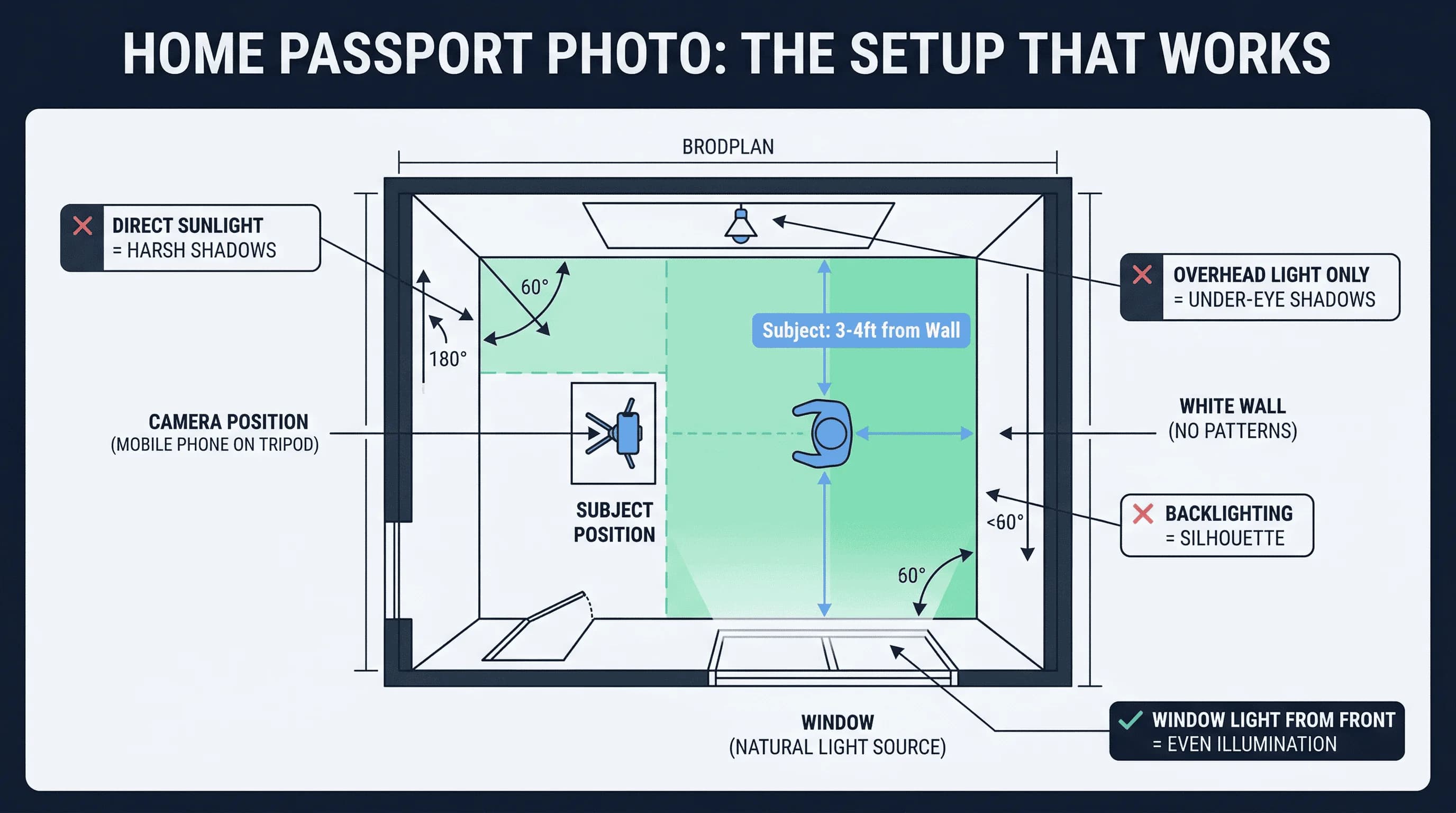
Find a plain white wall with no marks, nails, or texture. Stand 12–18 inches away from the wall to avoid casting your shadow onto it. If you don't have a white wall, hang a white bedsheet taut — wrinkles will show up as shadows and cause rejection.
Inspect the wall carefully. Scuff marks, nail holes, and slight discoloration are invisible to your eye but obvious in a photo. A freshly painted wall works best. If using a bedsheet, iron it flat and clip it taut at the top — gravity won't remove deep creases.
Step 2: Position Your Passport Photo Lighting
Natural window light is best. Position yourself facing the window so light falls evenly on your face. The ideal scenario is a large window with indirect light — overcast days are actually perfect because clouds diffuse the light naturally.
Avoid:
- Direct sunlight — causes harsh shadows and squinting
- Overhead lights only — creates unflattering shadows under eyes and nose
- Backlighting — makes your face dark and silhouetted
- Mixed lighting — combining warm lamps and cool daylight creates colour casts
If natural light isn't available, use two identical lamps placed at 45° angles on either side. Match the bulbs — same wattage, same colour temperature (daylight/5000K–6500K bulbs are ideal). This eliminates one-sided shadows that automated systems flag.
Step 3: Camera Settings for Passport Photos
Set your phone camera to the highest resolution. Turn off HDR mode — it can create unnatural color processing. Use the rear camera (better quality than the selfie camera) with a timer or ask someone else to take the photo.
Distance matters. Position the camera 4–6 feet (1.2–1.8m) away at eye level. Too close and you get barrel distortion — the nose looks larger, the ears smaller. Too far and you lose detail. A tripod or phone propped on a stack of books keeps things stable. Avoid holding the phone by hand for any reason.
Shoot multiple frames. Take 10–15 photos in quick succession. Minor differences in expression, eye position, and head tilt mean some shots will be compliant and others won't. It's easier to select the best frame from a batch than to nail a single shot.
Step 4: Position Yourself for the Photo
- Face the camera directly — no tilting or angling
- Keep a neutral expression with both eyes open (the US allows a slight natural smile; most other countries do not)
- Check your country's glasses policy — some countries allow prescription glasses; many don't. When in doubt, remove them.
- Remove hats, headphones, and non-religious head coverings
- Hair should not cover your forehead or eyes
- Frame from the shoulders up with space above your head
Step 5: Validate Before Printing
This is the step most people skip — and it's the most important. Upload your photo to passportsize-photo.online to check compliance against government requirements. The AI validates dimensions, background, head positioning, and dozens of other criteria in seconds.
Do not skip validation. A photo that looks fine to your eye can fail for reasons you wouldn't guess: head too high, chin shadow barely visible, background registering as off-white. Catching these before you print saves time and money.
How to Crop and Print Your Passport Photo
Once you have a validated photo:
- Crop to the correct dimensions. Use the tool's output or crop manually to your country's required size.
- Print at 300 DPI minimum. This is the standard for passport photos across virtually all countries. At-home printers work if they're inkjet or laser with photo paper. Glossy or matte finish depends on your country — most accept either.
- Use 4×6 photo paper. You can fit multiple passport photos on a single 4×6 sheet. Print at a drugstore (CVS, Walgreens, Boots) or at home.
- Don't resize after cropping. Scaling a cropped photo up or down changes the head-to-frame ratio, which can push it out of compliance.
If you prefer not to print at home, upload your validated photo to a print service (CVS, Walmart, or equivalent) and select 4×6 prints. Cost is typically under $1.
Common DIY Passport Photo Mistakes to Avoid
- Yellow/warm white walls that look white to your eye but register as off-white in photos. Test by taking a photo of the wall alone — if it looks yellow or cream on screen, it will fail.
- Selfie arm distortion — holding the phone in your hand warps facial proportions. Always use a tripod, timer, or another person.
- Bathroom lighting — typically harsh, uneven, and creates strong shadows under the chin and eyes.
- Photo filters — even "auto-enhance" modes can disqualify your photo. Shoot in the default camera mode with no processing.
- Wrong file format — some government upload portals require JPEG. Check before converting to PNG or other formats.
- Red-eye — flash in dim rooms causes red-eye. Use natural light or continuous lighting instead of flash.
- Wrinkled bedsheet backgrounds — even small wrinkles cast micro-shadows that automated systems detect.
Troubleshooting Your Home Passport Photo Setup
Photo keeps failing validation? The three most common culprits are: background not perfectly white (even 2% off), face shadows (especially under the chin), and head size wrong (too far away = head too small; too close = head too large).
Colour looks off on screen? Your phone's screen colour may not match the actual file. Check the photo on a computer monitor before printing. Night-shift or blue-light-filter modes on your phone distort how you perceive the image.
Printed photo looks different from screen? Home printers vary in colour accuracy. Print a test on plain paper first. If colours drift, use a drugstore print service instead — their calibrated printers produce more consistent results.
For country-specific at-home guides, see our detailed walkthroughs: US passport photo at home, UK passport photo at home, Canada passport photo at home, and more countries. For printing details, see how to print passport photos at home.