You can take your own Canadian passport photo at home. The IRCC accepts DIY photos as long as they meet the exact specifications.
This guide covers what you need, step-by-step instructions, and how to ensure your photo passes.
What You Need to Take a Canadian Passport Photo at Home
- Smartphone — any modern phone
- White or light grey background — wall, sheet, or poster board
- Good lighting — natural daylight is best
- Helper — you cannot take a selfie (selfies are not accepted)
- Photo editing app — for resizing to 591×827 pixels
Canada accepts either white or light grey. White is simpler.
Get a compliant passport photo online
Step-by-Step Canadian Passport Photo Process
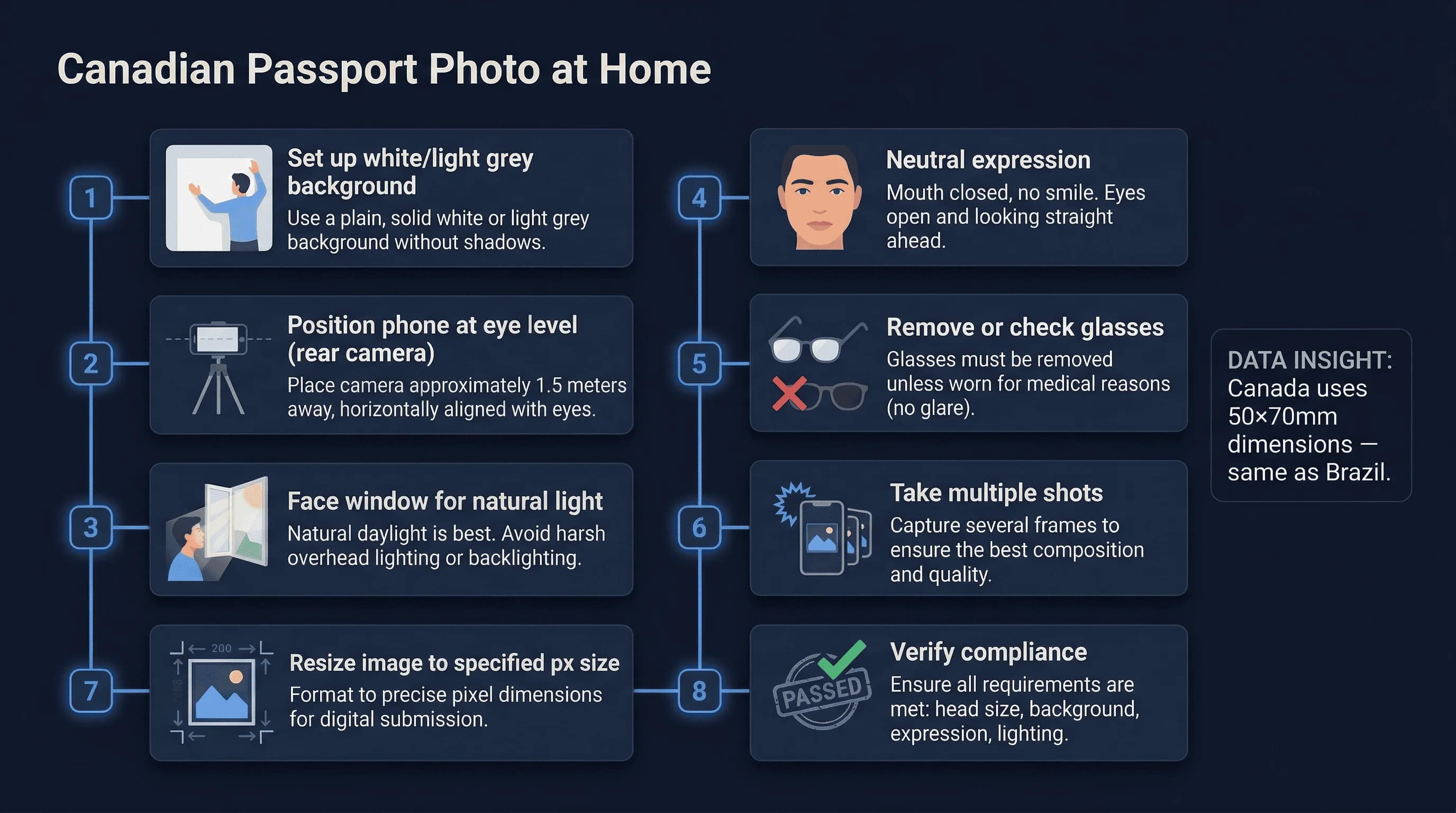
Step 1: Set Up a White or Grey Background
Find a location with a plain white or light grey background, even lighting, and nothing else in the frame. White is easier — a clean white wall, white poster board from Staples or Dollarama, or a white bedsheet ironed flat and pinned taut all work.
If using grey, ensure it's a uniform light grey — not medium or dark. The background must fill the entire frame behind you with generous margin for cropping.
Stand 12–18 inches away from the background to prevent your body from casting shadows onto it. Take a test photo of just the background — it should appear even and clean on screen.
Step 2: Position Your Phone at Eye Level
Place your phone on a stable surface at eye level, 4–6 feet (1.2–1.8m) away. Use the rear camera — it produces sharper images with less distortion than the selfie camera. Set a 3 or 10-second timer, or have your helper take the photo.
Never hold the phone in your hand. It causes camera shake and barrel distortion from being too close.
Step 3: Set Up Even, Shadow-Free Lighting
Natural daylight from a window is ideal. Position yourself facing the window so light falls evenly on your face. Overcast days produce the softest, most even light.
If using artificial light, place two identical lamps at 45° angles on either side. Use daylight-temperature bulbs (5000K–6500K) — warm bulbs cast yellow onto white backgrounds. Avoid single overhead lights, which create harsh shadows under the eyes and chin.
Step 4: Prepare Your Appearance for the Photo
Before the photo:
- Glasses: Prescription glasses are allowed in Canada, but ensure no glare on the lenses. Position your lighting at 45° to minimise reflections. If glare persists, removing them is simpler.
- Remove sunglasses, headphones, and earbuds
- Remove large jewellery that frames your face or creates reflections
- Ensure hair doesn't cover your eyes, eyebrows, or forehead
- Wear solid-coloured clothing — avoid white if your background is white, as you'll blend in
Step 5: Take 15–20 Photos in Burst Mode
Take 15–20 photos in quick succession. Use burst mode if available. Review each on a larger screen — phone screens hide subtle problems.
Eliminate any shot where:
- Background has shadows, gradients, or discoloration
- Face is not centred or is tilted
- Eyes are partially closed
- Expression shows any hint of a smile
- Glasses have visible glare (if wearing them)
- Hair covers the forehead or eyes
Select your best 3–4 options for cropping.
Step 6: Crop and Resize to 591×827 Pixels
Open your best photo in any editor (built-in phone editor, Photoshop, GIMP, or Canva):
- Crop to maintain the 5:7 aspect ratio (50×70mm)
- Resize to exactly 591×827 pixels at 300 DPI
- Save as high-quality JPEG
- Verify file size is between 60KB and 10MB
This is the standard Canadian digital passport photo specification. Do not use a 35×45mm template — Canada's 50×70mm format is larger.
Canada-Specific Passport Photo Tips
Canadian Background Flexibility: White or Grey
Canada accepts white OR light grey. This is more flexible than the UK (grey only) or US (white only).
Glasses Are Allowed in Canadian Passport Photos
Canada allows prescription glasses — provided there's no glare on the lenses. The US, Australia, France, and Japan ban glasses entirely, so this gives Canadian applicants more flexibility.
No Smile Required in Canadian Passport Photos
Neutral expression is required. This is similar to the UK and most countries (the US is the notable exception).
Canada's Unique 50×70mm Dimensions
Canada's 50×70mm is different from most other countries:
- UK: 35×45mm
- US: 2×2 inches (square)
- Germany: 35×45mm
If you need photos for multiple countries, each needs its own dimensions.
Print Canadian Passport Photos at 300 DPI
300 DPI is the standard for Canadian passport photos. This ensures crisp, clear prints at the 50×70mm size.
Common Mistakes in DIY Canadian Passport Photos
Mistake 1: Wrong Dimensions (Not 50×70mm)
Canada uses 50×70mm, not the European 35×45mm or US 2×2 inches. Get the dimensions exactly right.
Mistake 2: Smiling in Your Passport Photo
Canada requires neutral expression. No smiling.
Mistake 3: Wrong Background Color
Canada accepts both white and light grey. But dark grey, cream, or other colors fail.
Mistake 4: File Size Too Large or Too Small
Keep between 60KB and 10MB. Too small or too large causes rejection.
Mistake 5: Visible JPEG Compression Artifacts
Save as high-quality JPEG. Low-quality compression creates visible artifacts around edges, especially near the hairline and jaw. Set JPEG quality to 90% or higher.
Mistake 6: Using a Selfie for Your Passport Photo
Canada explicitly rejects selfies. The distance is wrong, the angle is wrong, and your arm may appear in frame. Always have someone else take the photo or use a tripod with a timer.
How to Check Your Canadian Passport Photo Before Submitting
Before submitting to IRCC, verify:
- Background is white or light grey
- Dimensions are 591×827 pixels
- File size is 60KB-10MB
- Head occupies 62-69% of frame
- Eyes are open and visible
- Expression is neutral
- No glare on glasses (if wearing)
- No shadows
Check your Canada passport photo →
Alternative: Use a Canadian Photo Service
If DIY feels complicated, use a professional service:
- Shoppers Drug Mart: ~$15-20
- Canada Post: ~$15
- Costco: ~$10-15
- Online services: $5-10
These guarantee compliant backgrounds, dimensions, and file sizes. Worth it to avoid rejection.
Lighting Tips for Canadian Homes
Winter months. Canada's long winters mean less natural light. If shooting during short winter days, position near your largest window during midday. Supplement with two identical desk lamps at 45° angles.
Summer months. Abundant natural light, but direct sun through windows creates harsh shadows. Hang a sheer curtain to diffuse or wait for cloud cover.
Basement apartments. Common in Canadian cities. If natural light is limited, use two identical lamps with daylight bulbs (5000K–6500K). Match the bulbs — different colour temperatures create uneven tones.
Printing Your Canadian Passport Photo at Home or In-Store
After cropping to 591×827 pixels:
- Print at 300 DPI on photo paper. You can fit two 50×70mm photos on a 4×6 sheet.
- Check the printed size with a ruler — it must measure exactly 50mm × 70mm.
- Shoppers Drug Mart, Walmart, and Costco print services accept digital uploads and produce prints within minutes.
Taking a Canadian Passport Photo at Home Abroad
If renewing a Canadian passport abroad, the same 50×70mm requirements apply at Canadian embassies and consulates. Photo studios overseas may default to 35×45mm — specify "Canadian passport photo, 50×70mm, white background." Taking it at home and printing to the correct dimensions is often easier than finding a studio that stocks the right size.
Verify your photo meets all Canadian requirements with the passportsize-photo.online checker. For size details, see the Canada passport photo size guide. For full Canadian passport rules, visit the Canada hub.