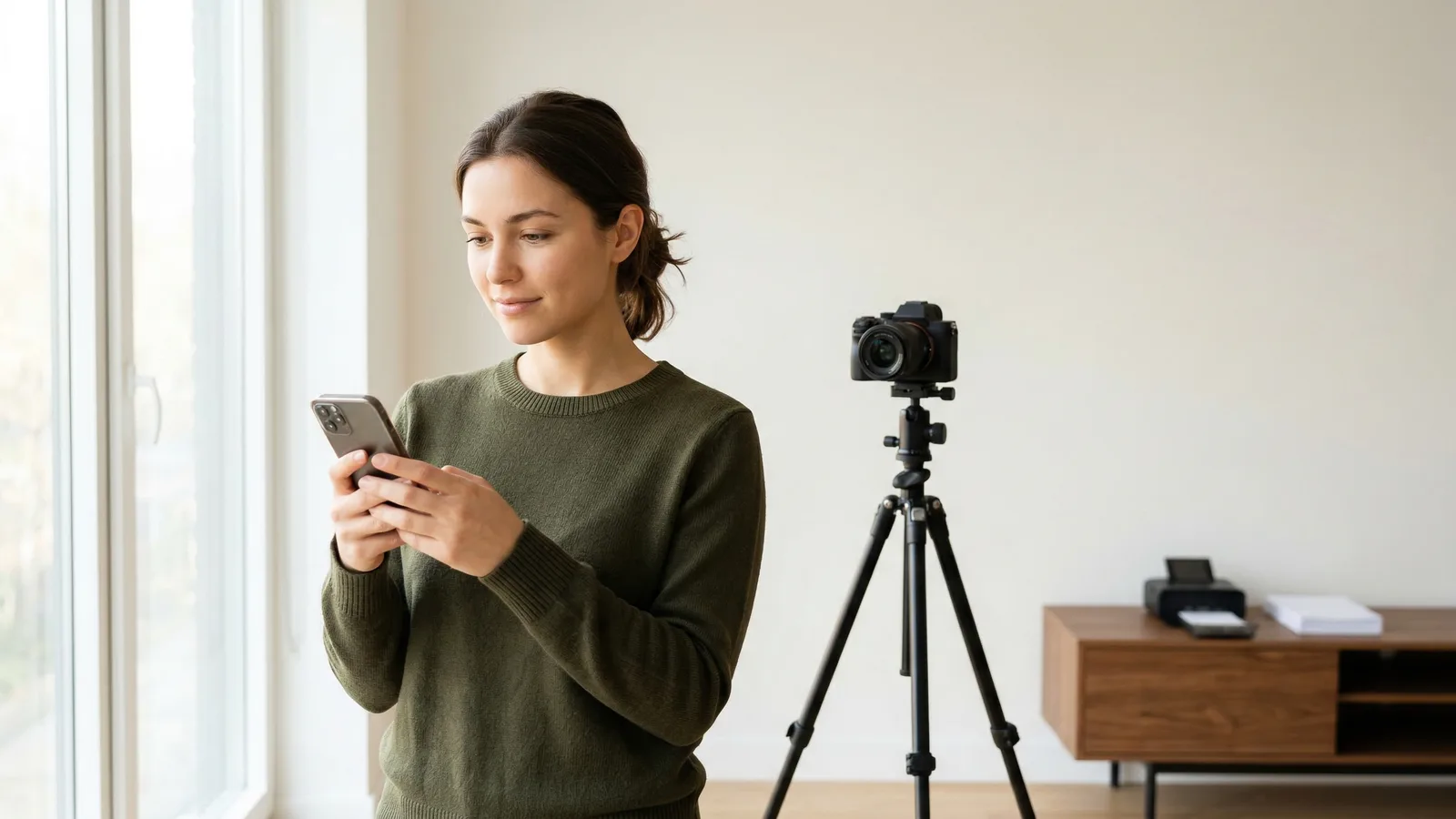
You can print passport photos at home on a standard inkjet printer using 4×6 photo paper. The process involves arranging two 2×2 inch photos on a single 4×6 sheet, printing at 300 DPI, and cutting them out with scissors.
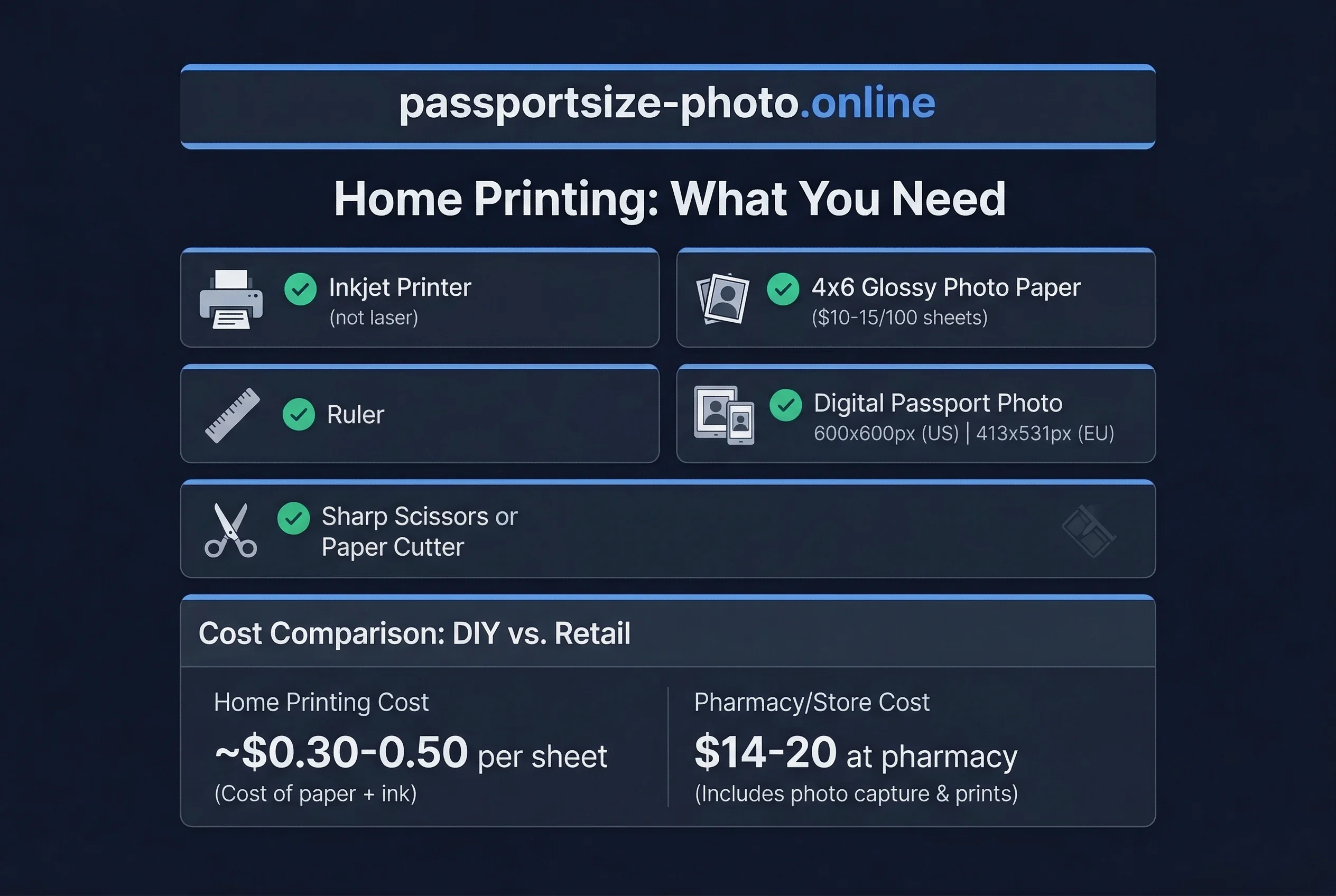
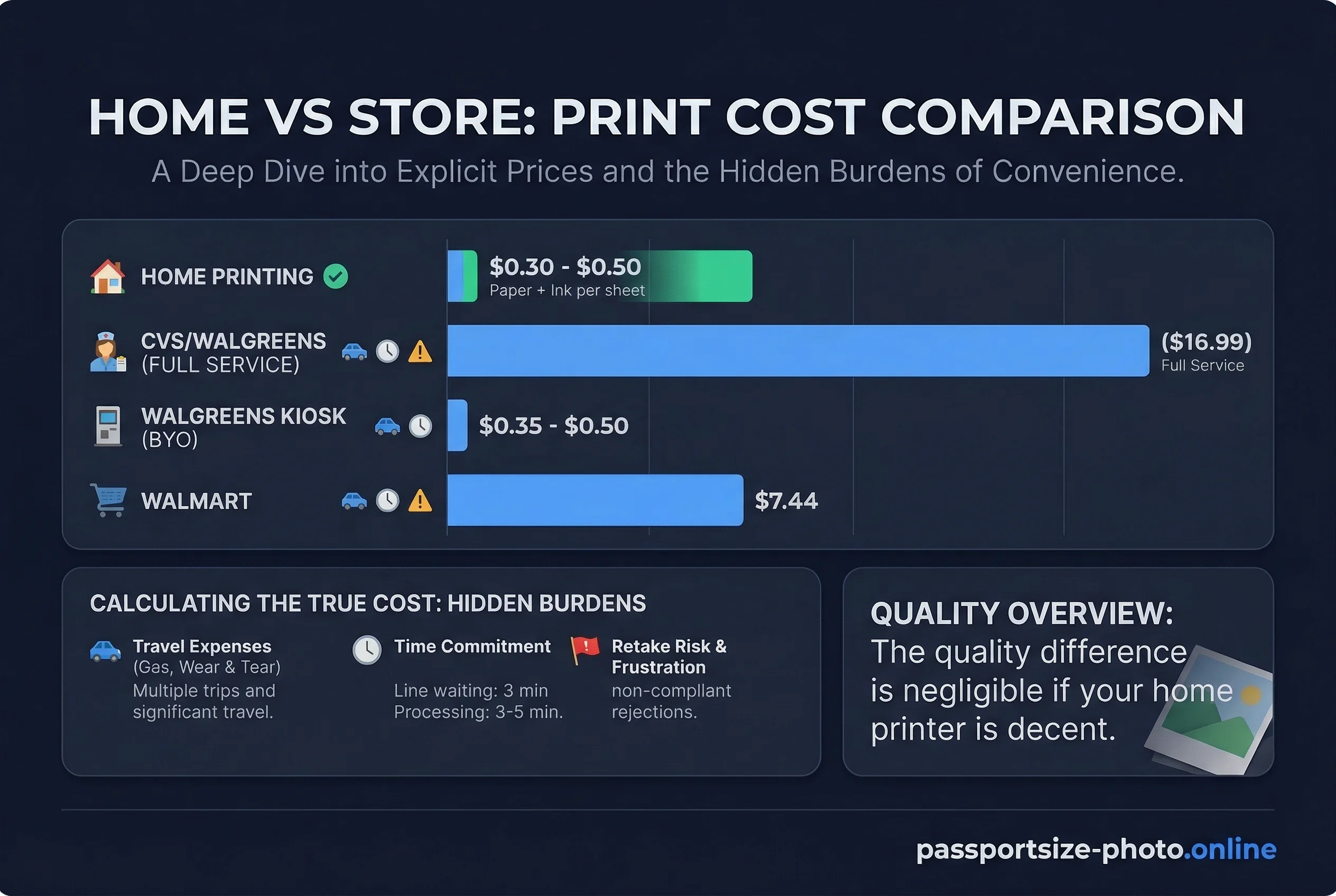
This costs roughly $0.30-0.50 per sheet versus $14-20 at a pharmacy. The quality difference is negligible if your home printer is decent.
What You Need to Print Passport Photos at Home
- Inkjet printer — Laser printers don't work well for photos. If your printer is more than 5 years old, consider replacing the ink cartridges first.
- 4×6 glossy photo paper — Available at any office supply store or Amazon. A pack of 100 sheets costs $10-15.
- Ruler — For measuring and cutting.
- Sharp scissors or paper cutter — A sharp blade makes clean cuts.
- Your digital passport photo — Already resized to the correct dimensions.
Get a compliant passport photo online
Understanding Passport Photo Sizes by Country
US passport photos must be exactly 2×2 inches (51×51mm). At 300 DPI, that's 600×600 pixels. You print two on one 4×6 sheet.
Other countries use different sizes. The most common international size is 35×45mm (413×531 pixels at 300 DPI). Canada and Brazil use 50×70mm. India uses 35×35mm (square). China uses 33×48mm. Germany and the UK use 35×45mm on light grey backgrounds.
Before printing, confirm your country's exact dimensions. The wrong size wastes paper and ink. See our country requirements pages for specifications.
Step-by-Step: Passport Photo Layout on 4×6 Paper
Option 1: Passport Photo Layout in Microsoft Word
- Open Microsoft Word.
- Go to Mailings > Labels.
- Click Options and select "Other/Envelopes" or a custom label type.
- Set the label width to 4 inches and height to 6 inches.
- Insert your 2×2 photo twice, leaving space between them.
- Print on your 4×6 photo paper.
Option 2: Passport Photo Layout in Preview (Mac)
- Open your photo in Preview.
- Go to Tools > Adjust Size.
- Set Width to 2 inches and Height to 2 inches at 300 DPI.
- Create a new blank image (File > New > Image) sized 4×6 inches at 300 DPI.
- Drag your 2×2 photo onto the blank canvas twice.
- Print.
Option 3: Using Online 4×6 Passport Photo Templates
Many free websites offer 4×6 passport photo templates. Search for "passport photo 4×6 template" and upload your photo. The website generates a downloadable PDF you can print.
Print Settings: The Critical Details
These settings make or break your home-printed passport photos:
- DPI: 300 — This is non-negotiable. Lower DPI looks pixelated. Higher DPI (600) is fine but takes longer to print.
- Quality: Highest or Photo — Find this in your printer settings. Don't use "Draft" or "Fast" mode.
- Scaling: None or Actual Size — Do not let your printer resize the image. Set scaling to 100% or "Fit to Page" with the paper size matching exactly.
- Paper Type: Glossy Photo — Select this in your printer settings if available. It makes colors pop and the paper feels professional.
- Color: Color — Unless you're intentionally printing black and white (which most countries accept), use color.
Paper Types: Glossy vs. Matte vs. Semi-Gloss
Glossy — Shiny finish, colors appear more vibrant. Most countries accept glossy. Slightly more prone to fingerprints.
Matte — Non-reflective finish. The US State Department specifically accepts matte. Looks more professional for documents.
Semi-gloss — A middle ground. Good color reproduction with less glare than full glossy.
All three work for passport photos. Matte is slightly preferred for official US government documents because it doesn't produce glare in interviews or scanning machines.
Cutting Your Passport Photos to the Correct Size
After printing, let the ink dry for 30 seconds. Then cut carefully:
- Use a ruler and pencil to lightly mark your cut lines. A 2×2 inch square needs to be exactly 2 inches on each side.
- Use sharp scissors or a paper cutter. Dull blades tear the photo paper edges.
- Leave a tiny margin—1/16 inch is fine. Don't cut directly on the image edge.
- Measure your finished cut with a ruler to verify it's exactly 2×2 inches.
Quality Check Before Submitting Your Passport Photo
Before sending in your printed photos:
- Measure with a ruler. Each dimension must be exactly 2 inches.
- Check colors against your screen. If your screen looks orange and the print looks blue, recalibrate or adjust.
- Look for banding or streaks. Old ink cartridges cause these. Replace if needed.
- Ensure the photo is sharp. You should be able to see every detail in your face clearly.
When Home Printing Doesn't Work for Passport Photos
Home printing isn't for everyone. Stop and consider a pharmacy if:
- Your printer is old. If it's more than 7 years old or the inks have sat unused for over a year, the quality won't be reliable.
- You don't have photo paper. Regular copy paper won't work. You need glossy or matte photo paper specifically.
- The colors look wrong. Printers that haven't been used in months often produce skewed colors.
- You need two identical photos. Some passport applications require two identical prints from the same session. Home printers can vary slightly between prints.
- You're applying for a visa, not a passport. Some countries have stricter requirements than the US. Verify first.
Home Printing vs Pharmacy: Passport Photo Cost Comparison
Home printing:
- 4×6 photo paper: $0.10 per sheet
- Ink cost (amortized): $0.20-0.30 per sheet
- Total: $0.30-0.40 per 2-photo sheet
Pharmacy (CVS, Walgreens, Costco):
- 2 passport photos: $14-17
The savings are significant if you apply for passports frequently or have a family.
Troubleshooting Common Passport Photo Print Problems
Colours look wrong. Most likely a low or dried-out ink cartridge. Replace the cartridge and run a nozzle cleaning cycle. Also check that your printer driver is set to "Photo" or "Best" quality mode rather than "Draft."
Banding (horizontal lines). Old or clogged printheads cause this. Run the printer's built-in head cleaning utility 2–3 times. If banding persists, the printhead may need replacement.
Photo is too dark or too light. This is usually a calibration issue between your screen and printer. Print a test on plain paper first. If the result is consistently dark, increase brightness by 10–15% in your photo editor before the final print.
Paper jams with photo paper. Photo paper is thicker than standard paper. Check your printer's paper tray settings — most printers have a lever or setting for "thick paper" or "photo paper." Feed one sheet at a time rather than loading a stack.
Ink smears when handling. Wait at least 30 seconds (ideally 2–3 minutes) for the ink to dry before touching the printed surface. Glossy paper takes longer to dry than matte.
International Passport Photo Printing Tips
If you're printing for a non-US passport:
- 35×45mm countries (most of Europe, Japan, Australia): Fit four photos on a single 4×6 sheet. The small size means more prints per sheet.
- 50×70mm countries (Canada, Brazil): Fit two photos on a 4×6 sheet. Similar layout to US 2×2 prints.
- Square formats (India 35×35mm, US 51×51mm): Fit two on a 4×6 sheet with space between them.
Always measure the final cut with a ruler. Even 1mm off can cause rejection in countries with strict dimensional requirements.
Verify your photo before printing with the passportsize-photo.online checker. For a complete DIY guide from photo to print, see how to take a passport photo at home.