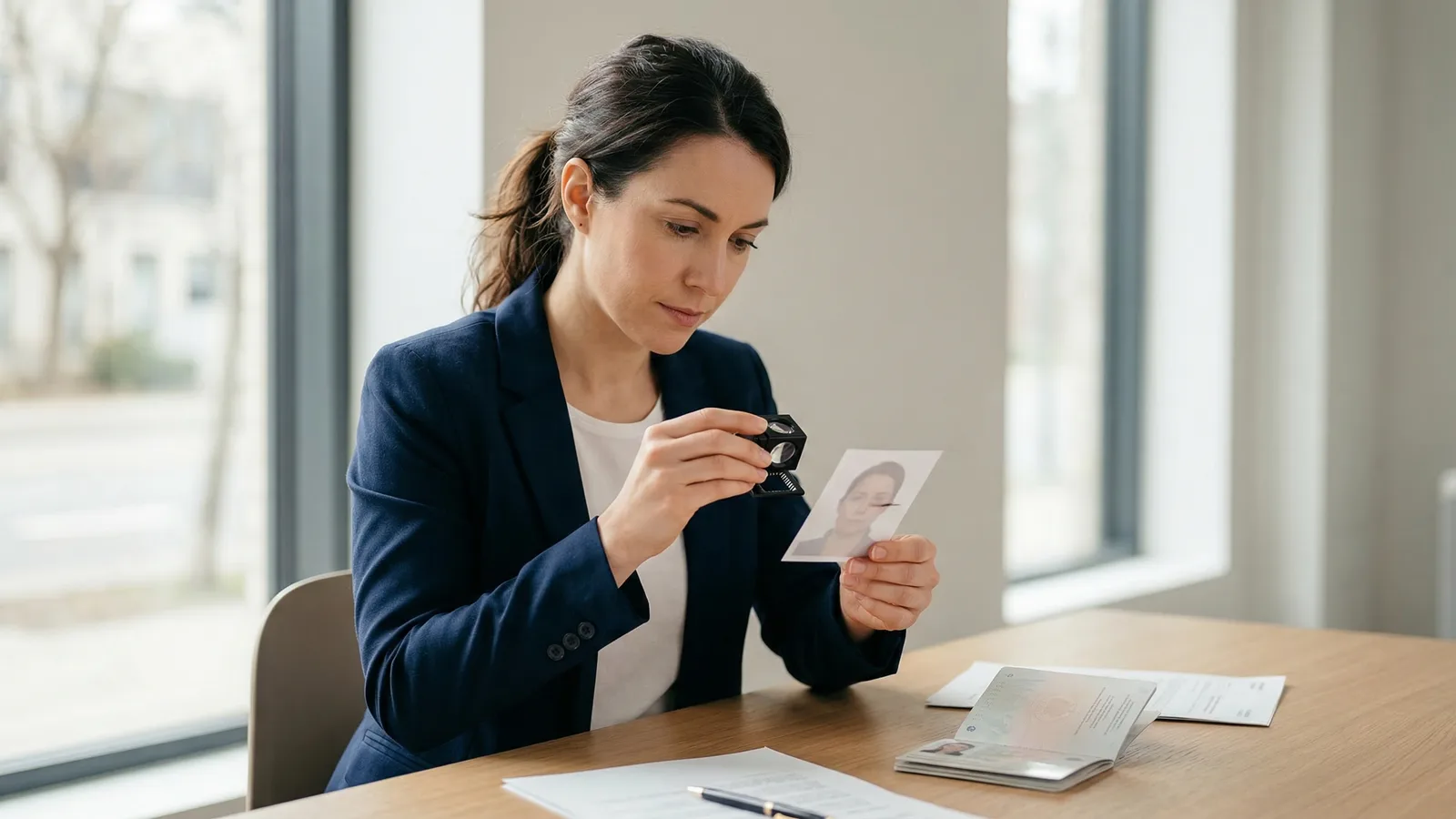
Government agencies reject more passport photos than most people expect. The US Department of State reports that photo errors are among the top three reasons for passport application delays. A rejected photo doesn't just mean retaking a picture — it means your entire application stalls, sometimes for weeks.
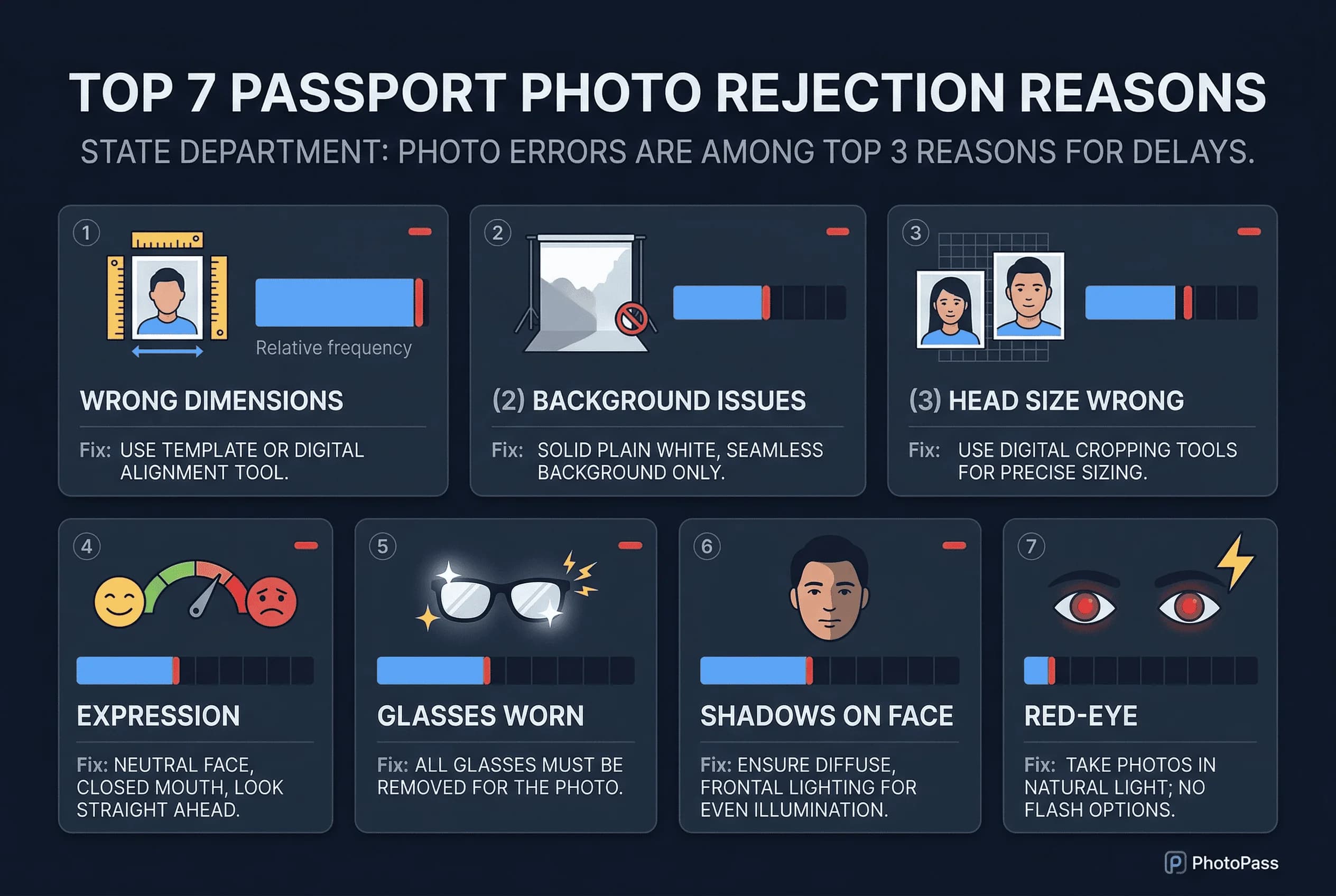
Understanding why photos get rejected is the fastest way to avoid it. Here are the seven most common failure reasons, what each one actually looks like, and exactly how to prevent it.
1. Wrong Passport Photo Dimensions
A US passport photo must be exactly 2×2 inches (51×51 mm) when printed, or 600×600 pixels at 300 DPI for digital submissions. Even a few millimetres off triggers rejection.
This sounds straightforward, but it catches people in two common ways.
Printing errors. Home printers often add margins or scale the image slightly unless you explicitly set the print size to 2×2 inches with no scaling. The "fit to page" option that many printers default to will shrink your photo slightly — just enough to fail the dimension check.
Cropping mistakes. If you crop your own photo, getting the exact pixel dimensions right is harder than it seems. A photo that's 590×600 pixels looks fine on screen but doesn't meet the specification. Online compliance tools measure this precisely; your eyes cannot.
How to fix it: Use a tool that outputs the exact required dimensions. If printing at home, set the print size manually and disable any auto-scaling. Print a test sheet and measure the output with a ruler before printing the final copy.
Get a compliant passport photo online
2. Passport Photo Background Issues
The US passport photo background must be plain white — not cream, not off-white, not light grey. The background should be uniformly white across the entire image with no visible textures, patterns, or objects.
This requirement is stricter than it appears. A wall that looks white to your eyes may photograph as slightly cream or grey depending on lighting. Textured walls — even those painted white — can create visible patterns in a high-resolution photo. Wallpaper seams, nail holes, light switch plates, and picture hooks all cause rejections.
Off-white and cream tones are the most common background failure. Your bathroom wall might look perfectly white until you photograph it under warm tungsten bulbs, which shift the white to a yellowish cream. Government scanning systems measure the actual colour values across the background area and flag anything that deviates from true white.
Shadows on the background are equally common. Standing too close to the wall casts your body shadow onto it. A single light source from one side creates a gradient across the background — bright on one side, darker on the other. Both fail the uniformity check.
How to fix it: Stand at least 30 cm (about 12 inches) from the wall. Use frontal lighting from two sources or a large window directly facing you. If your wall is off-white, either find a genuinely white surface or hang a sheet of white poster board behind you.
3. Shadows on the Face in Passport Photos
Facial shadows are one of the most common reasons photos get flagged, and they're easy to create without realising it. Overhead ceiling lights cast downward shadows under your nose, chin, and eye sockets. A single window to one side creates a bright side and a shadowed side. A lamp behind you creates a silhouette effect.
Government systems check for even illumination across the face. Any visible shadow — even a soft one under the chin — can trigger a rejection. The photo should show your face lit evenly from both sides, with no harsh contrast between highlight and shadow areas.
The most problematic setups are kitchens and bathrooms with recessed ceiling lights. These create deep nose shadows and dark eye sockets that look dramatic in person but fail compliance checks immediately. Standing directly under a ceiling light is almost guaranteed to produce rejectable shadows.
How to fix it: Face a large window during daylight hours. Indirect natural light from a window produces soft, even illumination that minimises shadows. If the window creates a slight shadow on one side of your face, place a white surface (a sheet of paper or a white towel) on the opposite side to bounce light and fill the shadow. Avoid overhead lights entirely while shooting.
4. Wearing Glasses in Your Passport Photo
Since November 2016, the US State Department does not allow glasses in passport photos. This applies to all glasses — prescription, reading glasses, clear lenses, transitions lenses, sunglasses. The only exception is if you have a signed medical statement confirming you cannot remove your glasses.
This rule still catches many applicants because it wasn't always this way. Older passports were issued with glasses in the photo, and many people assume the same rule still applies.
Note: This is a US-specific rule. The UK and Canada still allow prescription glasses in passport photos as long as the lenses are clear and there's no glare obscuring the eyes. If you're applying for a non-US passport, check your country's specific policy.
How to fix it: Remove your glasses before taking the photo. If you're concerned about how you look without them, remember that the passport photo is a biometric identification tool, not a portrait. Government systems match facial structure, not accessories.
5. Expression Problems in Passport Photos
The US accepts a neutral expression or a natural, relaxed smile — both are fine. What gets rejected is anything beyond that: exaggerated grins showing teeth prominently, frowning, squinting, raised eyebrows, or any expression that significantly alters the appearance of your face.
Both eyes must be open and clearly visible. Partially closed eyes — which happen more often than you'd think, especially with flash photography — are a rejection trigger. The photo is used for biometric facial recognition, and closed or partially closed eyes make the scan unreliable.
The UK is stricter on expression. UK passport photos require a neutral expression with the mouth closed. No smiling at all. If you're applying for a UK passport, keep your face completely neutral.
How to fix it: Relax your face before the shot. Take a breath, let your shoulders drop, and look directly at the camera. If using a timer, take several shots and choose the one where your expression looks most natural. Avoid taking the photo when you're tired — fatigue makes it harder to keep your eyes fully open.
6. Passport Photo Head Size and Position Errors
Your head must fill 50–69% of the frame height for a US passport photo, with your eyes positioned at approximately 56% from the bottom of the frame. These aren't rough guidelines — they're measured numerically by processing systems.
Too close means your head fills more than 69% of the frame. This usually happens when the photographer stands too close or when the photo is cropped too tightly. Hair may get clipped at the top, which is an immediate rejection.
Too far away means your head fills less than 50% of the frame. This creates too much empty space above and beside your head. It happens when you stand too far from the camera or when the photo is taken in landscape orientation and then cropped.
Off-centre positioning is another failure mode. Your head should be centred horizontally in the frame. A face that's shifted left or right, or tilted to one side, can fail the positioning check even if the size is correct.
How to fix it: Have the photographer stand about 1.2 metres (4 feet) away and frame you from the chest up. If taking a selfie with a timer, prop the phone at eye level on a stable surface and step back until the framing looks right. Take several shots at slightly different distances and verify the best one with a compliance tool.
7. Passport Photo Image Quality Issues
The final category covers everything about the photo's technical quality: sharpness, resolution, colour accuracy, and digital artefacts.
Blurry photos happen when the camera moves during the shot, when the autofocus locks onto the background instead of the face, or when the lighting is too dim and the camera compensates with a slow shutter speed. Phone cameras are particularly susceptible to motion blur in low light.
Low resolution is less common with modern phones but still occurs when photos are heavily cropped, taken with a front-facing camera at lower resolution, or compressed by messaging apps before upload. A US passport photo needs 600×600 pixels at 300 DPI. Sending your photo through WhatsApp or iMessage before uploading it for compliance checking may compress it below the required quality.
Colour casts from mixed lighting — for example, daylight from a window combined with warm tungsten bulbs — create an unnatural skin tone that fails quality checks. The photo should have accurate, natural colour.
Digital artefacts from heavy JPEG compression, beauty filters, or Portrait Mode bokeh effects will cause rejection. Never use filters on a passport photo, and make sure Portrait Mode (which artificially blurs the background) is turned off.
How to fix it: Use your phone's rear camera in standard Photo mode — not Portrait Mode, not selfie mode. Shoot in good light. Don't send the file through messaging apps. Upload the original file directly to the compliance tool.
What Happens When Your Passport Photo Is Rejected?
Rejection doesn't always mean starting over from scratch, but it always means delay.
For mail-in applications: The State Department sends your entire application package back with a letter explaining what needs to be corrected. You fix the photo, repackage everything, and mail it again. Total delay: 3–6 weeks, sometimes longer.
For in-person applications at acceptance facilities: The agent may catch the photo problem on the spot and ask you to retake it before accepting the application. If the issue is caught during processing after you've left, you'll receive a letter requesting a corrected photo.
For online renewals: The system may reject the photo immediately during upload, letting you retake it before submitting. If the photo passes the initial upload but fails manual review, you'll be contacted to resubmit.
In every case, the delay costs more than the photo itself. A $5 compliance check that catches the problem before submission saves weeks of waiting.
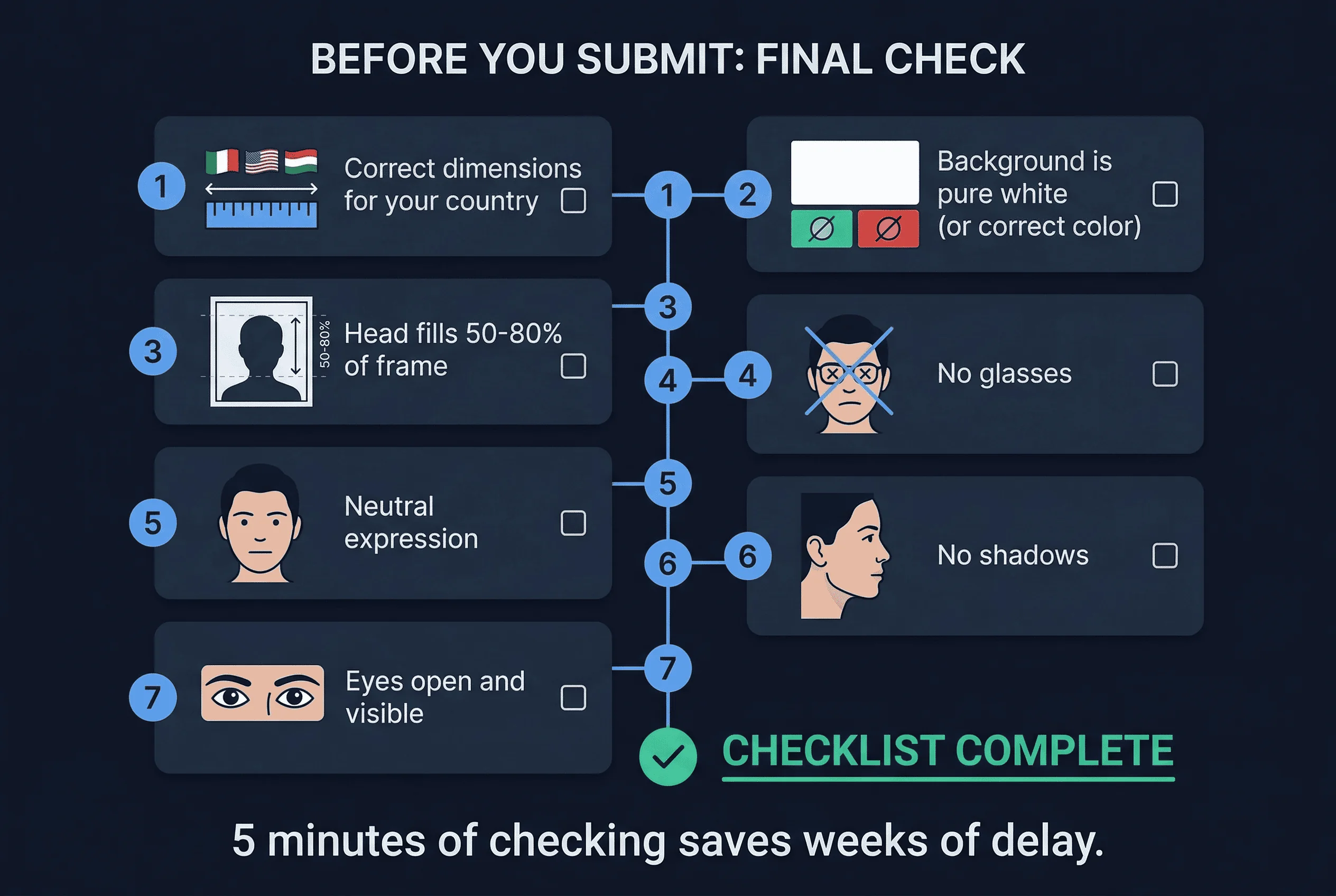
How to Avoid Every Passport Photo Rejection
The pattern across all seven failure reasons is the same: the requirement is precise, but the human eye isn't precise enough to verify it. You can't tell whether your head fills exactly 67% of the frame by looking. You can't tell whether your background is pure white (255, 255, 255) or slightly off-white (245, 240, 238) by looking. You can't tell whether a soft shadow under your chin will trigger the scanner or not.
Automated compliance checking solves this. The passportsize-photo.online compliance checker runs nine checks against exact government specifications — dimensions, head size, eye position, background colour and uniformity, lighting balance, expression, resolution, and format. Each check returns a pass or fail with specific feedback. Fix the failures, recheck for free, and submit only when everything passes.
Check the US passport photo requirements for the full specification, or read the how to take a passport photo at home guide for the complete setup walkthrough.