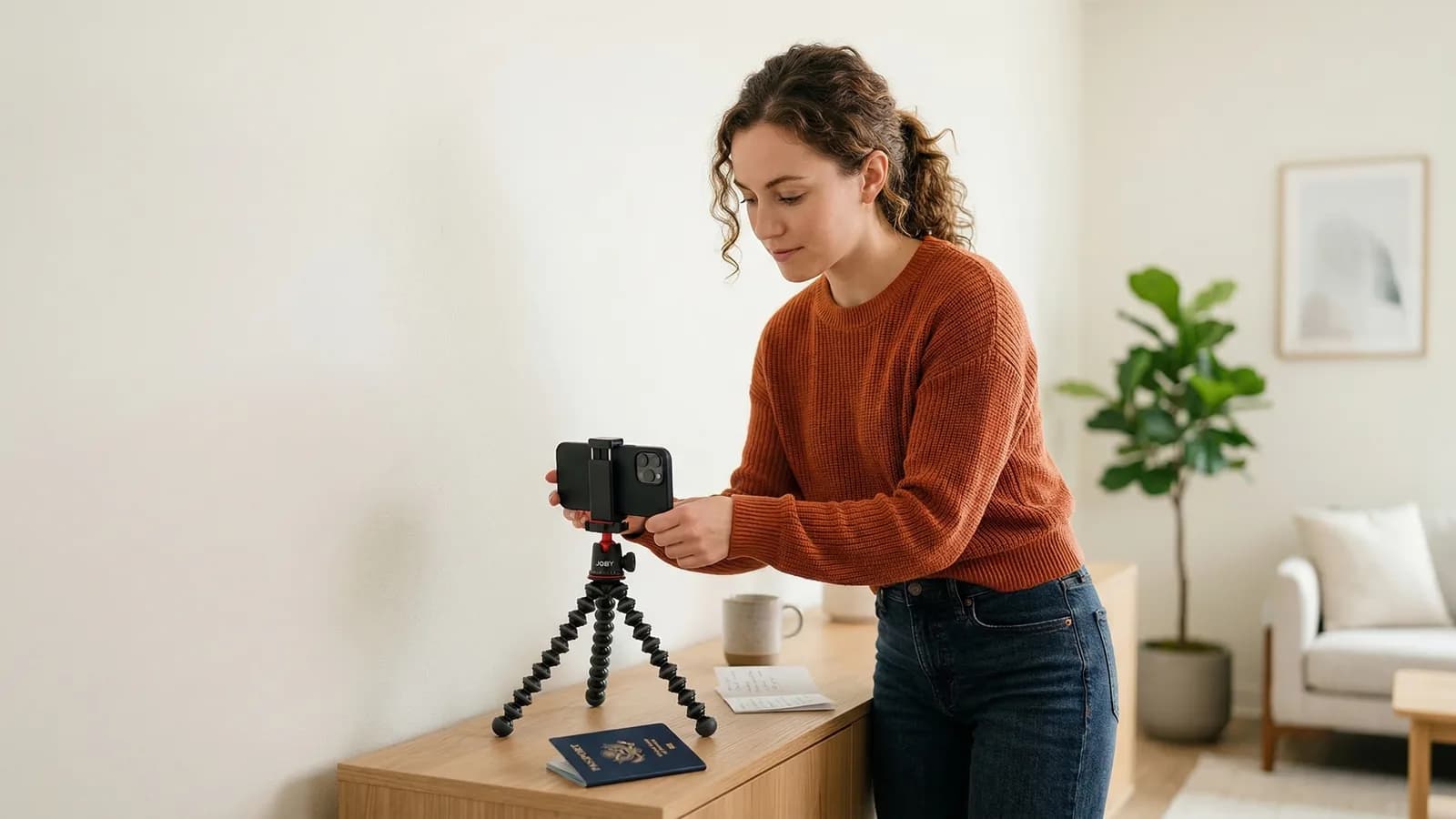
You can absolutely take your own US passport photo at home. The State Department doesn't require professional photographers — they require compliant photos. Your smartphone can produce them.
This guide covers exactly what you need, the step-by-step process, and how to ensure your photo passes the automated checks.
What You Need for a US Passport Photo at Home
Gather these items before starting:
- Smartphone — any phone from the last 5 years works
- White background — wall, sheet, or poster board
- Good lighting — natural window light is best
- A helper — you cannot take a selfie for a passport (selfies are banned)
- Mirror — for checking your appearance before the shot
- Photo editing app — for resizing to 600×600 pixels
That's it. No expensive equipment. No professional lighting. No studio rental.
Get a compliant passport photo online
Step-by-Step: How to Take a US Passport Photo at Home
Step 1: Find a White Background for Your US Photo
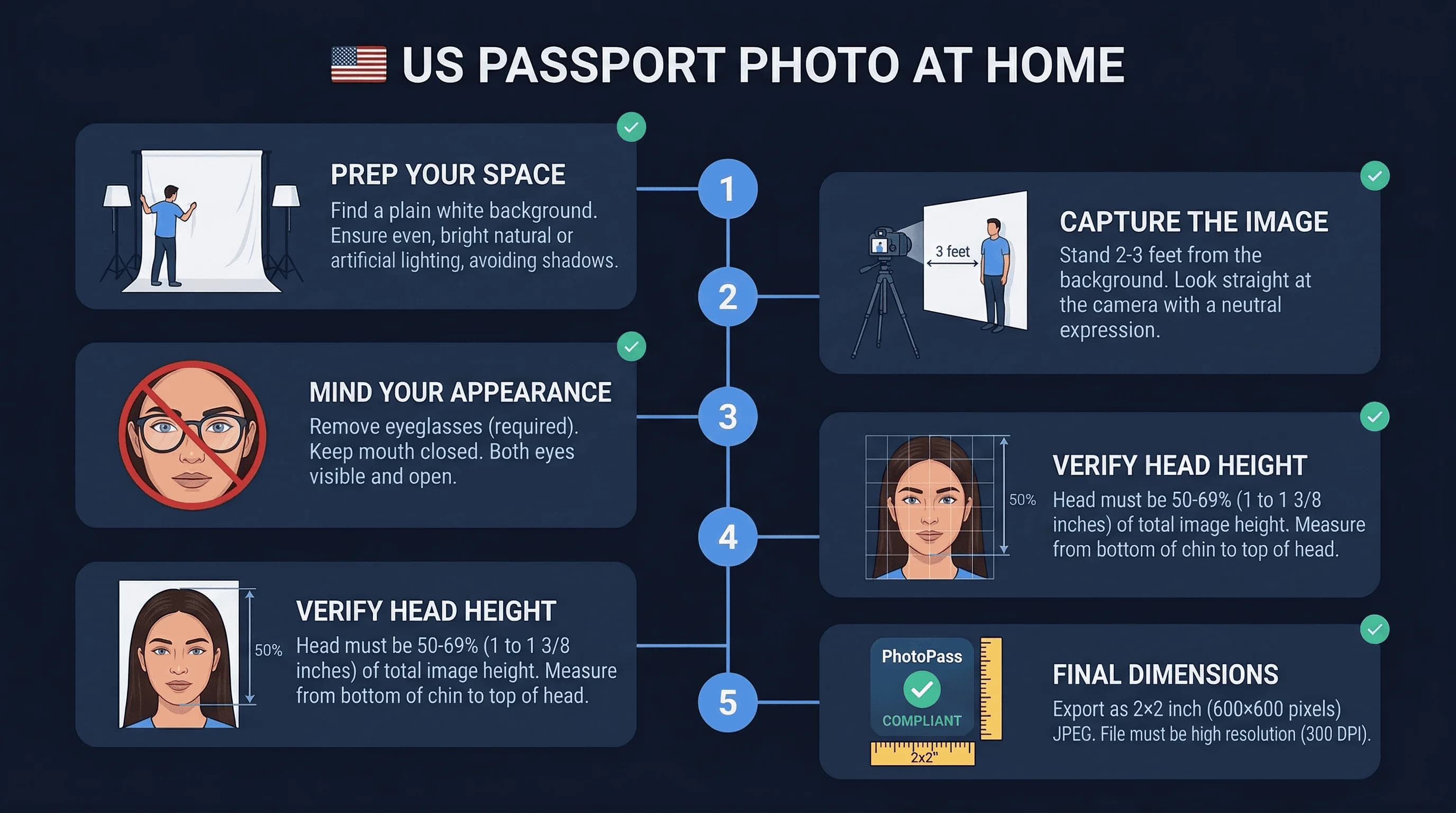
The State Department requires pure white (#FFFFFF). Find a location with:
- Plain white wall or surface
- Even lighting (no shadows on the wall)
- Nothing else in frame (no furniture, decorations, windows)
A white closet works great. A bathroom with white tiles is often perfect. A white bedsheet draped over a door is a classic solution. White poster board from a dollar store or office supply shop works excellently for under $5.
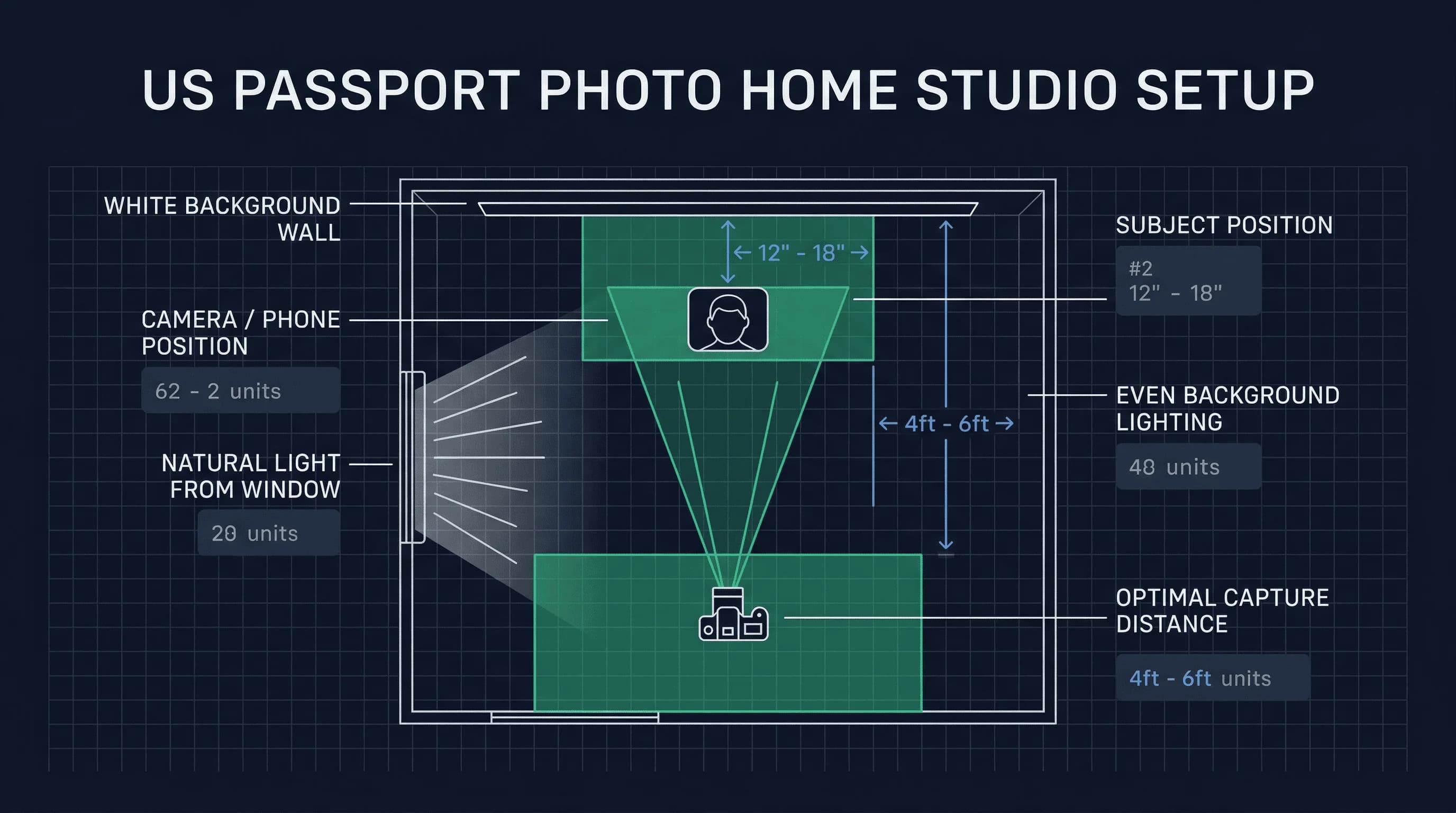
Stand 12–18 inches away from the background to prevent your body from casting shadows onto it. Take a test photo of just the background — if it looks warm, cream, or off-white on screen, find a whiter surface.
Step 2: Position Your Phone for US Passport Photos
Place your phone on a stable surface. Use the rear camera, not the front-facing one. The rear camera produces higher quality images.
If you don't have a tripod, stack some books to prop your phone at the right height. The lens should be at eye level.
Step 3: Set Up Lighting for US Passport Photos
Natural daylight is ideal. Position yourself facing a window. The window should be to your side or slightly in front of you — not directly behind you (that creates a silhouette).
If shooting at night or in a dark room, use two lamps on either side of your face at 45-degree angles. Avoid single overhead lights that create unflattering shadows.
Step 4: Prepare Your Appearance for US Photos
Before the photo:
- Remove glasses (not allowed since 2016)
- Remove sunglasses, headphones, earbuds
- Remove jewelry that frames your face
- Check that your hair doesn't cover your eyes
- Ensure your face is clean (no makeup that dramatically alters appearance)
- Solid colored clothing is best (avoid white shirts if your background is white — you'll blend in)
Step 5: Take Multiple US Passport Photo Shots
Take 15–20 photos. This isn't overkill — it's insurance. Use burst mode if available.
Review each on a larger screen (computer monitor or tablet). Eliminate any shot where:
- Background has visible shadows or discoloration
- Face is not perfectly centred
- Eyes are partially closed
- Expression looks forced or tense
- Glasses are visible (easy to forget if you normally wear them)
- Hair covers your forehead or eyes
Select your best 3–4 for cropping. Having backups means you can choose the most natural-looking frame.
Step 6: Resize to 600×600 Pixels for State Dept
Your phone likely captured a much larger image (4000×3000 pixels or similar). You need exactly 600×600 pixels for digital submission.
Use any photo editing app:
- iPhone: Open in Photos, tap Edit, use the crop tool to select 1:1 ratio at 600×600
- Android: Similar process in your gallery app
- Computer: Photoshop, Preview, Paint, or free online tools like ResizePixel
Save as JPEG. The file size should be between 20KB and 300KB.
US-Specific Tips for Home Passport Photos
The US has some unique rules:
You CAN smile. Unlike most countries, the US allows a slight natural smile. This is a key differentiator from UK, Canada, Germany, and most other nations.
But the smile must be "natural" and "slight." Don't show teeth. Don't grin from ear to ear. A gentle, natural expression works.
Head height is specific. Your head (chin to top) must be 50-69% of the image height. That's roughly from slightly below the chin to the top of your hair.
Eye line matters. Your eyes should be about 56% up from the bottom of the image.
These aren't vague guidelines — they're specific percentages the automated system checks.
No selfies. Selfies are instantly rejected. The angle is wrong, the distance is wrong, and your arm appears in frame.
Common US Passport Photo Mistakes When Shooting at Home
Mistake 1: Using a Non-White Background for US Photos
Using grey, cream, or off-white backgrounds. The system is calibrated for pure white (#FFFFFF). Light grey might pass, but it's risky.
Mistake 2: Shadow Problems in US Passport Photos
Harsh lighting creates shadows under your nose, eyes, and chin. These shadows can cause rejection.
Mistake 3: Wrong Dimensions for US Passport Photos
Saving as "2×2 inches" in your editor but using wrong pixel dimensions. Always verify: 600×600 pixels at 300 DPI.
Mistake 4: JPEG Compression Issues in US Photos
Saving as JPEG with too low quality introduces artifacts. Save as high quality JPEG (90% or above).
Mistake 5: Looking at Screen Instead of Camera Lens
Focus on the camera lens, not the phone screen. Looking at the screen makes your eyes appear to look down.
How to Check Your US Passport Photo Before Submitting
Run your photo through a validation tool before submitting. This catches:
- Dimension errors
- Resolution problems
- File size issues
- Background color problems
- Facial positioning errors
Check your US passport photo →
A two-minute check prevents weeks of delays. If something's wrong, you'll know immediately and can retake before submitting.
Lighting Tips for US Passport Photos at Home
Natural window light. The best option. Face the window so light falls evenly on your face. Overcast days produce softer, more even light than direct sun.
Avoid direct sunlight. It creates harsh shadows and makes you squint. If your window gets direct sun, hang a sheer white curtain to diffuse it.
Artificial light. Two identical lamps at 45° angles on either side with daylight bulbs (5000K–6500K). Match the bulbs — different colour temperatures create uneven tones.
Test first. Take a test photo and check for shadows on the background and face. Chin shadows and nose shadows are the most common problems.
Printing Your US Passport Photo at Home
After cropping to 600×600 pixels:
- Print at 300 DPI on 4×6 photo paper. Fit two 2×2" photos on one sheet.
- Use glossy or matte paper — both are accepted.
- Verify the printed size — each photo must measure exactly 2×2 inches.
- Print at CVS, Walgreens, or Walmart if you don't have a photo-quality printer. Upload your 4×6 layout and select 4×6 prints for under $1.
Taking US Passport Photos at Home While Abroad
If applying from abroad, the same 2×2" requirements apply at US embassies and consulates. Photo studios overseas may default to 35×45mm (the international standard) — always specify "US passport photo, 2×2 inches, square, white background, no glasses."
Verify your photo with the passportsize-photo.online checker. For size details, see the US passport photo size guide. For full US passport rules, visit the US hub.