Your iPhone camera is good enough for a passport photo. The rear camera on any iPhone from the iPhone 8 onward exceeds the resolution requirements for every country's passport photo. Most iPhones from the last five years shoot at 12 megapixels or higher—far more than the 6-10 megapixels you'd need for a compliant 2×2 inch print at 300 DPI.
This guide walks you through exactly what you need, which settings to change, and how to take the shot correctly.
What You Need to Take a Passport Photo with an iPhone
Before you start, gather these items:
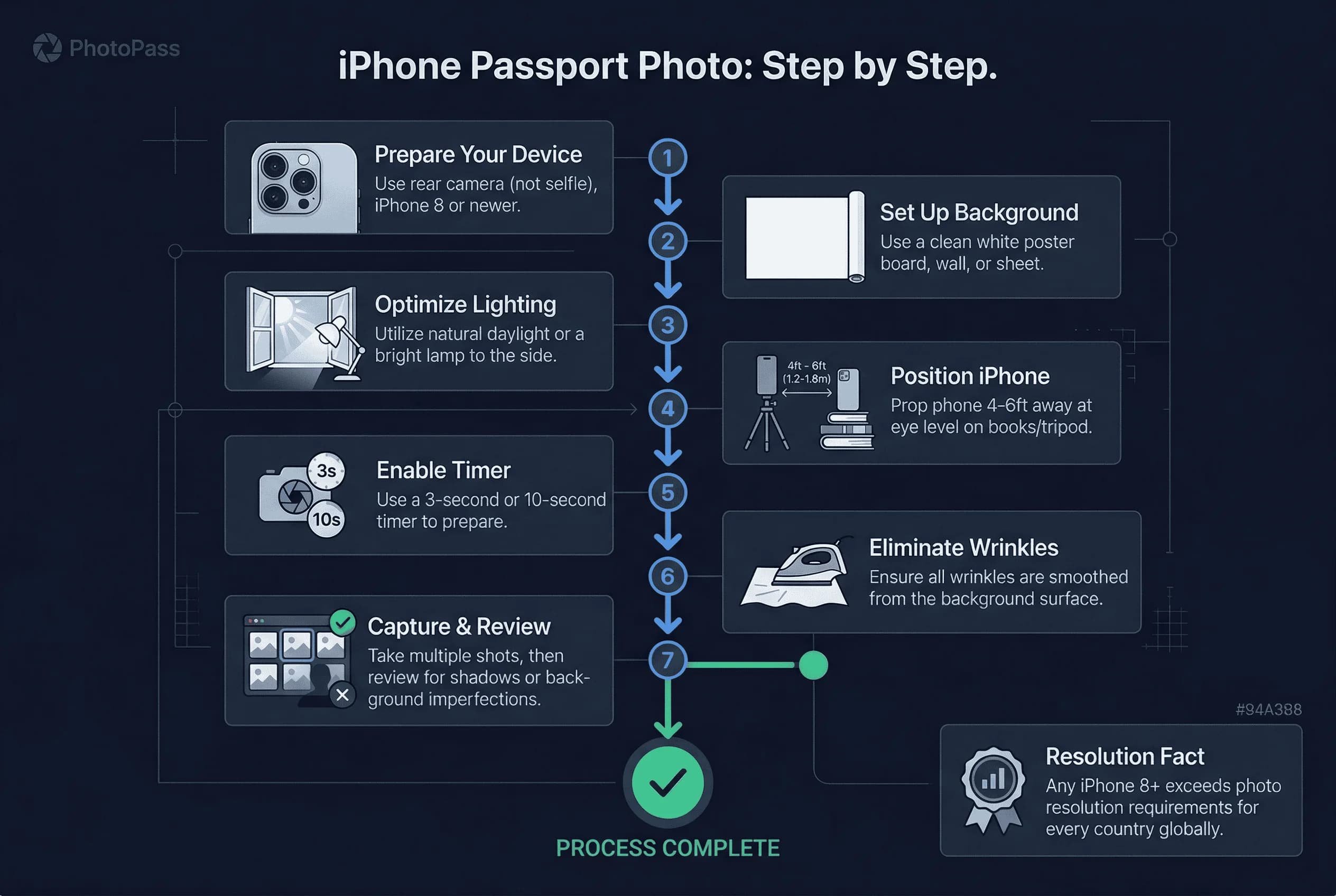
- iPhone (8 or newer) — Any model from the iPhone 8 through the latest iPhone 16 series works. The rear camera is what matters, not the front-facing selfie camera.
- White background — A white wall, white poster board, or white bedsheet. The background must be solid white and evenly lit.
- Natural daylight OR a bright lamp — Overcast daylight through a window is ideal. If shooting at night, position a bright desk lamp to your side, not directly in front or behind you.
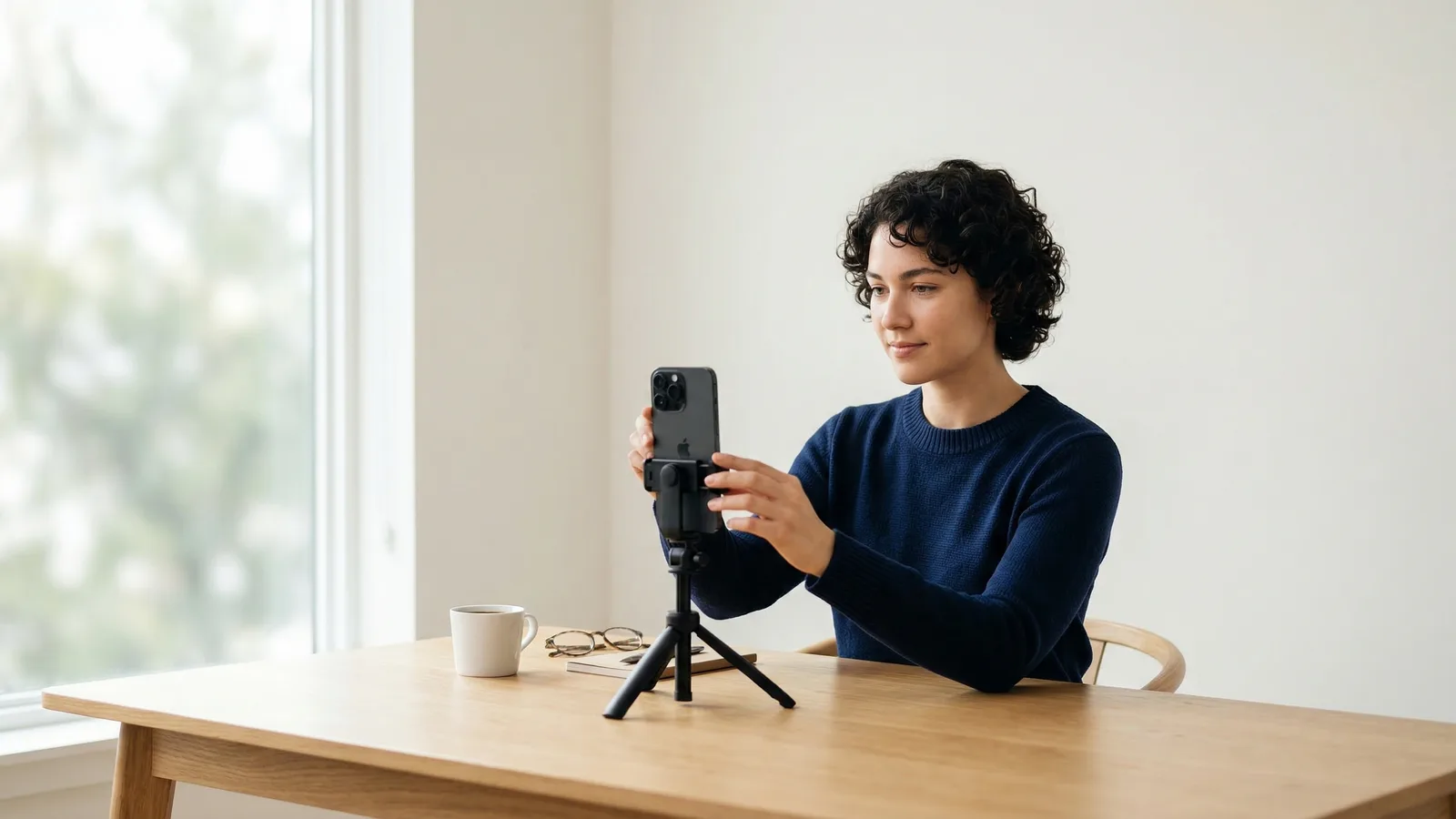
- Something to prop your phone — A stack of books, a tripod, or a phone stand. You cannot hold the phone yourself and get a stable shot.
- Timer — Your iPhone has a built-in 3-second or 10-second timer. Use it.
Get a compliant passport photo online
Step-by-Step: Taking a Passport Photo with Your iPhone
1. Set Up a White Background for the Shot
Hang your white poster board or position yourself in front of a white wall. Make sure there are no shadows on the background. If you're using a bedsheet, smooth out every wrinkle. Shadows and wrinkles get your photo rejected.
2. Position Your iPhone at Eye Level
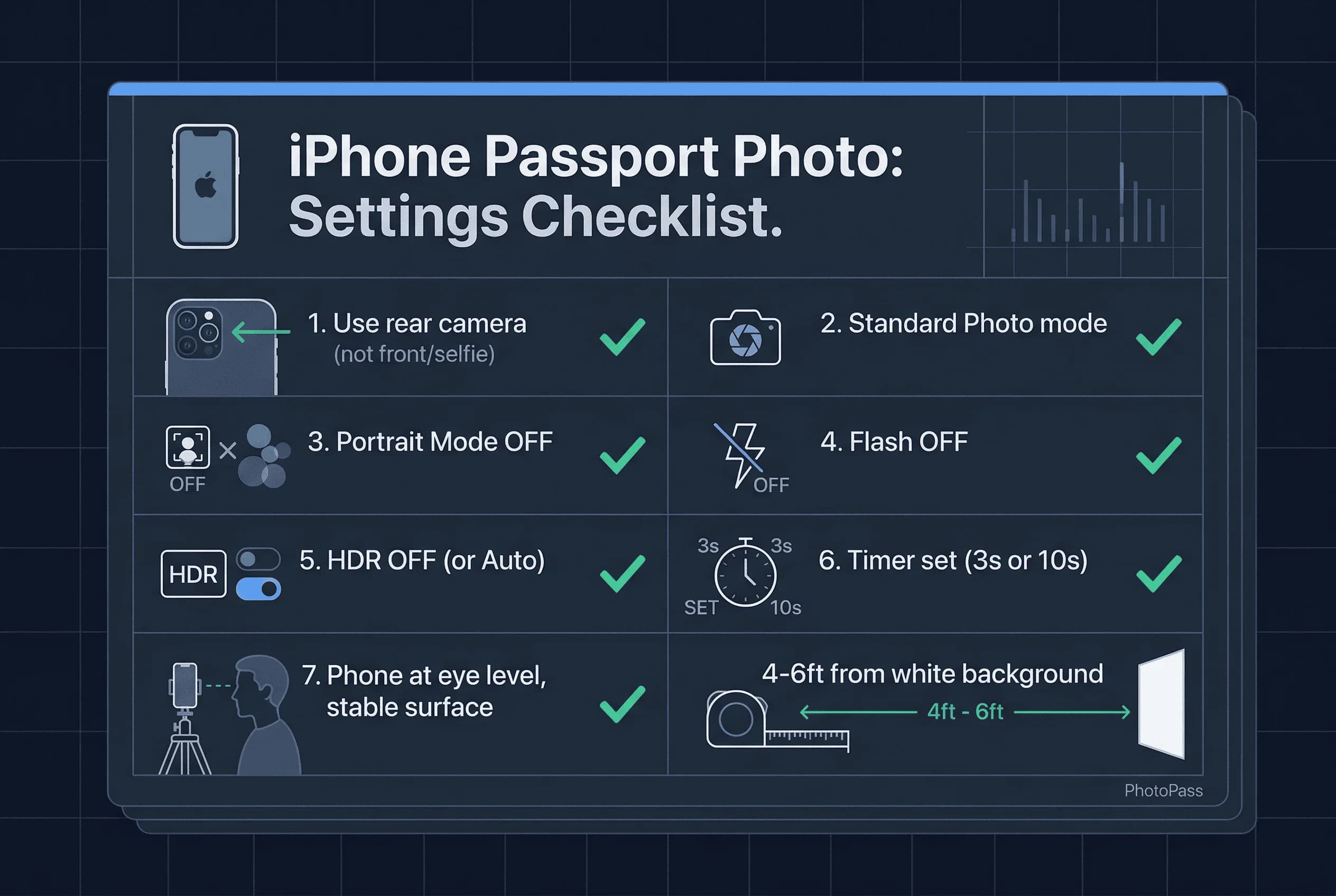
Set your phone on a stable surface—books, a table, or a tripod—about 4 to 6 feet away from where you'll stand. The phone should be at roughly eye level. Use the rear camera, not the front camera. The rear camera has higher resolution and no mirror effect.
3. Configure iPhone Camera Settings
Before you shoot, adjust these settings in your iPhone camera app:
- Turn OFF Portrait Mode. This feature blurs the background. Passport photos require the background to be sharp and in focus.
- Turn OFF Live Photos. You don't need motion; a static image is what counts.
- Turn ON Grid Lines. Go to Settings > Camera > Grid. This helps you center your face perfectly.
- Set HDR to ON. High Dynamic Range helps balance lighting across your face and the background.
- Turn OFF Flash. Flash creates harsh shadows. Use natural light or ambient room lighting instead.
- Use the highest resolution available. Most recent iPhones default to the highest setting, so you're likely covered. Check Settings > Camera > Formats > Most Compatible if you're unsure.
4. Set the Timer for a Hands-Free Shot
Use the 3-second timer. It gives you just enough time to get into position without waiting around. Tap the timer icon in the camera app, select 3s, then press the shutter button.
5. Position Yourself for the Passport Photo
Stand 4-6 feet from the camera. Your face should fill roughly 50-69% of the frame vertically—that's the sweet spot for most countries' requirements. Look directly at the lens. Keep a neutral expression. Both ears should be visible (or at least one ear if your hair covers the other).
6. Check the Shot for Shadows and Focus
Review your photo immediately. Zoom in on your face. Are both eyes visible? Is there a shadow on one side of your nose? Does the background look evenly white? If anything looks off, retake it.
Common iPhone Passport Photo Mistakes to Avoid
Using the selfie camera. The front-facing camera on any iPhone has lower resolution than the rear camera. It also flips your image horizontally, which can make your photo look subtly wrong. Always use the rear camera.
Leaving Portrait Mode on. That beautiful background blur that iPhones are famous for? It will get your passport photo rejected. Every country requires a sharp, unobstructed background. Turn it off.
Standing too close. Shooting from arm's length distorts your face. The iPhone's wide lens makes your nose look bigger and your face wider than it actually is. Back up to 4-6 feet.
Bad lighting. Harsh overhead fluorescent lights create shadows under your eyes and chin. Direct sunlight through a window creates hot spots. Indirect daylight on an overcast day is perfect. If you must use lamps, place one on each side of your face at 45-degree angles.
HEIC vs JPEG: Fix Your iPhone Photo Before You Upload
By default, iPhones save photos in HEIC format (High Efficiency Image Container). Most passport photo upload systems — including the US DS-160 — require JPEG. If you upload a HEIC file, it will likely be rejected silently or produce an error.
The easiest fix: Go to Settings → Camera → Formats → select "Most Compatible." This forces your iPhone to save all photos as JPEG. Do this before you take your passport photo, not after.
If you already took the photo in HEIC: You can convert it in several ways:
- On iPhone: Open the photo, tap Share → Save to Files → the saved file will be JPEG
- On Mac: Open in Preview → File → Export → select JPEG
- Online: Use a HEIC-to-JPEG converter (but avoid uploading your passport photo to random websites — use trusted services only)
For more detail, see our HEIC to JPEG conversion guide.
Cropping to Passport Dimensions
Your iPhone photo will be much larger than needed — a 12MP photo is roughly 4032×3024 pixels. You need to crop down to the correct dimensions.
For US passports (2×2 inches, 600×600 pixels)
- Open the Photos app → Edit → Crop
- Tap the aspect ratio button → select "Square" (1:1)
- Centre your face so your head fills 50–69% of the frame
- Save the cropped photo
- The file is now ready to upload or resize to 600×600 pixels
For UK, EU, and most other countries (35×45mm, 413×531 pixels)
- Open the Photos app → Edit → Crop
- You'll need to crop to approximately 7:9 ratio — the iPhone doesn't offer this natively, so crop by eye or use an editing app
- Leave enough space above your head and below your chin
After cropping, our passport photo checker handles the exact pixel resizing for you.
How to Verify Your iPhone Passport Photo
After you take your photo, don't just assume it works. Upload it to passportsize-photo.online's free passport photo checker to verify it meets the requirements for your specific country. The tool catches issues like wrong dimensions, shadows, and background problems before you pay for prints or submit your application.
iPhone Photo vs Professional Passport Photo Service
If you have a recent iPhone (2017 or newer), good lighting, and a white background, you can absolutely take your own passport photo. This saves $15-20 compared to a pharmacy or professional service.
However, if your iPhone is older than 2017, if you can't control lighting in your home, or if you just want the peace of mind that comes with a guaranteed-compliant photo, a professional service is worth the extra cost.
Need to verify your photo before submitting? Use passportsize-photo.online's free checker to ensure your iPhone photo meets US passport photo requirements or the requirements for your destination country.