Samsung Galaxy phones have outstanding cameras, and you can use yours to take a perfectly valid passport photo. Whether you have the latest Galaxy S25 Ultra or an older Galaxy A series, the camera hardware exceeds what any country requires for passport photo resolution.
The key is knowing which settings to adjust. Samsung's camera app includes several features designed for artistic photos that you need to turn OFF for official documents.
What You Need for a Samsung Galaxy Passport Photo
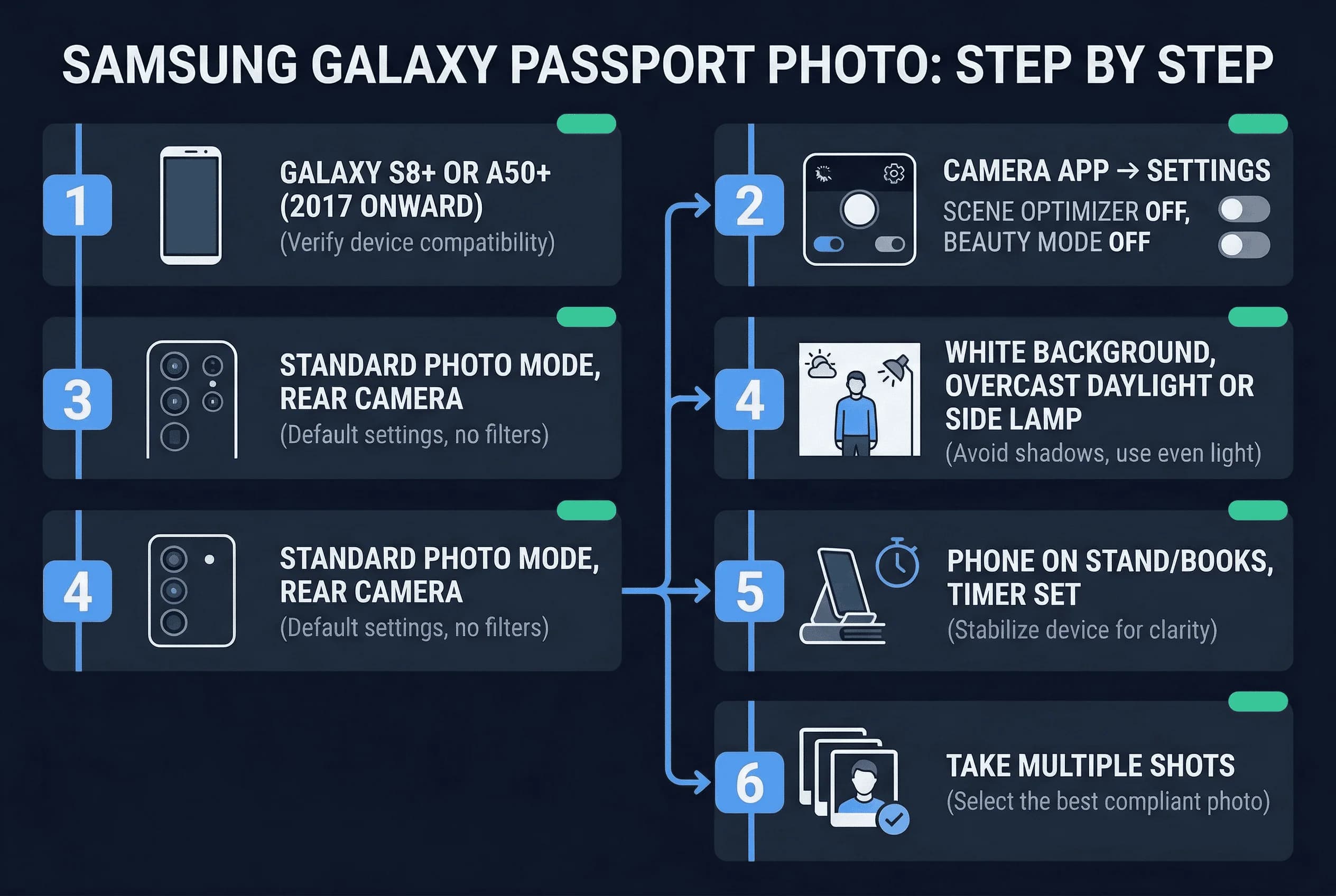
- Samsung Galaxy phone (any from 2017 onward) — Galaxy S8, S9, S10, S20, S21, S22, S23, S24, S25, or the A series (A50, A70, A80 and newer) all have sufficient camera resolution.
- White background — A white wall, white poster board, or white bedsheet. The background must be plain white with no patterns or shadows.
- Good lighting — Overcast daylight through a window works best. At night, use a bright desk lamp positioned to the side, not directly above or behind you.
- Phone stand or tripod — You need a stable surface. A stack of books, a small tripod, or a phone holder attached to a desk works well.
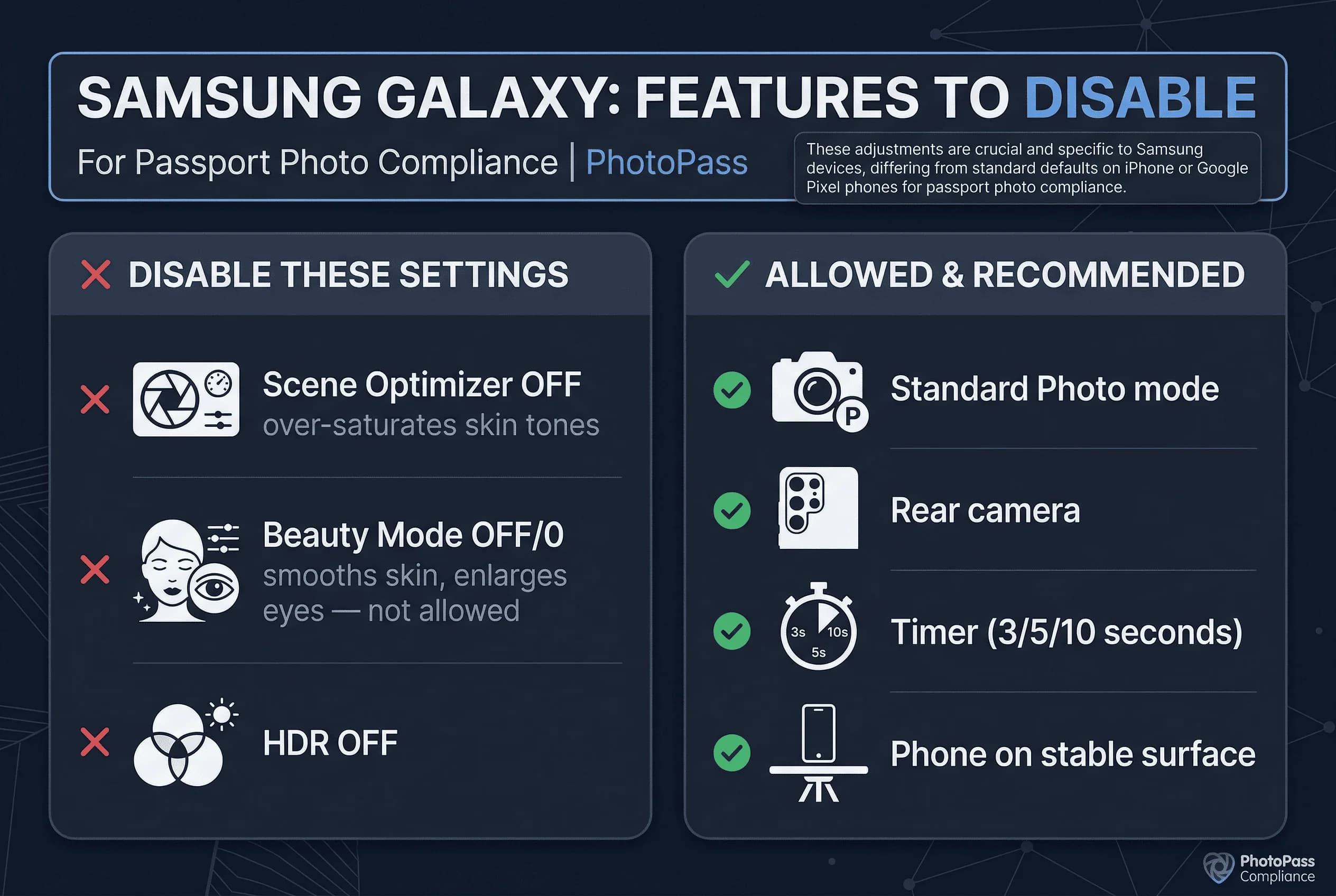
- Timer function — The Samsung camera app has a built-in timer (3 seconds, 5 seconds, or 10 seconds).
Get a compliant passport photo online
Samsung Camera Settings to Change for Passport Photos
Before you take your photo, open the Camera app and adjust these settings:
Turn OFF Scene Optimizer for Accurate Colors
Scene Optimizer is Samsung's AI feature that automatically adjusts colors and contrast based on what you're photographing. It can over-saturate skin tones or brighten shadows in ways that make your photo non-compliant. Swipe to More > Settings (the gear icon) > Scene optimizer and turn it off.
Turn OFF Beauty Mode (Alters Your Appearance)
Beauty mode smooths skin, enlarges eyes, and thins faces. These modifications are not allowed in passport photos. You need your real, unedited appearance. Find Beauty mode in the camera modes and make sure it's set to 0 or turned off entirely.
Turn OFF the Ultra-Wide Lens to Avoid Distortion
If you're using a Galaxy phone with multiple rear cameras (most models from S10 onward have ultra-wide, wide, and telephoto lenses), use the standard wide-angle lens. The ultra-wide lens distorts your face, making your nose look disproportionately large and your face wider than it actually is. Tap the lens icon to switch to the main (1x) camera.
Turn ON Grid Lines for Centering Your Face
Grid lines help you center your face correctly. Go to Settings > Grid lines and turn it on. The rule-of-thirds grid makes it easy to position your face in the center of the frame.
Turn OFF Flash and Use Natural Light
Flash creates harsh shadows on your face and background. Use natural or ambient light instead.
Set the Highest Resolution for Cropping Flexibility
Most Galaxy phones default to their highest resolution, but it's worth checking. Go to Aspect ratio in camera settings and select the highest option (usually labeled 4:3 or 3:2 with the highest megapixel count).
Step-by-Step: Taking a Passport Photo with Samsung
1. Prepare Your White Background and Lighting
Set up your white background. A white poster board leaning against a wall works perfectly. Make sure the background is evenly lit with no shadows or creases.
2. Position Your Samsung Phone at Eye Level
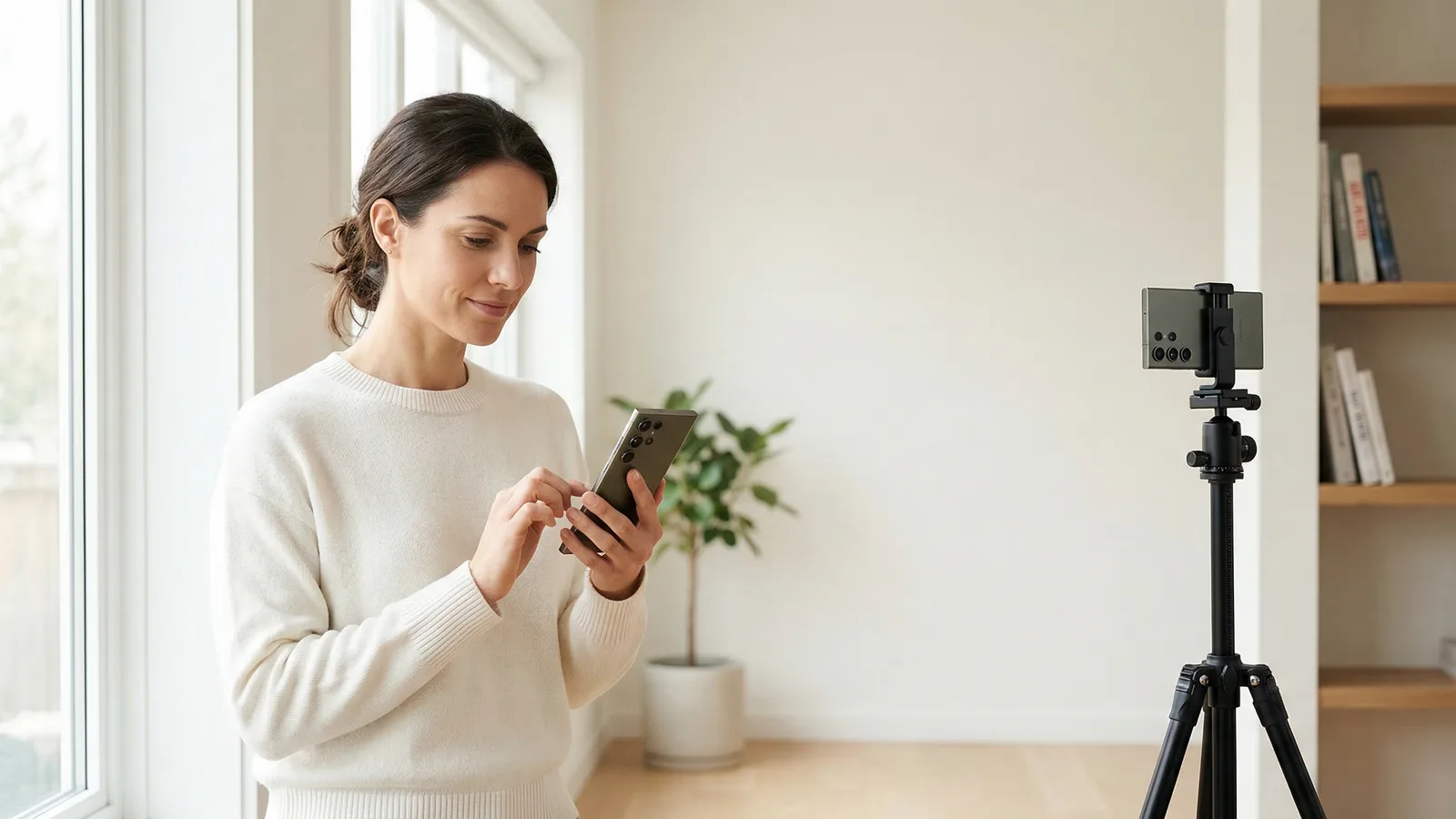
Place your Galaxy phone on a stable surface 4-6 feet from where you'll stand. The camera should be at eye level. Use the rear camera, not the front-facing camera.
3. Set Up Photo Mode and Main Lens
Open the camera app, switch to Photo mode, and select the main (1x) lens. Enable grid lines. Set the timer to 3 seconds.
4. Take the Passport Photo
Press the shutter button and move into position. Look directly at the camera lens. Keep a neutral expression—neither smiling nor frowning. Both ears should be visible, or at least one if your hair covers the other.
5. Review for Shadows and Color Accuracy
Check your photo right away. Zoom in on your face. Look for shadows on either side of your nose, under your chin, or on the background. Make sure the background is pure white with no color cast. If anything looks wrong, retake it.
Galaxy S vs A Series: Which Samsungs Take Better Passport Photos?
The Galaxy S series (S20, S21, S22, S23, S24, S25) has more advanced cameras with higher megapixel counts and better low-light performance. However, the Galaxy A series (A50, A70, A80 and newer) also shoots at 12-48 megapixels, which is more than enough for passport photos.
The main difference is that A series phones may struggle more in low light. If you're using an A series phone, make sure your lighting is excellent—bright, even daylight through a window is ideal.
Cropping and Exporting Your Samsung Passport Photo
Samsung phones save photos at very high resolution — the S24 Ultra captures 200MP images. You'll crop down significantly for passport use.
For US passports (600×600 pixels, 1:1 square)
- Open the photo in Samsung Gallery → tap the pencil icon (Edit) → Crop
- Select the 1:1 aspect ratio (square)
- Position the crop so your head fills 50–69% of the vertical frame
- Tap Save
For UK and European passports (413×531 pixels, roughly 7:9)
- Crop to a vertical rectangle — there's no built-in 7:9 ratio, so crop by eye
- Leave space above the head and include shoulders
File format: Samsung phones save as JPEG by default, which is correct. If you've enabled RAW or HEIF in Pro mode, switch back to JPEG in Camera Settings → Save Options → File Format.
One UI photo editor warning: Samsung's Gallery app includes "Object Eraser" and "Generative Edit" AI tools. Do not use these on passport photos. Any detectable AI manipulation can cause rejection. Stick to basic cropping only.
Common Samsung Galaxy Passport Photo Mistakes
Not turning off Beauty mode. This is the most common mistake. Samsung enables Beauty mode by default in some regions. Check and double-check that it's off.
Using the ultra-wide lens. The wide-angle distortion is subtle but enough to potentially cause issues. Always use the standard 1x lens.
Shooting in Night mode. Samsung's Night mode brightens shadows and can alter skin tones. Use the standard Photo mode instead.
Forgetting the timer. Holding the phone and reaching for the shutter button introduces camera shake. Use the timer.
Using the front camera. Samsung's selfie cameras apply skin smoothing and face reshaping automatically, even with Beauty mode off. The algorithms are baked into the front camera pipeline. Always use the rear camera — it gives you a more accurate, unprocessed image.
Shooting at low resolution to save space. If you've set your Galaxy to save photos at lower resolution to conserve storage, switch to full resolution before taking the passport photo. Go to Camera Settings → Photo Quality → High. The difference between a 12MP and 3MP image matters when cropping to 600×600 pixels.
How to Verify Your Samsung Passport Photo
Once you've taken your photo, upload it to passportsize-photo.online's free passport photo checker to verify it meets requirements for your destination country. This takes 30 seconds and can save you from a rejected application.
Samsung Galaxy phones produce excellent passport photos when you know which settings to adjust. The camera hardware is more than capable—it's the software features that need to be disabled. After taking your photo, verify it against US passport photo requirements or your specific country's rules before submitting.