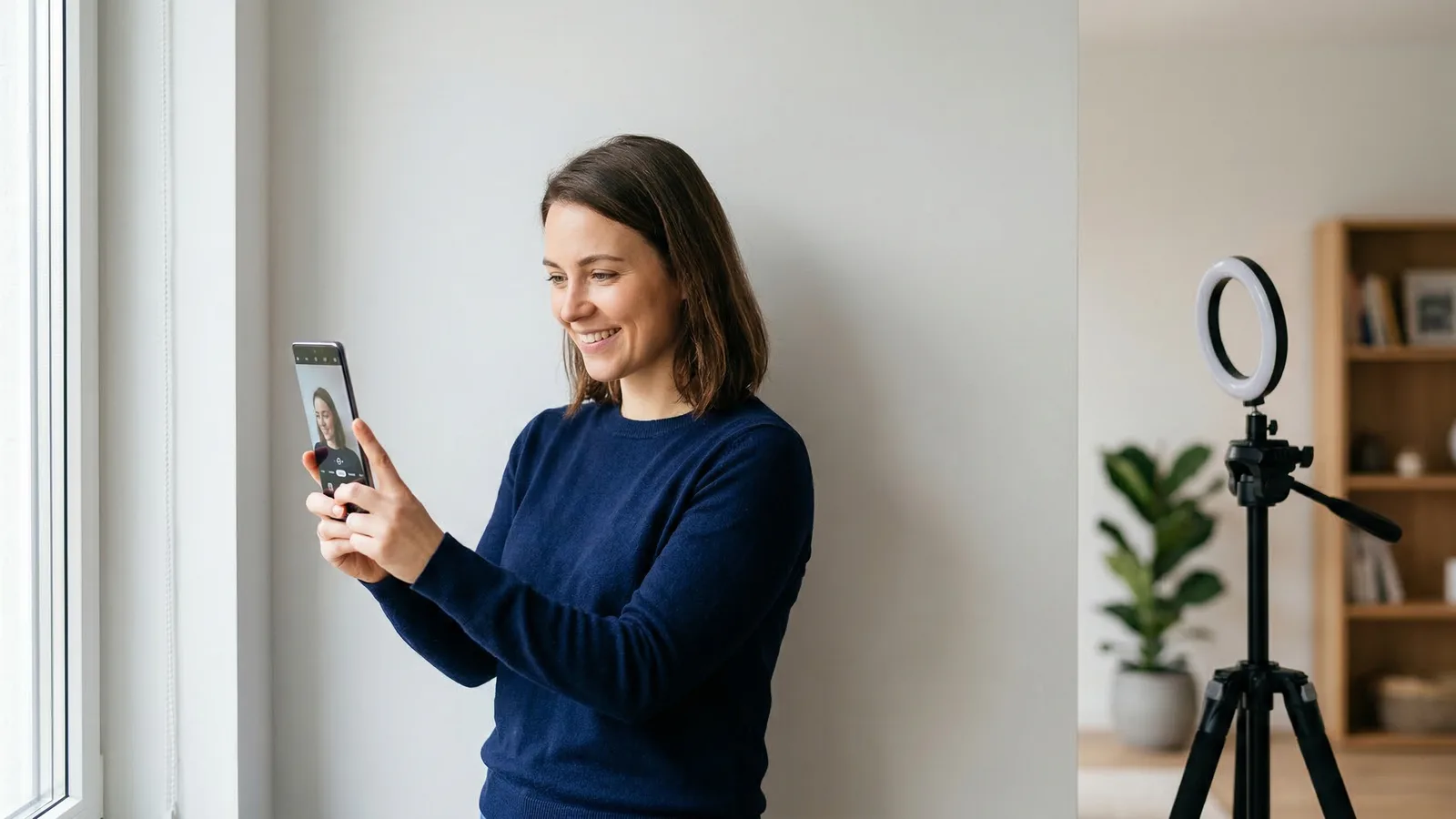
You don't need the latest flagship phone to take a passport photo. Any Android device from the last six years with an 8-megapixel camera or higher can produce a compliant image. The process is straightforward, but you'll need to pay extra attention to lighting and positioning since Android phone cameras vary widely in quality.
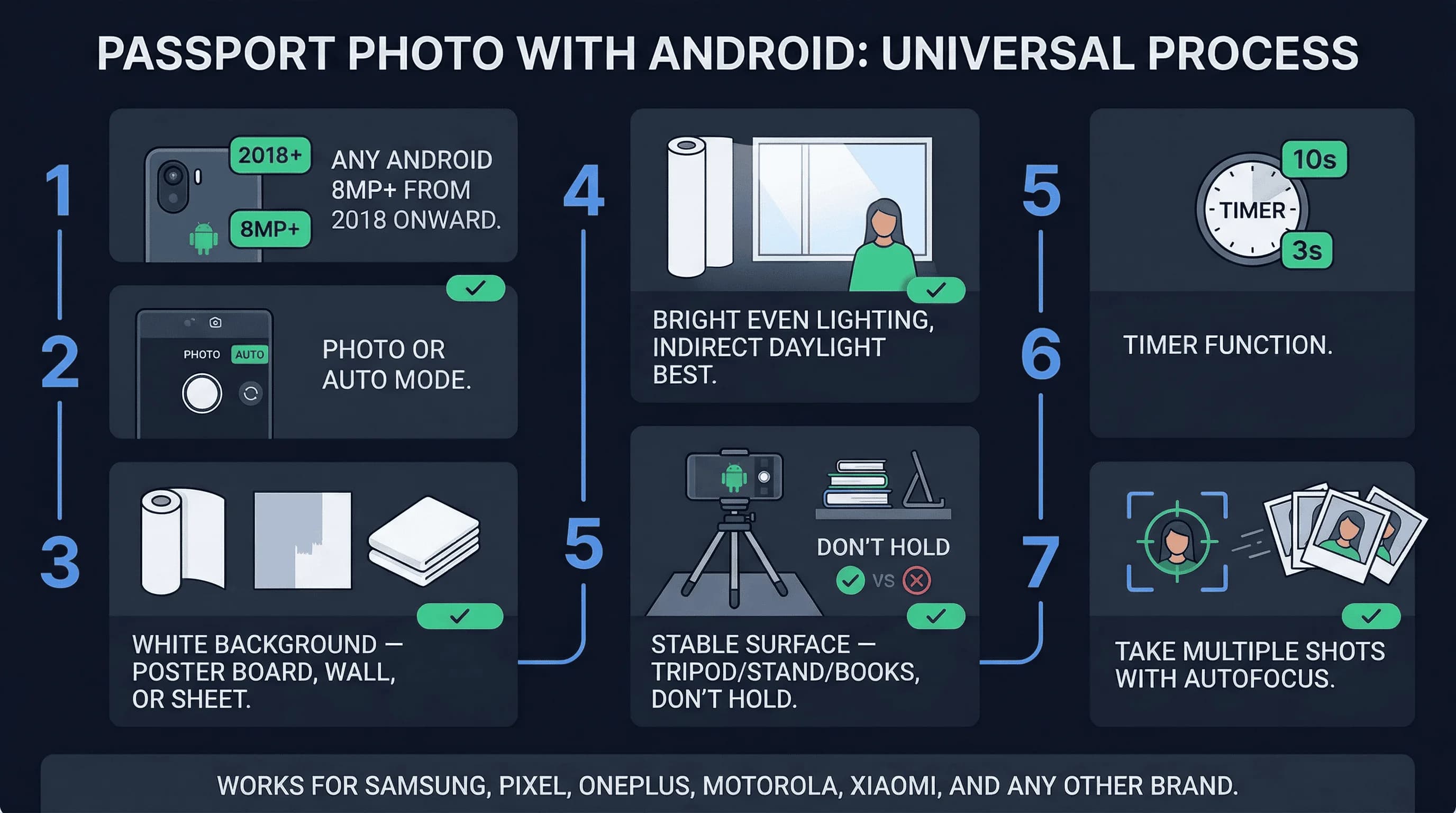
This guide works for Samsung, Google Pixel, OnePlus, Motorola, LG, Sony, Xiaomi, and any other Android manufacturer.
Minimum Android Camera Requirements for Passport Photos
Your Android phone needs:
- 8 megapixels or higher — Most phones from 2018 onward have at least 12 megapixels. Even budget phones from the last few years meet this easily.
- Autofocus — Essential for keeping your face sharp.
- Flash (or good lighting) — You won't use flash, but having it as an option means the camera is decent quality.
If your phone is from 2017 or earlier, check its specs before attempting a DIY passport photo. Older phones may have insufficient resolution.
Get a compliant passport photo online
What You Need to Take a Passport Photo on Android
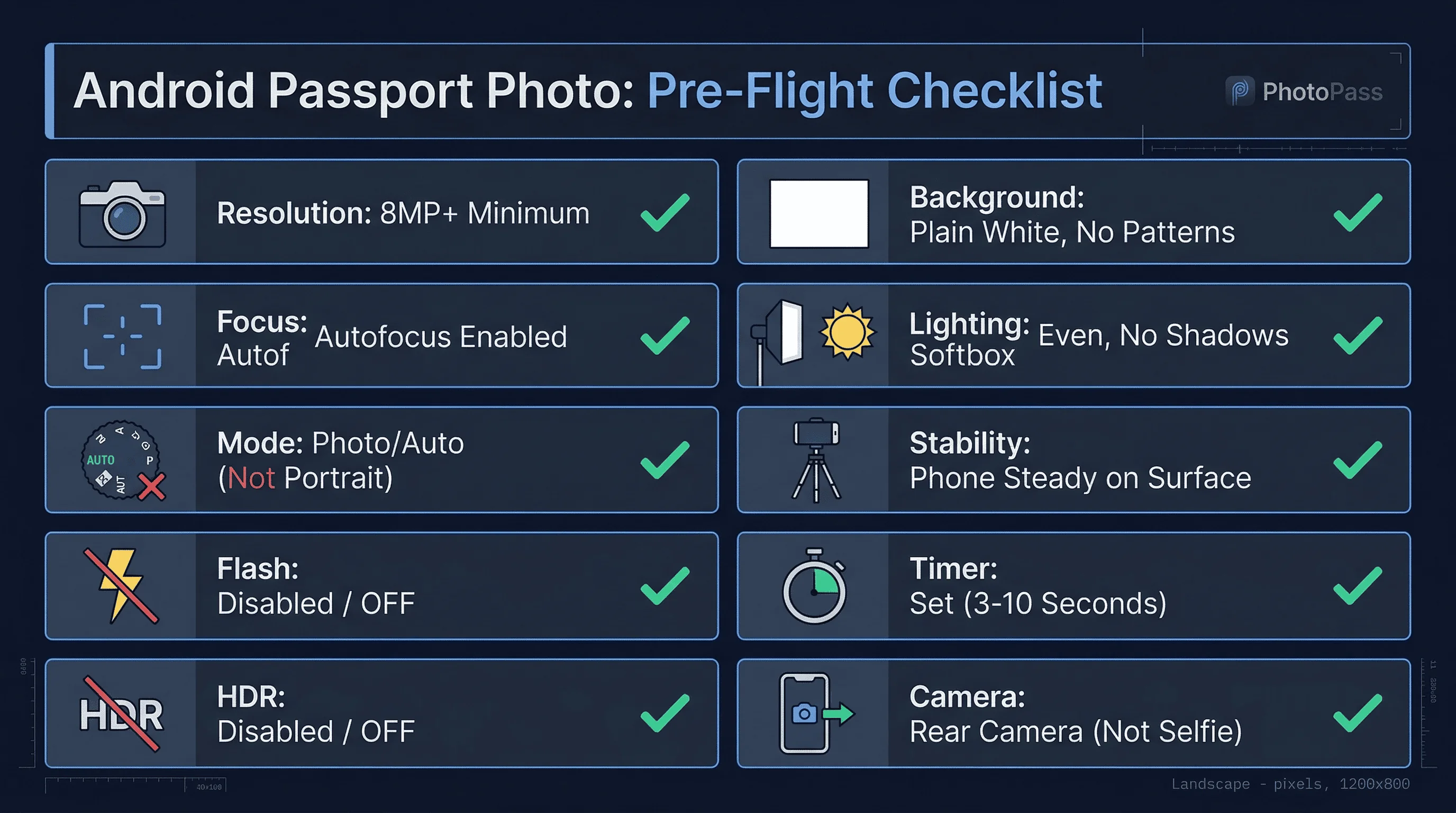
- Android phone (8MP camera or newer) — Works with any brand or model.
- White background — White poster board, white wall, or white bedsheet. Must be solid white with no patterns.
- Strong, even lighting — This matters more with Android phones than with iPhones or Galaxies, especially if you have a budget device. Bright, indirect daylight is best.
- Stable surface — A tripod, phone stand, or stack of books. Don't hold the phone.
- Timer — Most Android camera apps have a timer option.
Step-by-Step: Taking a Passport Photo with Android
1. Find Your Android Camera App
Android phones use different camera apps depending on the manufacturer. Look for an app called "Camera," "Camera Pro," or something similar. If your phone has multiple camera modes, stick to "Photo" or "Auto" mode.
2. Turn Off Beauty and Filter Modes
Most Android phones include beauty smoothing, face slimming, or skin-smoothing filters. These must be turned OFF. Look for:
- Beauty mode
- Skin smoothing
- Face slimming
- Any filter labeled "warm," "vivid," or "enhanced"
Set any slider to 0 or turn the feature off entirely.
3. Set Resolution to Maximum
Find your camera settings (usually a gear icon or "More" menu). Look for "Resolution" or "Aspect ratio" and select the highest option available. More pixels give you more flexibility when cropping.
4. Enable Grid Lines for Framing
Grid lines help you center your face. Most camera apps have this in settings under "Grid lines," "Composition lines," or "Rule of thirds."
5. Turn Off Flash for Natural Light
You'll use natural or ambient light, not the flash. Flash creates harsh shadows that ruin passport photos.
6. Set the Timer for a Hands-Free Shot
Enable a 3-second or 10-second timer so you don't have to touch the phone after pressing the shutter.
7. Position Your Phone at Eye Level
Place your phone 4-6 feet from where you'll stand. The camera should be at eye level. Use the rear camera, not the front-facing camera.
8. Set Up Your White Background
Hang or prop your white background so it's evenly lit with no shadows or wrinkles.
9. Take the Passport Photo
Look directly at the camera lens. Keep a neutral expression. Make sure both ears are visible (or at least one if your hair covers the other). Your face should fill about 50-69% of the frame vertically.
10. Review and Retake if Needed
Check your photo immediately. Zoom in on your face. Look for:
- Shadows on either side of your nose
- Shadows under your chin
- Uneven lighting on the background
- Blur or softness
- Wrong colors or color casts
If anything looks off, retake it. You can take unlimited photos at home.
Why Lighting Matters More on Android
Android phones span a huge range of quality. A $1,000 Samsung Galaxy has a vastly different camera than a $150 Motorola Moto G. Budget phones often struggle in low light, producing grainy or noisy images.
To compensate, prioritize excellent lighting:
- Natural daylight is best. Position yourself near a window on an overcast day. The clouds diffuse sunlight perfectly.
- Avoid direct sunlight. Harsh sun creates hot spots and deep shadows.
- Use lamps if needed. Place two desk lamps on either side of your face at 45-degree angles. Use the same wattage for both.
- Check for shadows. Look at your face in the camera preview. If you see shadows on one side, adjust the lighting.
Cropping and Exporting Your Android Passport Photo
After taking your photo, you need to crop it to the correct passport dimensions. Your Android camera saves photos much larger than needed — even a 12MP camera produces images around 4000×3000 pixels.
For US passports (2×2 inches / 600×600 pixels)
- Open the photo in Google Photos or your default gallery app
- Tap Edit → Crop → select the "Square" (1:1) aspect ratio
- Position the crop so your head fills 50–69% of the vertical frame
- Save the cropped photo
For UK and most European passports (35×45mm / 413×531 pixels)
- Crop to approximately 7:9 ratio (not available in most default apps, so crop by eye)
- Centre your face and leave space above your head
- Save the cropped photo
Check your file format. Most Android phones save photos as JPEG by default, which is correct. If your phone saves in HEIF or RAW format (some Samsung and Google phones do), go to Camera Settings → File Format and switch to JPEG before taking the photo.
Check file size. US visa applications (DS-160) require JPEG files under 240KB. A cropped 600×600 pixel photo at 80% JPEG quality is typically 50–150KB, well within limits.
Our passport photo checker handles resizing and format conversion automatically — upload your cropped photo and it produces a ready-to-use file in the correct dimensions.
Common Android Passport Photo Mistakes
Using the front camera. Front cameras have lower resolution and often apply beauty filters by default. Always use the rear camera.
Leaving beauty mode on. This is the most common issue. Check carefully in your camera app settings.
Standing too close. Wide-angle lenses on budget phones distort your face. Stay 4-6 feet back.
Ignoring the background. Budget phones may not focus as precisely. Make absolutely sure your background is sharp white.
Not checking resolution. Some phones default to lower resolution to save storage. Verify you're shooting at maximum quality.
Shooting in the wrong aspect ratio. Some Android phones default to 16:9 (cinematic) aspect ratio, which crops off the top and bottom of the frame. For passport photos, use 4:3 — this gives you the most pixel area for cropping to either a 1:1 square (US) or 7:9 rectangle (European).
How to Verify Your Android Passport Photo
Upload your photo to passportsize-photo.online's free passport photo checker to verify it meets requirements. The tool checks dimensions, background whiteness, facial positioning, and other compliance factors specific to your destination country.
Android phones are fully capable of producing passport photos. The main differences from premium phones are in low-light performance and ease of use—budget phones just require more attention to lighting and positioning. Once you've taken your photo, check the general passport photo requirements to ensure compliance before submitting your application.