Government passport photo portals require JPEG files. If your iPhone shoots in HEIC format, you need to convert before uploading — or you'll spend hours trying to figure out why nothing works.
Why Does Your iPhone Save Photos as HEIC Instead of JPEG?
Apple switched to HEIC (High Efficiency Image Format) as the default in iOS 11. The format compresses photos to about half the size of equivalent JPEG files while maintaining similar quality. That efficiency matters when you're storing thousands of photos on your phone.
The problem: HEIC isn't universally supported. Government websites, especially US federal portals, built their systems around older formats. The DS-160 visa application form, state department portals, and many country-specific systems only accept JPEG (or occasionally PNG). They won't accept HEIC files at all.
Your iPhone doesn't tell you it's shooting HEIC. The photos look fine on your phone. But the moment you try to upload one to a government site, you'll encounter errors, failed uploads, or rejected applications.
Get a compliant passport photo online
Method 1: Change iPhone Camera Settings to Shoot JPEG
The easiest permanent fix is to make your iPhone shoot JPEG instead of HEIC going forward.
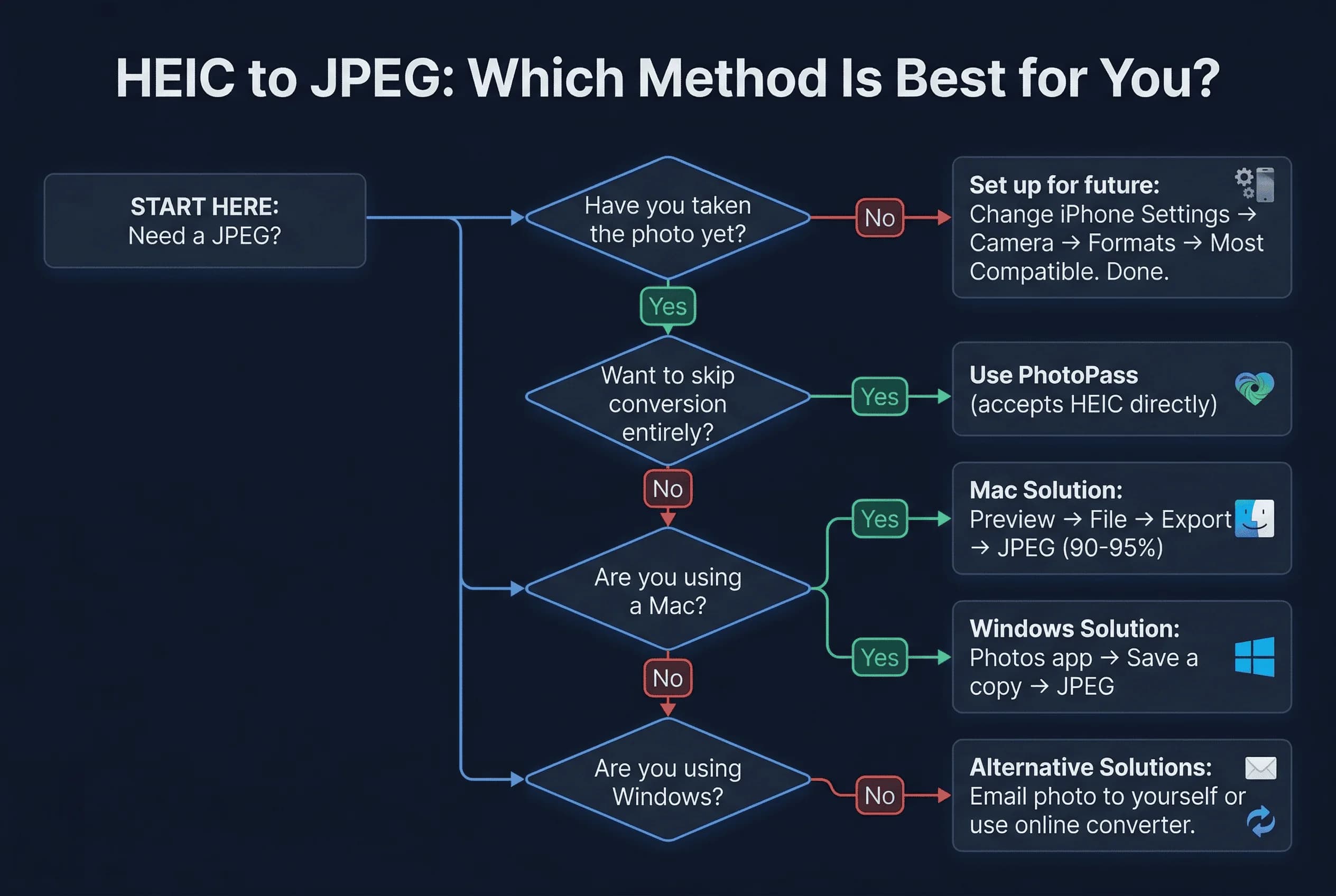
Go to Settings > Camera > Formats. You'll see two options: "High Efficiency" and "Most Compatible." Select "Most Compatible." Your iPhone now captures photos in JPEG format for the rest of its life.
This is the simplest solution if you haven't taken your passport photo yet. Change the setting, then take your photo. You'll never deal with the conversion problem again.
The trade-off: your photos will take up roughly twice the storage space. For most people, this matters less than you'd think — phone storage keeps getting cheaper, and a few passport photos won't make a meaningful difference.
Method 2: Convert an Existing HEIC Photo to JPEG
If you've already taken a photo in HEIC, you need to convert it. Several options exist depending on what device you're using.
On Mac: Open the HEIC photo in Preview. Click File > Export. Select JPEG from the format dropdown. Choose your quality setting (more on that below), then click Save. The converted file appears alongside your original.
On Windows: Open the HEIC file in the Photos app. Click the three-dot menu and select "Save a copy." Choose JPEG as the format. Windows may prompt you to install the HEIF Image Extensions from the Microsoft Store first — do that, then try again.
Online converters: Several websites convert HEIC to JPEG without uploading your photo to a server. Free online tools like heictojpeg.com process everything locally in your browser. This protects your privacy, which matters for sensitive documents.
Method 3: Use AirDrop or Email to Auto-Convert HEIC to JPEG
Here's a technique that doesn't require any apps or settings: send the HEIC photo to a non-Apple device.
If you AirDrop the photo to a Mac, Windows PC, or Android phone, iOS automatically converts it to JPEG during the transfer. The recipient gets a JPEG file ready for upload. This works because non-Apple devices can't read HEIC natively, so iOS handles the conversion silently.
Similarly, email the HEIC photo to yourself. The email server forces the conversion, and you download a JPEG when you check your mail on a computer.
This trick is surprisingly effective and requires zero technical knowledge. It does add an extra step, but it's faster than installing converters if you just need one or two photos.
JPEG Quality Settings for Passport Photo Conversion
When exporting or converting to JPEG, quality settings matter more than most people realize.
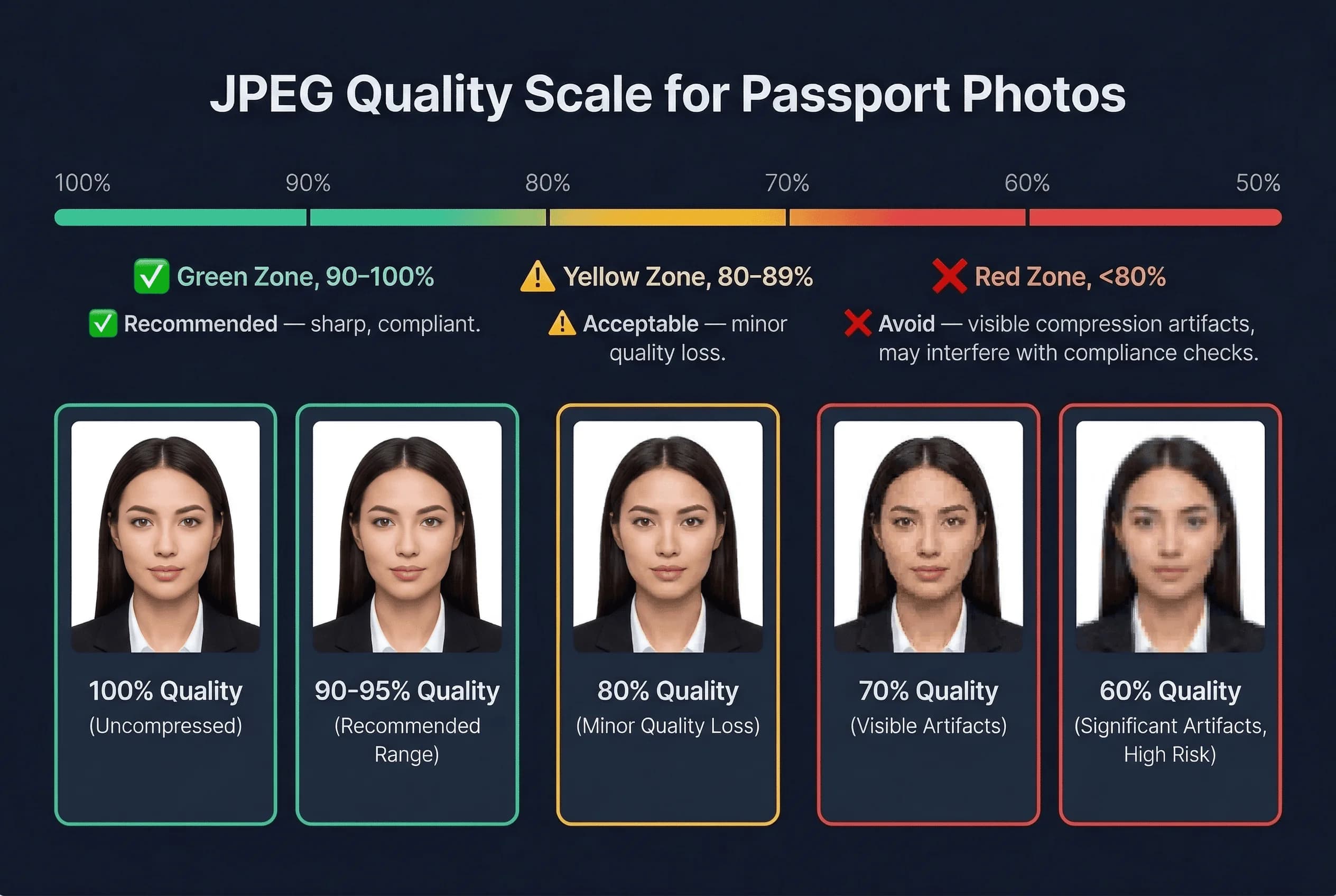
For passport photos, use JPEG quality between 90% and 95%. This preserves enough detail for facial recognition systems while keeping the file size reasonable. Going below 80% creates visible compression artifacts — blocky patterns and color banding that could potentially interfere with compliance checks.
Here's the practical range:
- 100%: Maximum quality, largest file size
- 90-95%: Recommended for passport photos — sharp and compliant
- 80%: Acceptable but starting to show quality loss
- 70% and below: Avoid — compression artifacts visible
If you're unsure, 90% is the safe middle ground. It produces files small enough to upload (most portals limit file sizes) while maintaining professional quality.
Passport Photo File Size After HEIC to JPEG Conversion
Government upload portals have strict file size limits. The US DS-160 visa application requires JPEG files between 54KB and 240KB. The UK passport portal has similar limits.
HEIC files are typically 1–3MB. After converting to JPEG, your file will be larger — often 2–6MB for a full-resolution 12MP photo. You'll need to resize before uploading.
The workflow: Convert HEIC to JPEG first, then resize to the correct pixel dimensions (600×600 for US, 413×531 for UK, etc.), then check file size. A 600×600 JPEG at 90% quality is typically 50–150KB — well within the 240KB DS-160 limit.
If your converted JPEG is too large after resizing, reduce the quality slider to 80–85%. The visual difference is imperceptible at passport photo sizes.
Common HEIC to JPEG Conversion Problems for Passport Photos
Photo looks darker after conversion. Some HEIC files use Display P3 colour space (a wider colour gamut) that gets clipped when converting to sRGB JPEG. The result can look slightly darker or less vibrant. This usually isn't enough to cause a compliance failure, but check the background — if it shifted from white to slightly grey, the conversion may need adjustment.
Colour shift in background. A pure white background in HEIC may appear slightly warm (yellowish) or cool (bluish) after JPEG conversion, depending on the tool used. Compare the converted JPEG to the original on your phone. If the background looks noticeably different, try a different conversion method.
File won't open on Windows. Windows 10 doesn't natively support HEIC files without the "HEIF Image Extensions" from the Microsoft Store. Install this free extension first. Windows 11 supports HEIC natively.
"Image cannot be uploaded" errors on government portals. Even after converting to JPEG, some files carry HEIC metadata that confuses older upload systems. Open the JPEG in any photo editor (Preview, Paint) and re-save it. This strips leftover metadata and produces a clean JPEG file.
Do Android Phones Need HEIC to JPEG Conversion?
Android phones generally save photos as JPEG by default. If you're using a Google Pixel set to "High Quality" storage mode, or a Samsung phone in RAW format, you may encounter HEIF files — the same format as HEIC under a different extension. The same conversion methods apply: open in any photo editor and export as JPEG.
Most Android users won't need this guide. It's primarily an iPhone issue caused by Apple's default HEIC format since iOS 11. If you're not sure what format your phone uses, check the file extension — .heic needs conversion, .jpg or .jpeg is already correct.
A Simpler Way to Convert HEIC Passport Photos
passportsize-photo.online accepts HEIC files directly. You upload your iPhone photo without any conversion, and the system handles the format internally. This eliminates the entire conversion step if you'd rather skip it.
The conversion methods above work fine if you prefer to handle it yourself. But if you want the fastest path, upload directly to a service that supports HEIC and skip the extra steps.
For more iPhone photography tips, read our guide on taking passport photos with your iPhone. And before you upload, verify your photo meets all requirements using the passportsize-photo.online checker.