Resizing a photo to passport dimensions is straightforward with the right tools. You need to convert pixels to inches at the correct DPI, maintain the aspect ratio, and ensure your face stays properly positioned.
This guide covers free tools that work on Mac, Windows, and online.
Understanding the Math Behind Passport Photo Sizing
Passport photos require specific physical dimensions, not just pixel dimensions. Here's the key relationship:
- 2 inches × 300 DPI = 600 pixels
- US passport photos must be exactly 2×2 inches
- At 300 DPI (dots per inch), that's 600×600 pixels
If your photo is larger (most smartphone photos are 12MP or more, meaning thousands of pixels per side), you crop rather than stretch. Stretching distorts your face.
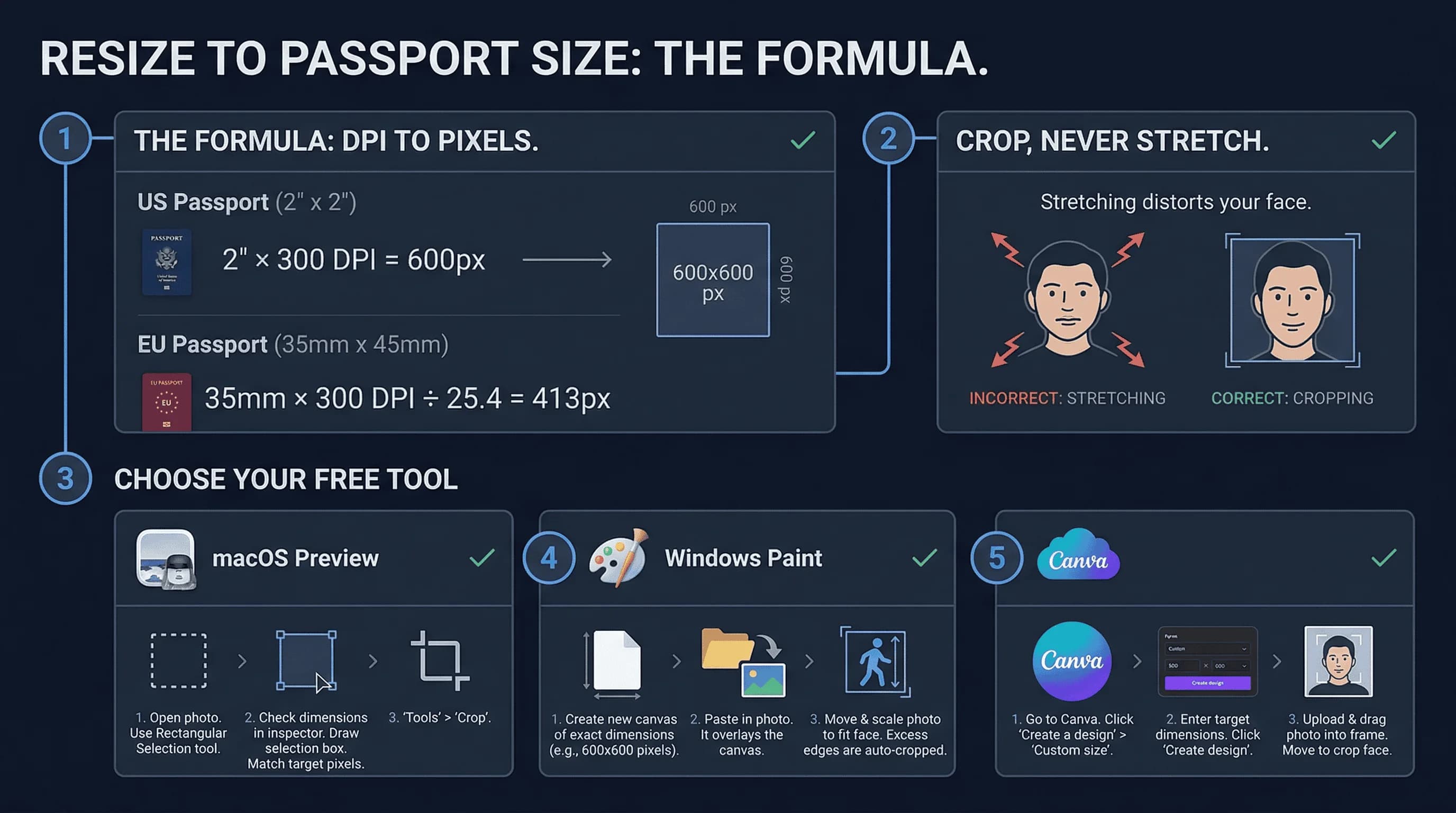
The rule: Resize by cropping, never by stretching. Make the image smaller to fit the dimensions, but never stretch or squash it.
Get a compliant passport photo online
Option 1: Resize in macOS Preview
Preview comes free with every Mac.
Step-by-Step: Resizing in macOS Preview
- Open your photo in Preview.
- Go to Tools > Adjust Size.
- In the dialog box:
- Set Width to 2 inches
- Set Height to 2 inches
- Set Resolution to 300 pixels/inch
- Uncheck "Scale proportionally" if you want to force exact dimensions (but this may distort—better to crop instead).
- Click OK.
- Now crop: Go to Tools > Crop.
- Drag the crop box to select exactly a square that includes your face properly positioned.
- Press Enter to crop.
- Save: File > Export. Choose JPEG and set Quality to Maximum.
Option 2: Resize in Windows Paint
Paint is free on every Windows computer.
Step-by-Step: Resizing in Windows Paint
- Open your photo in Paint.
- Go to Home > Resize.
- In the resize dialog:
- Check "Maintain aspect ratio"
- Set the horizontal (width) to 600 pixels (or adjust to hit exactly 600 in one dimension while maintaining aspect ratio)
- Click OK.
- Now you need to crop to exactly 600×600. Use the Select tool to drag a 600×600 box over your face.
- Go to Crop to trim to that square.
- Save: File > Save As > JPEG picture.
Option 3: Resize in GIMP (Free Download)
GIMP is a free, powerful image editor for more control.
Step-by-Step: Resizing in GIMP
- Open your photo in GIMP.
- Go to Image > Canvas Size.
- Set Width to 6 inches and Height to 6 inches (at 300 DPI = 1800×1800 total canvas for two photos side by side).
- Use the Move tool to position your face in the center of a 2×2 section.
- Add guides (View > Guides > New Guide) at 2-inch intervals to mark where you'll crop.
- Use the Rectangle Select tool to select each 2×2 section.
- Go to Image > Crop to Selection.
- Export: File > Export As > JPEG.
Option 4: Resize in Canva (Free Online)
Canva works in any browser without installing software.
Step-by-Step: Resizing in Canva
- Go to canva.com and create a free account.
- Click "Custom Size" and enter 2 inches × 2 inches at 300 DPI (that's 600×600 pixels).
- Upload your photo.
- Drag your photo onto the canvas.
- Position and resize your photo so your face is centered and properly sized.
- Download as PDF or JPEG.
Canva tip: Use the "Elements > Frames" feature to help position your face correctly within the 2×2 square.
Option 5: Online Passport Photo Services
If manual resizing feels overwhelming, several websites specialize in passport photos:
- passportsize-photo.online — Upload, auto-resize, human review, print or digital delivery.
- IDPhoto4You — Free online cropping and resizing.
- Passport Photo Online — Free with watermarks, paid for clean versions.
These services automatically handle the math and ensure your face meets positioning requirements.
Resizing for Non-US Passport Photo Dimensions
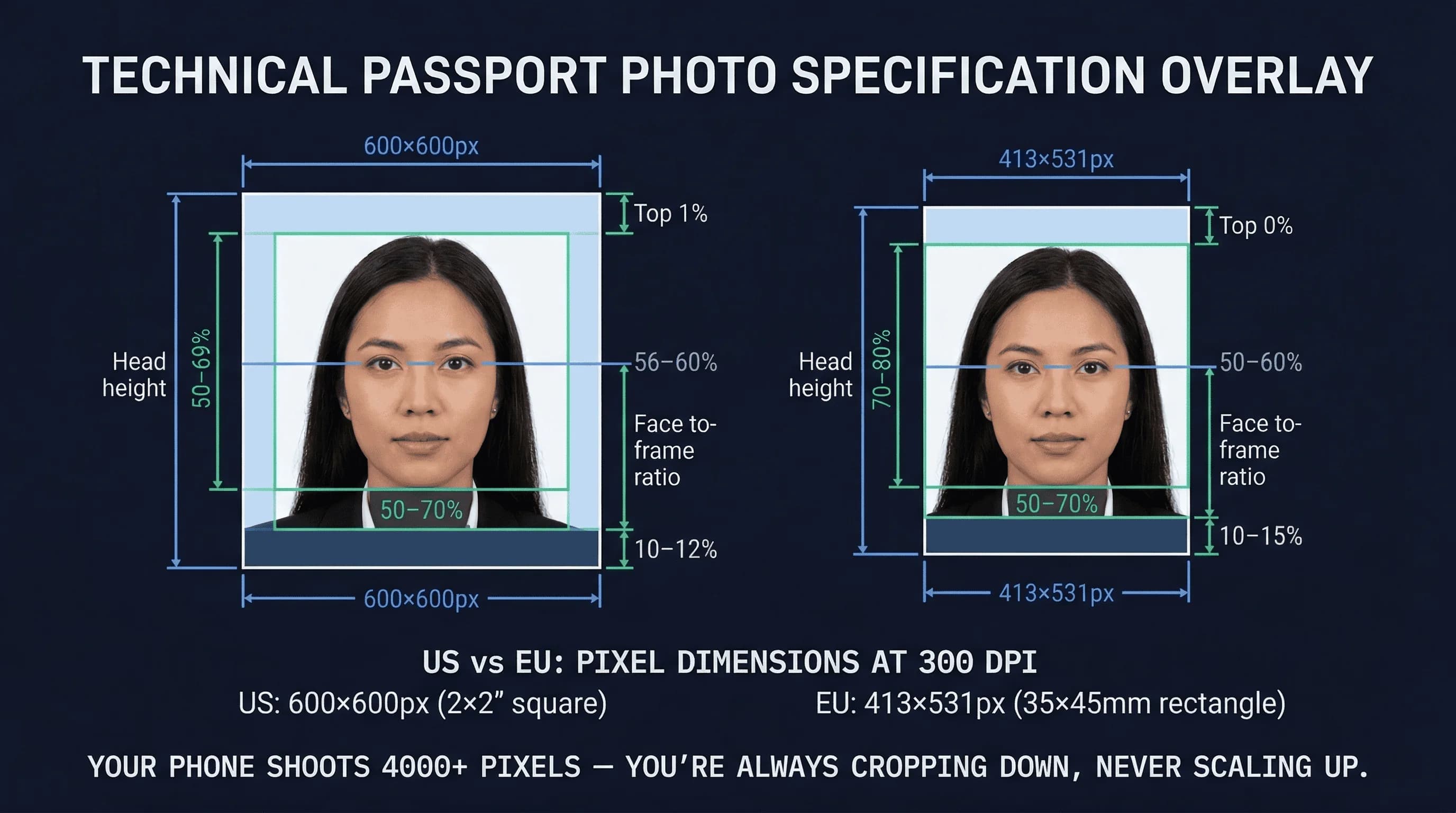
The 600×600 square only applies to US passports. Other countries use different dimensions:
| Country | Dimensions | Pixels at 300 DPI | Aspect Ratio |
|---|---|---|---|
| US | 2×2 inches (51×51mm) | 600×600 | 1:1 (square) |
| UK, Australia, Germany, France | 35×45mm | 413×531 | ~7:9 (portrait) |
| Canada, Brazil | 50×70mm | 591×827 | 5:7 (portrait) |
| India | 35×35mm | 413×413 | 1:1 (square) |
| China | 33×48mm | 390×567 | ~2:3 (portrait) |
| Spain | 26×32mm | 307×378 | ~5:6 (portrait) |
When resizing for a non-US passport, follow the same process but use the correct pixel dimensions. The head-height percentages also vary — for example, the UK requires 64–76% while the US requires 50–69%. Always check your specific country's requirements before cropping.
The formula: Multiply the dimension in inches by 300 to get the pixel count. For millimetres: divide by 25.4 to convert to inches first, then multiply by 300. Or use the table above — we've done the calculation for you.
Key Passport Photo Sizing Concepts Explained
Pixels vs. Inches vs. Millimeters
- Pixels — The raw image data. Your camera produces photos in pixels.
- Inches — The physical print size. Passport photos have fixed physical requirements.
- DPI (Dots Per Inch) — The bridge between pixels and inches. 300 DPI means 300 pixels per inch of print.
- 600 pixels ÷ 300 DPI = 2 inches
Why 300 DPI Matters for Passport Photos
DPI affects print quality. Most countries require 300 DPI minimum. Below 300 DPI, prints look pixelated or blurry. 300-600 DPI is the sweet spot.
Aspect Ratio: Don't Stretch
If your original photo is not square, don't force it. Crop instead. Stretching makes your face look unnaturally wide or tall, which can get your photo rejected.
Common Passport Photo Resizing Mistakes
Stretching instead of cropping. Never change the aspect ratio to force a non-square image into a square. Crop instead.
Ignoring DPI. Resizing dimensions without setting DPI results in wrong print sizes. Always set to 300 DPI.
Wrong crop position. Resizing correctly but putting your face in the wrong position (too high, too low, too far to one side) is the most common error. Use the 50-69% rule: your head should fill 50-69% of the frame vertically.
Saving at low quality. When exporting, use maximum JPEG quality (or 100%). Lower quality introduces compression artefacts — blocky areas around your eyes, nose, and hairline that degrade the image.
Upscaling a small image. If your source photo is only 400×400 pixels, resizing to 600×600 doesn't add detail — it just makes a blurry image bigger. Your source image must be larger than the target dimensions. A 12MP smartphone photo (4000×3000) gives you plenty of room. A screenshot or low-resolution download does not.
Forgetting to set "print at actual size." Some printers scale photos to fit the paper. This changes your carefully sized 2×2 photo to something slightly larger or smaller. When printing, always select "Actual Size" or "100%" in your printer settings.
How to Verify Your Resized Passport Photo
After resizing, upload your photo to passportsize-photo.online's free passport photo checker. It verifies dimensions, resolution, face position, and background compliance.
Resizing to passport size is mostly a matter of understanding the 2-inch at 300-DPI rule. Preview, Paint, and Canva all handle this for free. The critical step is positioning your face correctly in the frame—resizing alone isn't enough. Once you've resized and cropped, check the passport photo requirements one more time before printing or submitting.