The US State Department requires passport photos to be exactly 2×2 inches. This is non-negotiable—photos that don't meet this dimension get rejected. The good news is that converting any properly taken photo to 2×2 inches takes about 5 minutes with free tools.
The 2×2 Inch Passport Photo Requirement Explained
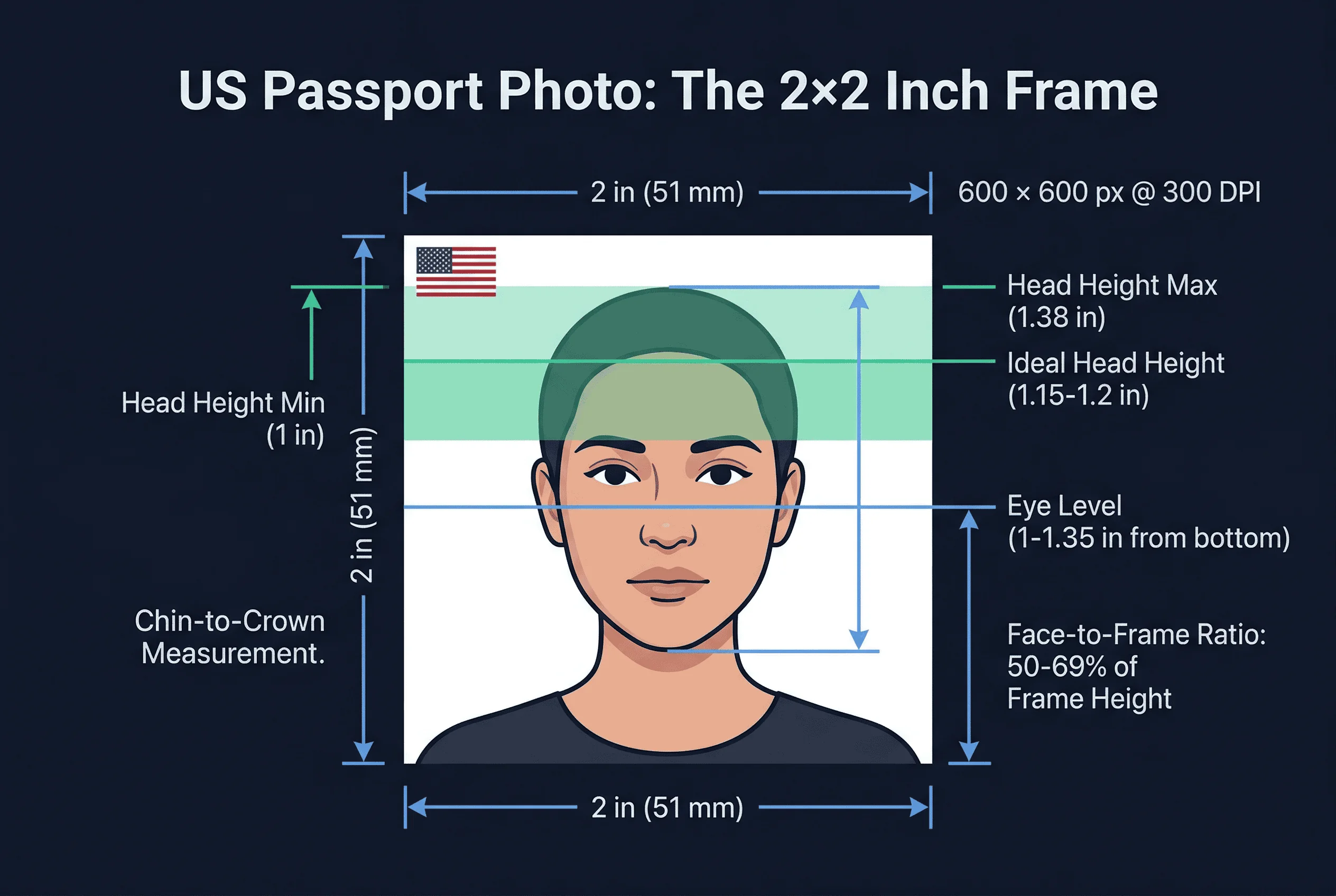
US passport photos must be:
- 2 inches wide — Exactly 2 inches, no more, no less
- 2 inches tall — Exactly 2 inches, no more, no less
- 600×600 pixels at 300 DPI — This is the digital equivalent
- Head height: 1–1.38 inches — Your head (from chin to top of head) must fill 50–69% of the frame
- Eye level: approximately 1.12 inches from bottom — Both eyes should be at about 56% from the bottom
The 2×2 dimension applies to the final print. Your digital file can be larger, but when printed at 300 DPI, it must produce a 2×2 inch image.
Get a compliant passport photo online
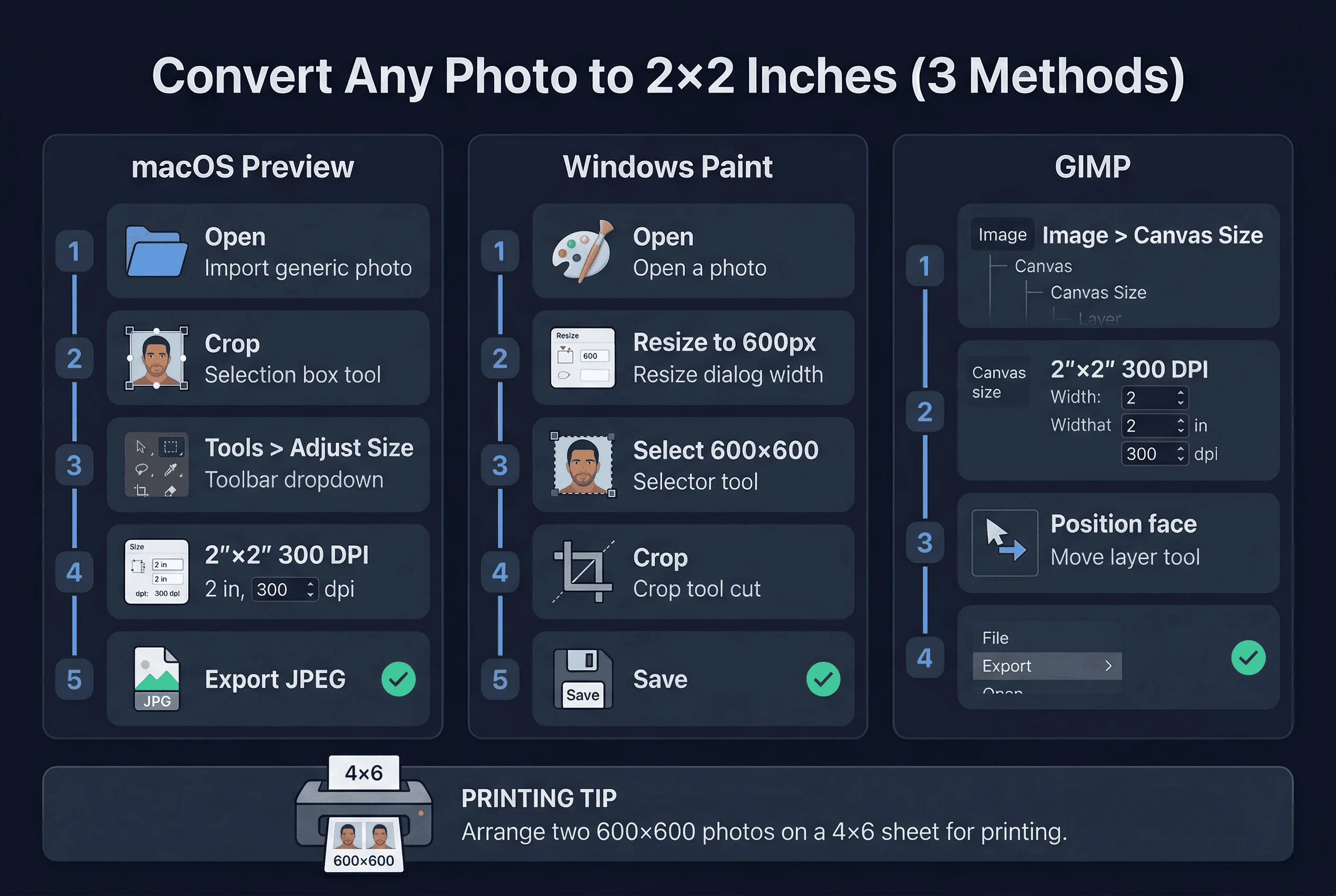
Converting a Passport Photo to 2×2 in macOS Preview
Step 1: Open Your Photo in Preview
Double-click your photo to open it in Preview.
Step 2: Crop to 2×2 Passport Size
- Click the Select tool (the dashed rectangle icon) in the toolbar.
- Drag to create a selection box. Don't worry about exact dimensions yet.
- Go to Tools > Crop. This gives you a clean starting point.
Step 3: Adjust to 2 Inches at 300 DPI
- Go to Tools > Adjust Size.
- Set both Width and Height to 2 inches.
- Set Resolution to 300 pixels/inch.
- Important: Uncheck "Scale proportionally" — you want exact 2×2 dimensions.
- Click OK.
Step 4: Verify Face Position
Your face must be centered and properly sized. The head should occupy about 50-69% of the frame vertically. If it's too big or too small, you may need to start over with a different original photo.
Step 5: Save as JPEG for Passport Use
Go to File > Export. Choose JPEG format and set Quality to Maximum (or 100%). Save with a clear name like "passport-2x2.jpg".
Converting a Passport Photo to 2×2 in Windows Paint
Step 1: Open Your Photo in Paint
Right-click your photo, select "Open with," and choose Paint.
Step 2: Resize to 600×600 Pixels
- Click Home > Resize.
- Check "Maintain aspect ratio" initially to get one dimension close.
- Enter 600 pixels for the horizontal dimension.
- Click OK.
Step 3: Crop to Square for 2×2 Format
- Use the Select tool (the dotted rectangle) in the Home tab.
- Drag a 600×600 square selection over the portion of your image that includes your face, centered properly.
- Click Crop in the toolbar.
Step 4: Save Your 2×2 Passport Photo
Go to File > Save As > JPEG picture. Choose maximum quality.
Converting a Passport Photo to 2×2 in GIMP
Step 1: Set Canvas to 2×2 Inches
- Open your photo in GIMP.
- Go to Image > Canvas Size.
- Set Width to 2 inches, Height to 2 inches.
- Set the resolution to 300 pixels/inch.
- Click "Resize."
Step 2: Position Your Face
Use the Move tool to center your face within the 2×2 canvas. Ensure your head fills 50-69% of the frame.
Step 3: Export as JPEG for Passport Use
Go to File > Export As. Name the file with a .jpg extension. Set quality to 100%.
Why Just Cropping Isn't Enough for a Passport Photo
Many people think resizing is just about dimensions. That's wrong. A 2×2 inch photo that meets every dimension requirement can still be rejected if:
- The background isn't white enough. Resizing doesn't fix a gray or cream background.
- Lighting is uneven. Shadows on one side of your face get rejected.
- Your expression is wrong. Exaggerated expressions, wide grins, frowning, or raised eyebrows cause rejection. A neutral expression or natural, relaxed smile are both accepted for US passports.
- Your eyes aren't visible. Sunglasses, hair covering eyes, or red-eye all cause problems.
- The photo is retouched. Photoshop or filters that alter your appearance are not allowed.
The dimensions are the easy part. The background, lighting, expression, and overall quality matter just as much.
File format matters too. The US DS-160 visa application requires JPEG format with a maximum file size of 240KB. If you're saving at maximum quality, a 600×600 image may exceed this. Reduce JPEG quality to 70–80% to bring the file under 240KB without visible quality loss. For printed passport applications, file size doesn't matter — only pixel dimensions and DPI.
The 50-69% Head Height Rule for US Passport Photos
US passport photos require your head to be properly sized within the frame:
- Minimum: 1 inch (50% of 2 inches)
- Maximum: 1.38 inches (69% of 2 inches)
- Ideal: About 1.15-1.2 inches
To check this: measure your head height in the photo. It should be roughly half to two-thirds of the total image height.
Common 2×2 Passport Photo Sizing Mistakes
Stretching instead of cropping. If your original photo isn't square, don't stretch it to 600×600. Stretching distorts your face — it makes you look wider or taller than you are. Crop to a square first, then resize to 600×600.
Scaling a printed photo. Some people scan an old passport photo and try to resize it digitally. Scanning and rescaling degrades quality — you'll lose sharpness and introduce compression artefacts. Take a new photo instead.
Using the wrong DPI. If you set your file to 72 DPI instead of 300 DPI, a 600×600 pixel image prints at 8.3 inches square, not 2 inches. The pixel dimensions are correct, but the DPI metadata tells the printer the wrong size. Always set DPI to 300 before printing.
Cropping too tight. Your face should not fill the entire frame. Leave space above your head (at least 0.3 inches) and include your shoulders and upper chest. Cropping so your face touches the edges of the frame will be rejected.
Inconsistent aspect ratio for non-US passports. If you're converting for a UK passport (35×45mm), a Canadian passport (50×70mm), or an Indian passport (35×35mm), you need different aspect ratios. The 1:1 square crop only works for US passports. Check your country's exact dimensions at our passport photo size guide.
Converting Your 2×2 Digital File to Print
Once you have a 600×600 pixel JPEG at 300 DPI, you have two printing options:
Option 1: Print Passport Photos at Home
Arrange two 600×600 photos on a 4×6 sheet at 300 DPI. Print on 4×6 photo paper. Cut each to exactly 2×2 inches.
Option 2: Print at a Retail Photo Kiosk
Bring the 600×600 JPEG on a USB drive to Walgreens, CVS, or Costco. Select "4×6" print size. The store may automatically fit your 2×2 into the 4×6 space, or you may need to arrange it yourself using their kiosk.
How to Verify Your 2×2 Passport Photo
Before printing or submitting, upload your 600×600 JPEG to passportsize-photo.online's free passport photo checker. It verifies dimensions, face position, background, and all US-specific requirements.
Converting a photo to 2×2 inches for a US passport is straightforward with the right tools. The key steps are: resize to 600×600 pixels at 300 DPI, crop to a perfect square, center your face within the 50-69% head height range, and verify the background is pure white. Once your digital file is ready, double-check it against US passport photo requirements before printing or uploading to your application.