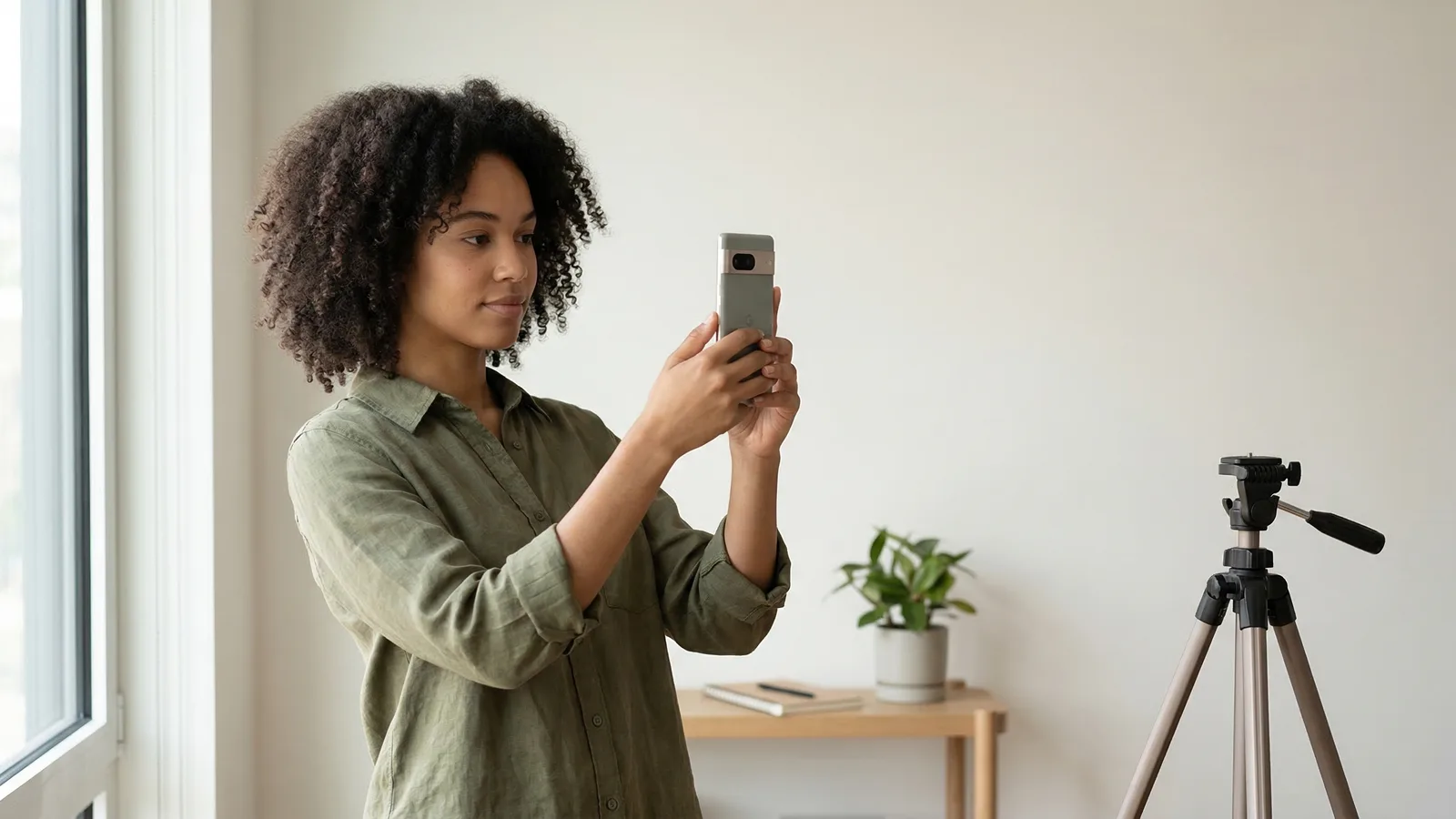
Google Pixel phones have some of the best cameras in the Android ecosystem. The Pixel's computational photography produces sharp, color-accurate images that work well for passport photos—as long as you know which features to avoid.
Pixel's strength is also its challenge: the software aggressively processes every shot to make photos look better. For passport photos, you need that processing turned down or disabled.
What You Need to Take a Passport Photo with Pixel
- Google Pixel (Pixel 3 or newer) — Pixel 3, 4, 5, 6, 7, 8, and 9 series all have 12+ megapixel cameras that exceed passport requirements.
- White background — A white wall, white poster board, or smooth white bedsheet.
- Bright, even lighting — Overcast daylight through a window is ideal. Avoid direct sunlight.
- Stable phone position — Use a tripod, phone stand, or stack of books. Do not hold the phone yourself.
- Timer — Use the 3-second timer built into the Pixel camera app.
Get a compliant passport photo online
Pixel Camera Settings to Change for Passport Photos
Google Pixel phones have unique camera features that you need to manage for passport photos:
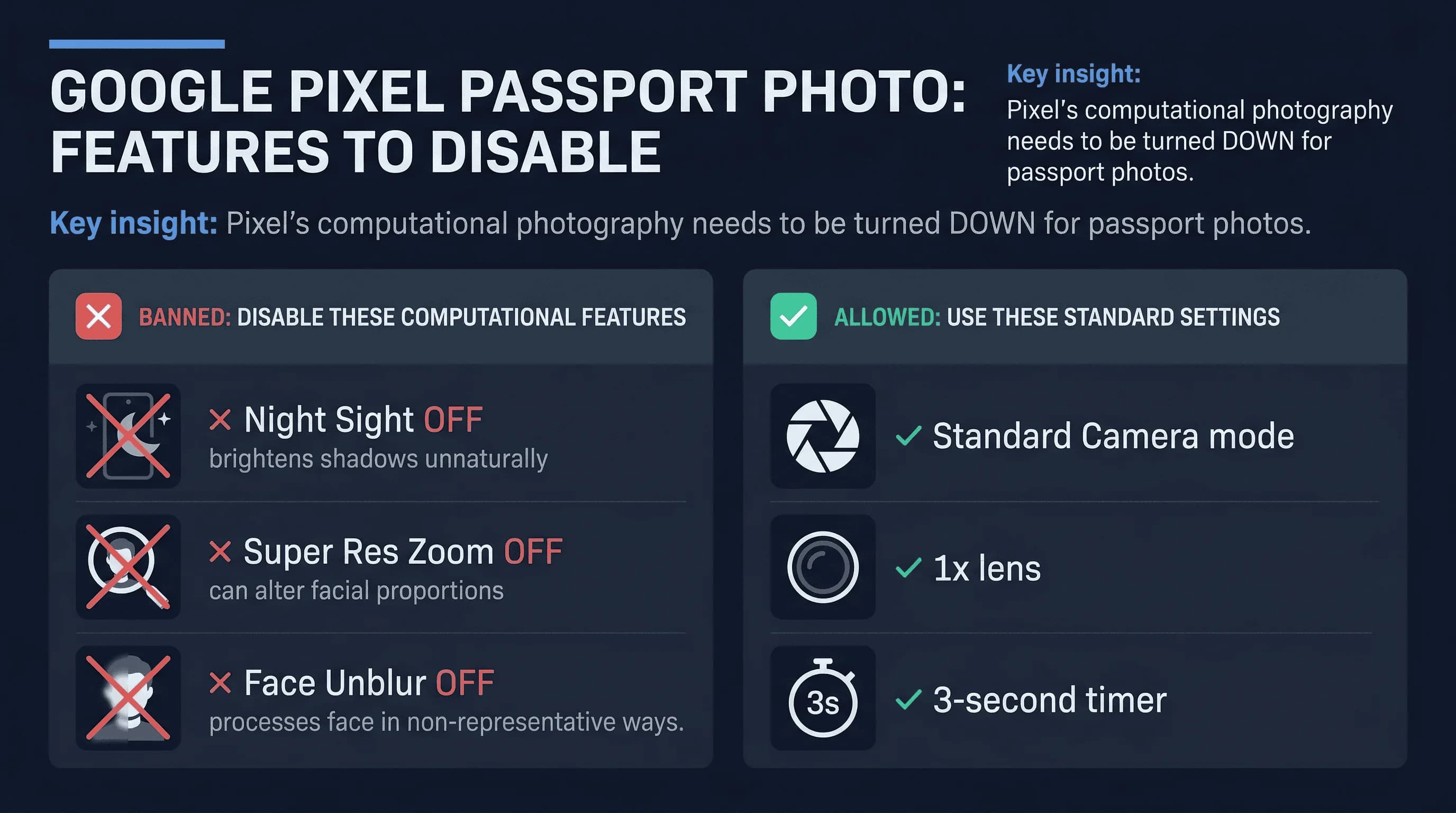
Turn OFF Night Sight for Passport Photos
Night Sight brightens dark scenes by combining multiple exposures. It can lighten shadows on your face in ways that don't match your actual appearance. For passport photos, use the standard Camera mode, not Night Sight.
Turn OFF Super Res Zoom for Accurate Proportions
Super Res Zoom combines multiple frames to create a digitally zoomed image with less noise. However, this processing can slightly alter facial proportions. Use the standard 1x lens for passport photos.
Turn OFF Face Unblur to Keep Your Real Appearance
Face Unblur is a Pixel feature that combines a sharp background with a sharp face from different exposures. While clever, it processes your face in ways that may not match the original. Use standard mode instead.
Keep HDR+ ON for Even Passport Photo Lighting
Unlike the features above, HDR+ (High Dynamic Range) is actually helpful for passport photos. It balances bright and dark areas without over-processing. Leave it enabled.
Turn OFF Portrait Mode (Background Must Be Sharp)
Pixel's Portrait mode creates a professional-looking background blur. This feature will get your passport photo rejected—every country requires a sharp, in-focus background.
Enable Grid Lines for Centering Your Face
Grid lines help you center your face. Go to Camera Settings > Grid type > Rule of thirds.
Step-by-Step: Taking a Passport Photo with Pixel
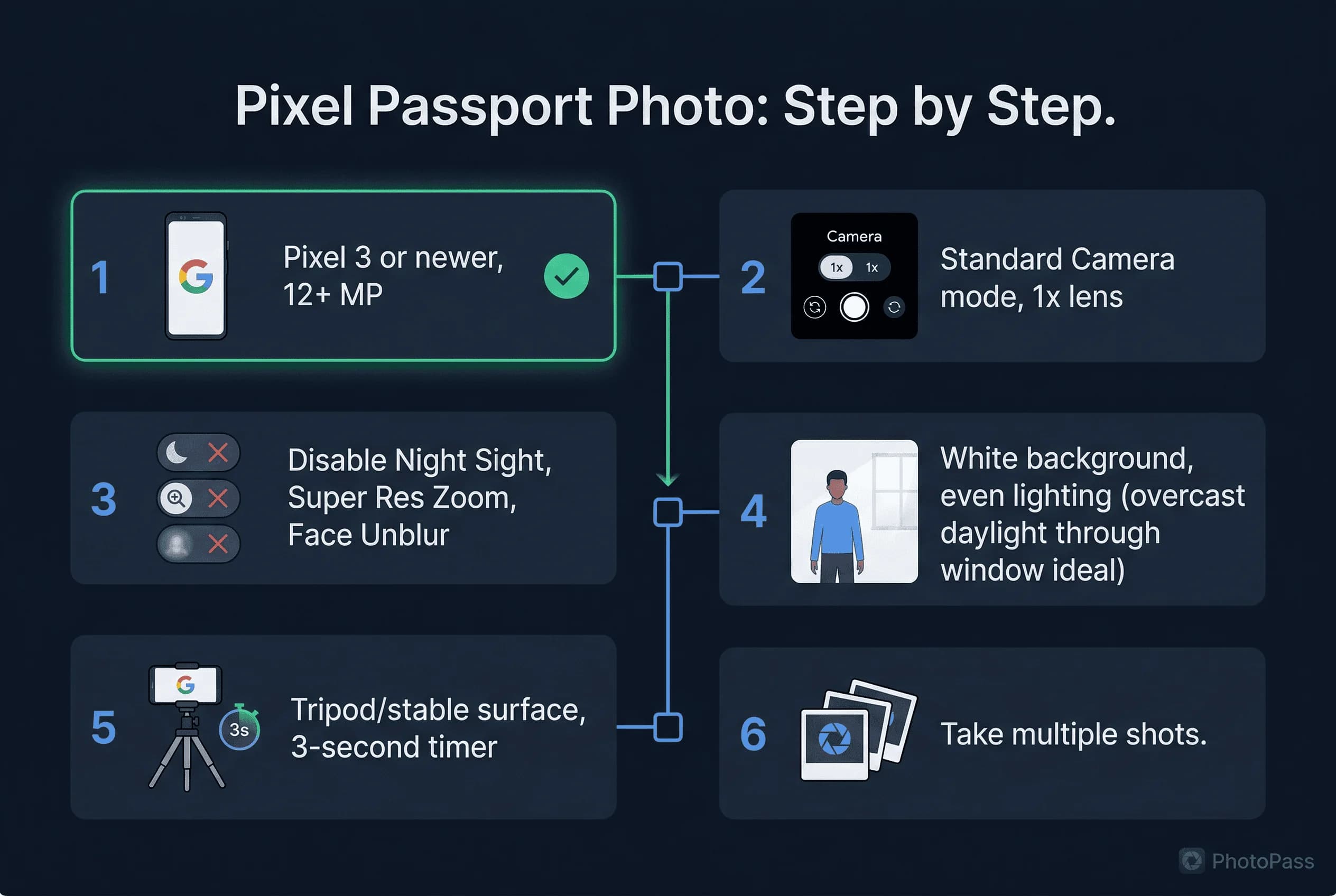
1. Set Up Your White Background
Position your white poster board or find a plain white wall. Ensure even lighting with no shadows on the background.
2. Position the Pixel at Eye Level
Place your Pixel on a stable surface 4-6 feet from where you'll stand. The rear camera should be at eye level.
3. Configure Pixel Camera Settings
Open the camera app. Select Photo mode (not Portrait, not Night Sight). Make sure HDR+ is on. Enable grid lines. Set the timer to 3 seconds.
4. Take the Passport Photo
Press the shutter button. Look directly at the lens. Keep your face centered in the frame. Use a neutral expression.
5. Review for Skin Tone and Shadows
Pixel cameras tend to slightly warm skin tones. Check that your face looks like your actual skin tone and not overly golden or orange. If it looks off, adjust your white balance or retake with different lighting.
Why Google Pixel Works Well for Passport Photos
Pixel phones are known for color accuracy, which is actually an advantage for passport photos. The cameras capture skin tones faithfully, unlike some phones that over-saturate or add artificial sharpening.
The Pixel 6 through Pixel 9 series have 50-megapixel main sensors, giving you plenty of resolution for cropping and resizing. Even older Pixel 3 and 4 models have 12.2 megapixels, which easily meets the 6-10 megapixel minimum needed for a compliant 2×2 inch print at 300 DPI.
Cropping and Exporting Your Pixel Passport Photo
After taking your photo, you need to crop it to the correct dimensions. The Pixel camera saves photos much larger than passport size — a 50MP Pixel 8 saves at 8160×6144 pixels. You'll crop down significantly.
For US passports: Crop to a 1:1 (square) ratio. The final file needs to be 600×600 pixels at 300 DPI. In Google Photos, tap Edit → Crop → select the 1:1 aspect ratio. Centre your face with your head occupying 50–69% of the vertical frame.
For UK and most European passports: Crop to approximately a 35:45 ratio (roughly 7:9). The final file needs to be 413×531 pixels at 300 DPI.
For Canada and Brazil: Crop to 50:70 ratio (5:7). The final file needs to be 591×827 pixels.
After cropping, the Pixel saves the edited image in JPEG format by default — which is what most countries require. Check the file size: US visa applications require JPEG under 240KB. If your cropped file exceeds this, reduce quality slightly in a photo editor or use our passport photo checker which handles resizing automatically.
Do not use Magic Eraser or other AI editing tools. The Pixel's Magic Eraser can remove objects from the background, but it leaves artefacts that automated systems may flag. It can also subtly alter the area around your face. Keep the photo unedited beyond basic cropping.
Common Google Pixel Passport Photo Mistakes
Using Night Sight. The processing changes your face's appearance. Use standard Photo mode.
Leaving Portrait Mode on. Background blur is not allowed.
Not checking white balance. Pixel's auto white balance can sometimes add warmth. If your photo looks too orange, retake with more neutral lighting.
Standing too close. The default lens is wide enough that standing too close distorts your face. Stay 4-6 feet back.
Using the selfie camera. The front-facing camera on Pixel phones has a lower resolution and a wider lens that distorts facial proportions. Always use the rear camera with a timer or a second person.
Using 2x zoom. The Pixel 7 Pro, 8 Pro, and 9 Pro have a dedicated telephoto lens, but using it indoors reduces light and may introduce noise. Stick to the 1x main lens and stand at the correct distance instead.
Which Pixel Model Works for Passport Photos?
All Pixel phones from Pixel 3 onwards work for passport photos. Here's how they compare:
- Pixel 3/3a/4/4a (12.2MP): Fully capable. Use the standard 1x lens. These older models produce slightly less detail when cropping, but 12.2MP is well above the 6MP minimum for a 600×600px passport photo.
- Pixel 5/5a (12.2MP): Same sensor as older models but with improved processing. Use standard Photo mode.
- Pixel 6/6a/7/7a (50MP): The 50-megapixel sensor captures enormous detail, giving you far more flexibility when cropping to passport size. These are ideal for passport photos.
- Pixel 8/8a/9/9 Pro (50MP): Latest generation with the best processing. Be especially careful to disable AI features like Best Take and Magic Eraser, which are more aggressive on newer models.
If you have a Pixel 3 or newer, your camera hardware is more than capable. The limiting factor is always the settings and lighting, not the camera itself.
How to Verify Your Pixel Passport Photo
After taking your photo, upload it to passportsize-photo.online's free passport photo checker to confirm it meets requirements. Pixel photos tend to be high quality, but it's still worth verifying dimensions, background whiteness, and facial positioning.
Pixel phones are excellent tools for passport photos because they capture accurate skin tones and sharp details. The key is using standard Photo mode rather than the computational photography features that alter your appearance. Once you've taken your shot, check it against US passport photo requirements before submitting.