The DS-160 photo upload tool on ceac.state.gov accepts only JPEG images that are exactly 600×600 pixels with a maximum file size of 240KB. The tool performs automated validation, checking dimensions and file size. However, it does not verify background color accuracy, precise head size within the acceptable range, or overall image quality beyond basic face detection.
Understanding what the tool checks — and what it misses — prevents frustration during your visa application process.
The DS-160 form applies to US visa applications for tourists, business visitors, and students. If you're applying for US passport photo requirements, understanding the DS-160 upload process helps with overall document preparation.
Accessing the DS-160 Photo Upload Section
The DS-160 form is the standard application for US tourist, business, and student visas. After creating your application on the Consular Electronic Application Center, you'll reach the photo upload section partway through the form.
Look for the "Upload Your Photo" prompt. The system requires a photo before allowing form submission. This seems straightforward, but many applicants encounter errors at this stage.
The website accepts only certain browsers. Internet Explorer remains the most reliable, though newer versions of Chrome and Firefox generally work. JavaScript must be enabled.
Get a compliant passport photo online
DS-160 File Requirements in Detail
Your DS-160 photo must meet these exact specifications:
Format: JPEG (.jpg) Dimensions: Exactly 600×600 pixels File size: Between 20KB and 240KB Aspect ratio: 1:1 (square)
The 600×600 pixel requirement is absolute. Photos that are 601×600, 600×601, or any other variation fail validation. Resize carefully using photo editing software before attempting upload.
The file size range catches some applicants. Too small (under 20KB) suggests low quality. Too large (over 240KB) suggests inadequate compression or excessive resolution.
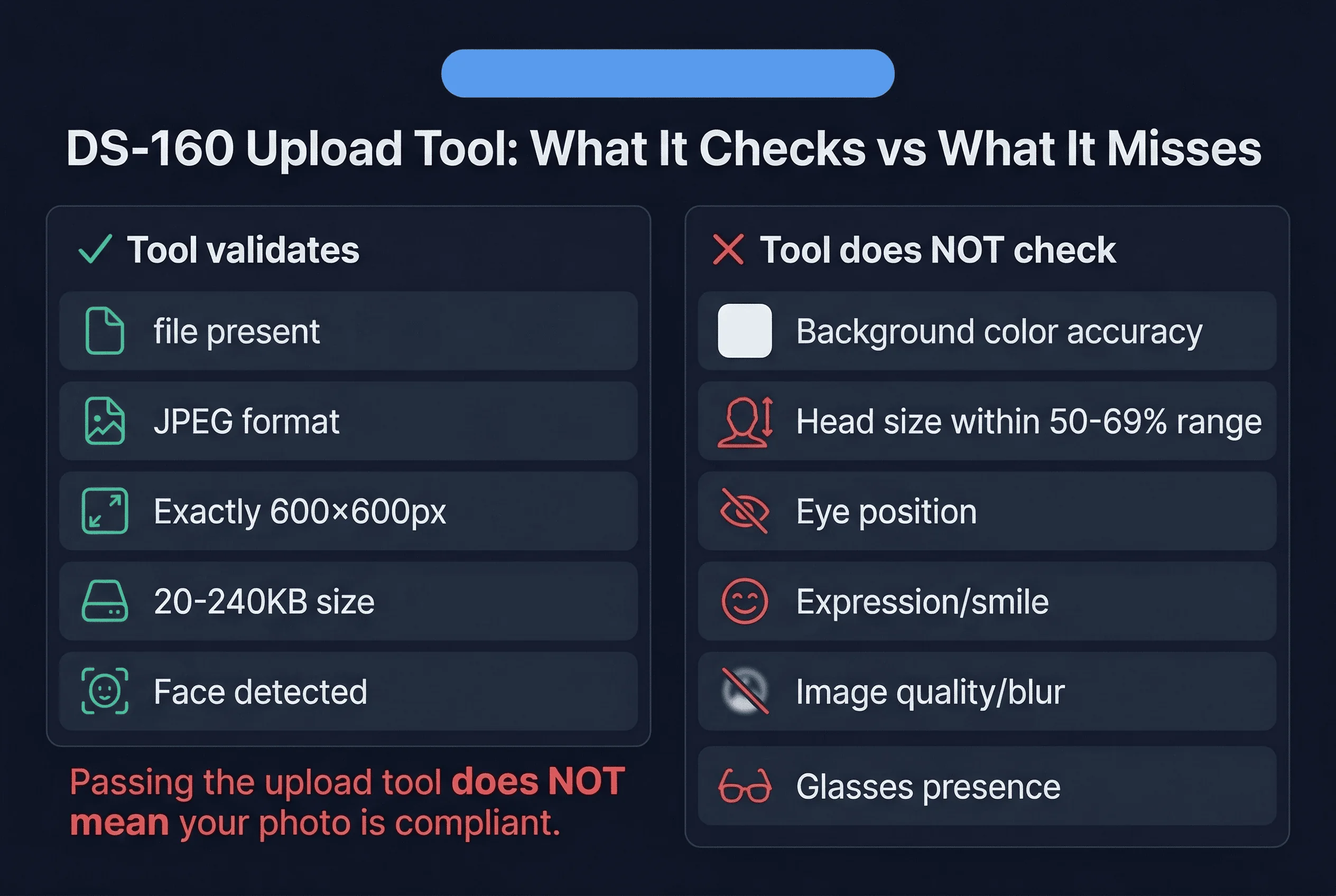
What the DS-160 Photo Tool Actually Checks
The automated system performs these validations:
Presence check: Confirms a file is actually uploaded Format check: Verifies JPEG format Dimensions check: Confirms exactly 600×600 pixels File size check: Ensures within 20-240KB range Face detection: Confirms a face is present
These checks are binary — your photo either passes or fails. There are no partial credits or warnings.
What the DS-160 Photo Tool Does NOT Check
Despite its validation, the tool misses several important factors:
Background color: White backgrounds are required, but the tool doesn't verify this. A gray or blue background passes automated validation but causes problems later in the review process.
Head size precision: The requirement is 50-69% of image height. The tool only confirms a face exists, not whether the head size meets specifications.
Eye position: Eyes should be at approximately 56% from the image bottom. The tool doesn't measure this.
Expression: Neutral expressions are required. The tool can't detect smiles or other expressions.
Image quality: Blurry or poorly lit photos might pass initial validation but create problems later.
Glasses: The tool doesn't check for glasses, which are prohibited in visa photos.
Common DS-160 Photo Upload Error Messages
When photo upload fails, you may encounter these messages:
"Photo is too large." Your file exceeds 240KB. Compress the JPEG or reduce dimensions while maintaining aspect ratio.
"Photo is too small." Your file is under 20KB. Increase resolution or avoid excessive compression.
"Invalid photo format." The file isn't a valid JPEG. Re-save in JPEG format.
"Photo does not meet dimensions." Your image isn't exactly 600×600 pixels. Resize precisely.
"No face detected." The image may be too dark, too blurry, or show no person clearly. Retake the photo.
Fixing DS-160 Photo Upload Problems
Follow these solutions when encountering errors:
For size errors: Use image editing software to reduce quality setting to approximately 60-70%. This typically achieves 100-200KB from a properly sized image.
For format errors: Open your image in any photo editor and "Save As" JPEG. Avoid saving as PNG first, then converting.
For dimension errors: Set exact pixel dimensions to 600×600 in your editor's resize function. Crop if necessary to maintain proper composition.
For face detection errors: Ensure the photo is well-lit, the face is clearly visible, and nothing obscures facial features.
Preparing Your DS-160 Photo Before Starting the Form
Don't wait until you're in the application to deal with photo issues. Prepare in advance:
Step 1: Take a new photo specifically for this purpose. Don't reuse old photos. The DS-160 requires current photos.
Step 2: Edit to exact specifications. Set dimensions to 600×600 pixels. Save as JPEG with moderate compression.
Step 3: Test the file. Try uploading to the tool before starting your application. This saves time if issues exist.
Step 4: Keep original files. Store an uncompressed version in case you need to re-edit.
The Link Between DS-160 and Visa Interview
Your DS-160 photo follows you through the entire visa process. It appears on your confirmation page, in your interview appointment, and in your visa record if approved.
Consular officers see your DS-160 photo before your interview. First impressions matter. A professional, compliant photo sets the right tone.
If your photo has issues the tool didn't catch, the officer may ask about it during the interview. Be prepared to explain and provide an alternative photo if necessary.
Mobile vs Desktop DS-160 Photo Uploads
The DS-160 photo upload works on both mobile and desktop, but the experience differs:
Desktop upload: More reliable, easier to select files, clearer error messages. Use this if possible.
Mobile upload: Works but can be tricky. Ensure you're using a modern browser. Some mobile cameras default to non-standard aspect ratios.
Regardless of device, test your photo on desktop first to ensure it meets specifications.
After a Successful DS-160 Photo Upload
Once your photo uploads successfully, the system displays it within the form. Review it carefully:
Does your face appear clearly? Is the background white? Is your expression neutral? Do your eyes appear open?
If anything looks wrong, delete the upload and try again. Once you submit the form, changing your photo becomes extremely difficult.
Before uploading, verify your photo meets all specifications using our passport photo checker. This helps catch issues the State Department tool might miss.
DS-160 Browser Compatibility Issues and Fixes
The DS-160 website works best with specific browsers:
Internet Explorer (IE): Despite being older, IE remains the most reliable browser for DS-160 uploads. The site was built with IE in mind.
Chrome: Works for most users but may have occasional issues with the upload interface.
Firefox: Generally functional but less tested than other browsers.
Safari: Often problematic. Avoid if possible.
Clear your browser cache and disable pop-up blockers before attempting upload. These technical issues frustrate many applicants unnecessarily.
Common Photo Problems and Solutions
These issues appear frequently:
Problem: Photo passes validation but gets rejected at interview. Solution: The automated tool misses quality issues. Have a professional review your photo before submission.
Problem: File size exactly 240KB still fails. Solution: Compression creates slight variations. Aim for 150-200KB to have cushion.
Problem: Face detection fails on valid photo. Solution: Ensure adequate lighting. Dark skin tones may need extra lighting for detection.
Problem: Upload succeeds but photo looks wrong. Solution: The system compresses displayed images. This is normal. Your actual submission remains at full quality.
DS-160 Photo vs Visa Interview Photo Requirements
DS-160 requirements and visa interview requirements overlap significantly but aren't identical:
DS-160 submission
- Digital only
- 600×600 pixels
- JPEG format
Interview
- 2×2 inch prints
- May need backup digital files
Always bring extra printed photos to your interview. Consular officers may request new photos if yours has any issues.
Why Manual Review Still Matters for DS-160 Photos
Despite automated upload tools, human reviewers examine your photo during visa processing. The automated system catches format errors. Humans catch quality issues.
A photo that passes upload might still cause problems if:
- Background is slightly off-white
- Shadows exist on face or background
- Expression appears too informal
- Photo quality is degraded by compression
Getting your photo right initially prevents delays at later stages.
DS-160 Technical Photo Requirements Summary
Keep this checklist for reference:
- JPEG format only
- Exactly 600×600 pixels
- File size 20-240KB
- White background
- Head 50-69% of height
- Eyes approximately 56% from bottom
- Neutral expression
- No glasses
- No shadows on face
- No red-eye
Related Articles
- DS-160 Photo Requirements — Complete DS-160 photo guidelines
- DV Lottery Photo Requirements — Similar photo rules for lottery