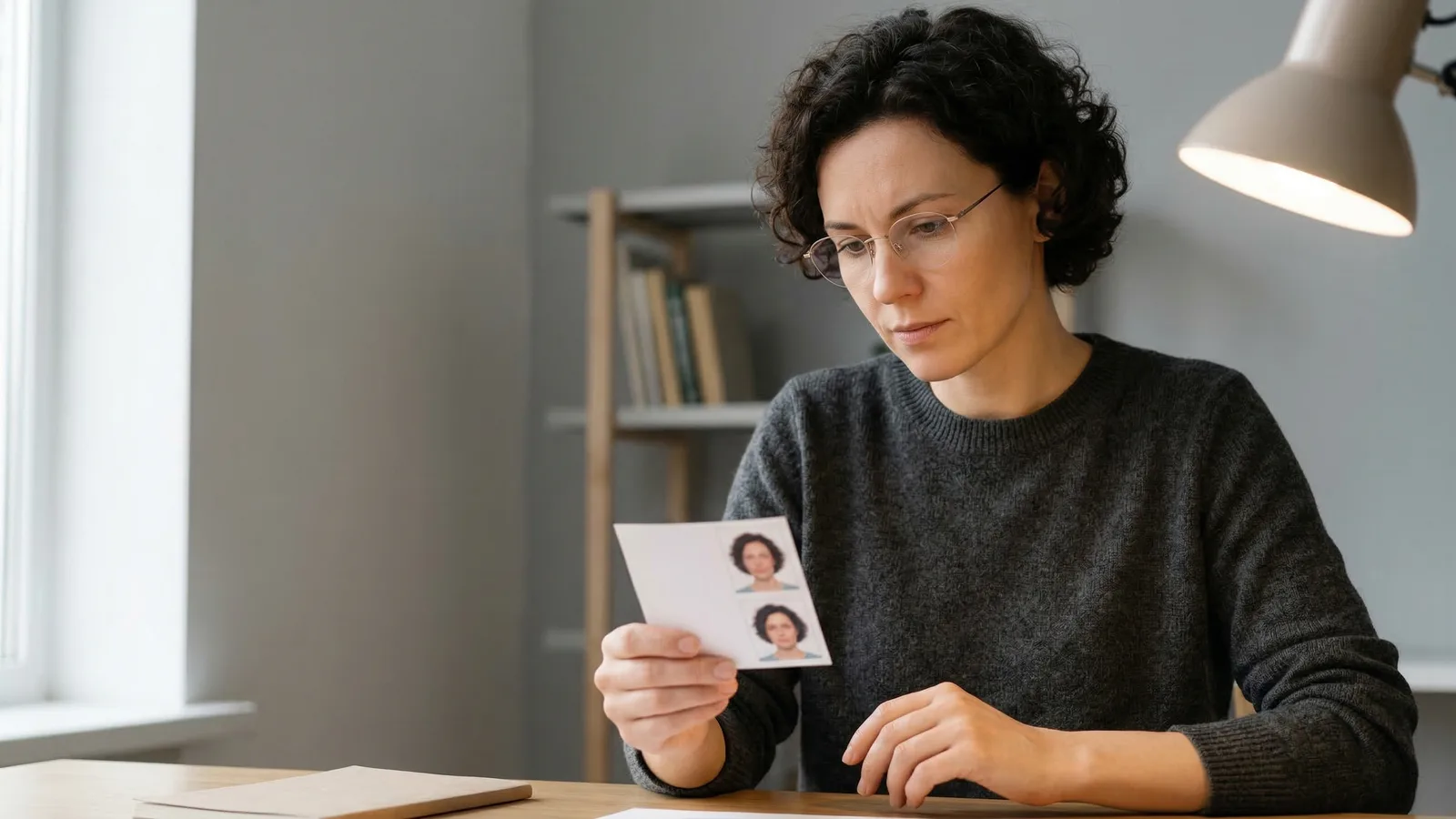
The DS-160 form requires a digital photo that meets exact specifications. Your photo goes into the system before you even reach the interview. Get this wrong and you delay your entire application.
The photo must be exactly 600×600 pixels (2×2 inches at 300 DPI) with a plain white background. These specifications aren't suggestions — the upload system enforces them strictly.
Full DS-160 Photo Specifications (Size, Format, and Background)
Your digital photo must meet every single specification in this table. Any deviation causes rejection. There is no wiggle room. The system validates your photo automatically and will not proceed until you provide a compliant image.
| Requirement | Specification |
|---|---|
| Dimensions | 600×600 pixels |
| Physical size | 2×2 inches at 300 DPI |
| File format | JPEG |
| Maximum file size | 240KB |
| Background | Plain white |
| Head height | 50-69% of image |
| Eye position | Approximately 56% from bottom |
| Expression | Neutral or natural smile |
| Eyes | Open and visible |
| Glasses | Not permitted |
| Headwear | Not permitted (religious exception) |
| Facial appearance | No shadows, even lighting |
The system is unforgiving. A photo that's 599×600 pixels gets rejected. A file at 241KB gets rejected. A slight shadow on the background gets rejected. Understanding these specifications before you upload saves time.
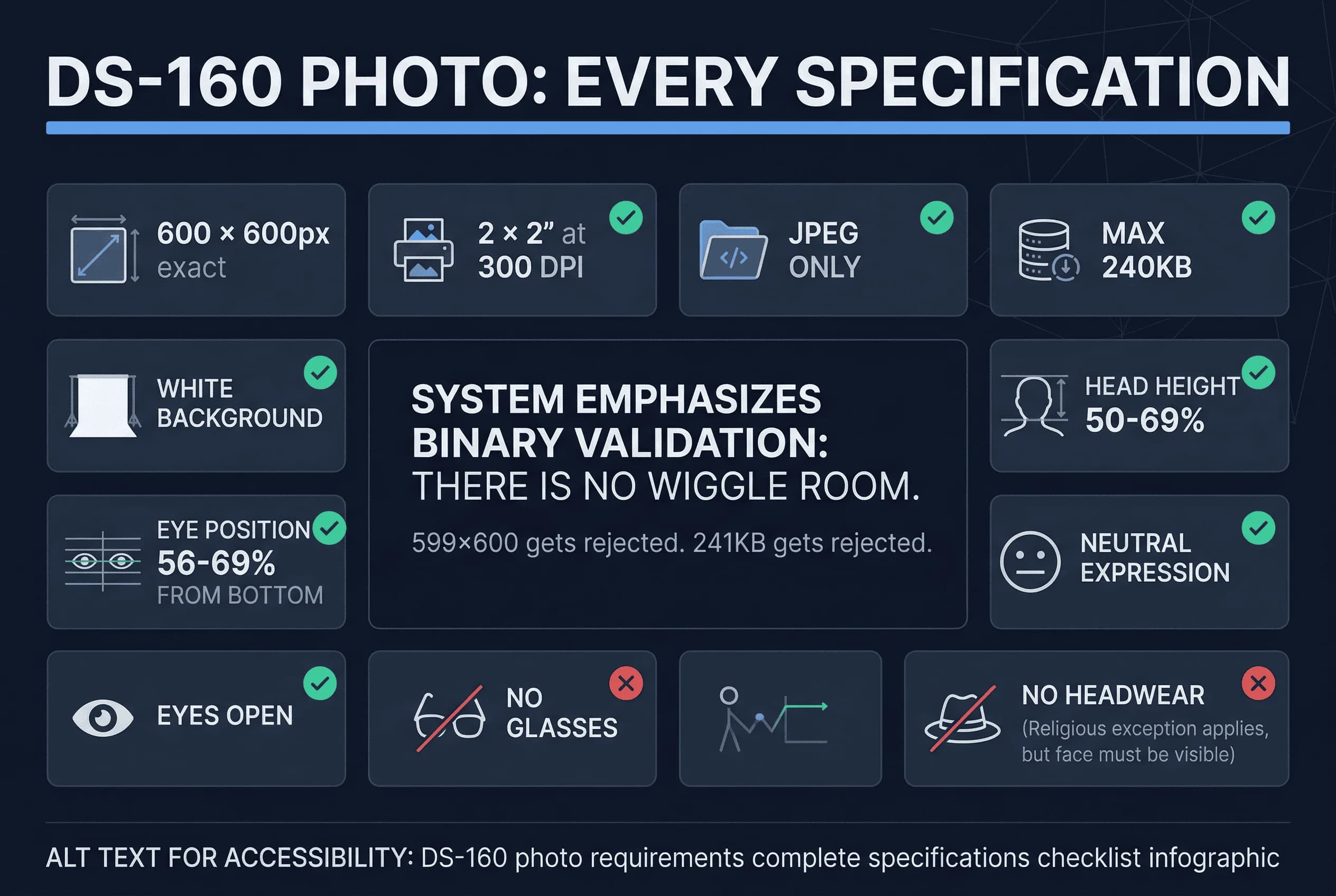
Head height requirements mean your head should fill roughly half to two-thirds of the image vertically. Too small and the system rejects it. Too large and it fails. The sweet spot is around 55-65% of the image height.
Eye position is measured from the bottom of the image. Your eyes should be at approximately 56% from the bottom of the image. This ensures your face is properly centred with balanced space above the head and below the chin.
File size is often the most frustrating requirement. High-quality photos often exceed 240KB. The solution is JPEG compression, which reduces file size while maintaining visual quality. Most photo editors let you adjust compression when saving. Aim for around 70-80% quality.
Get a compliant passport photo online
How to Upload a Photo to the DS-160 Form (Step-by-Step)
The DS-160 photo upload happens during form completion on the ceac.state.gov website. Here's the step-by-step process.
Step 1: Take or prepare your photo. Use a digital camera or smartphone. Ensure even lighting with no shadows on your face or the background. A plain white wall works perfectly as background. Look directly at the camera with a neutral expression or natural smile. Both eyes should be visible and open. Remove all glasses.
Step 2: Resize to 600×600 pixels. Most photo editing software can do this. Ensure you're resizing, not just cropping. The entire image should be 600 pixels square. Any other dimensions fail validation.
Step 3: Save as JPEG. The DS-160 only accepts JPEG format. Other formats like PNG get rejected. Use "Save As" and select JPEG from the format dropdown.
Step 4: Compress to under 240KB. JPEG compression reduces file size. Most photos under 240KB after saving as standard JPEG. If your file is larger, increase compression or reduce resolution slightly. Check the file size before attempting upload.
Step 5: Upload to the DS-160. Go to the photo upload section of the DS-160 form on ceac.state.gov. Select your file and wait for confirmation. The system validates your photo against all specifications.
If validation fails, the system tells you exactly what failed. Common errors include wrong dimensions, file too large, or non-white background. Fix the issue and upload again.
Common DS-160 Photo Upload Errors and How to Fix Them
Understanding common errors helps you avoid them. The system provides specific error messages, but knowing what's likely to go wrong helps you prepare correctly.
File too large. Your photo exceeds 240KB. Compress the JPEG more or reduce image dimensions slightly. Most photo editing tools let you adjust compression quality when saving. Try saving at 60-70% quality.
Wrong dimensions. Your photo isn't exactly 600×600 pixels. Use precise resizing in your photo editor. Check the final dimensions before saving. The image must be square.
Wrong format. You're trying to upload PNG, BMP, or another format. Convert to JPEG and try again. The system explicitly states it accepts only JPEG.
Wrong aspect ratio. Your photo dimensions aren't square. The DS-160 requires a square image. Resize to 600×600 specifically, not 800×600 or any other non-square dimensions.
Non-white background. The system detects a non-white background. Use a truly white wall or cloth. Gray, cream, or off-white backgrounds fail. Edit the background to pure white if needed. Even slight variations from pure white trigger rejection.
Shadows on face. Even subtle shadows cause rejection. Use diffused lighting. Avoid direct flash. Take the photo in a well-lit room with even illumination on both sides of your face.
Eyes not visible. Your eyes are partially closed, covered by hair, or obscured. Look directly at the camera. Ensure hair doesn't fall across your face. Both eyes must be clearly visible.
Unnatural expression. You're frowning, squinting, or making an exaggerated face. A neutral expression or a natural, relaxed smile both pass. What fails is anything forced, dramatic, or significantly different from how you normally look — wide grins, raised eyebrows, or a visibly tense face.
DS-160 Digital Photo vs Printed Passport Photo: What's the Difference?
Here's what confuses many applicants: you need two different photos for the visa process. Many first-time applicants assume one photo serves both purposes. It doesn't.
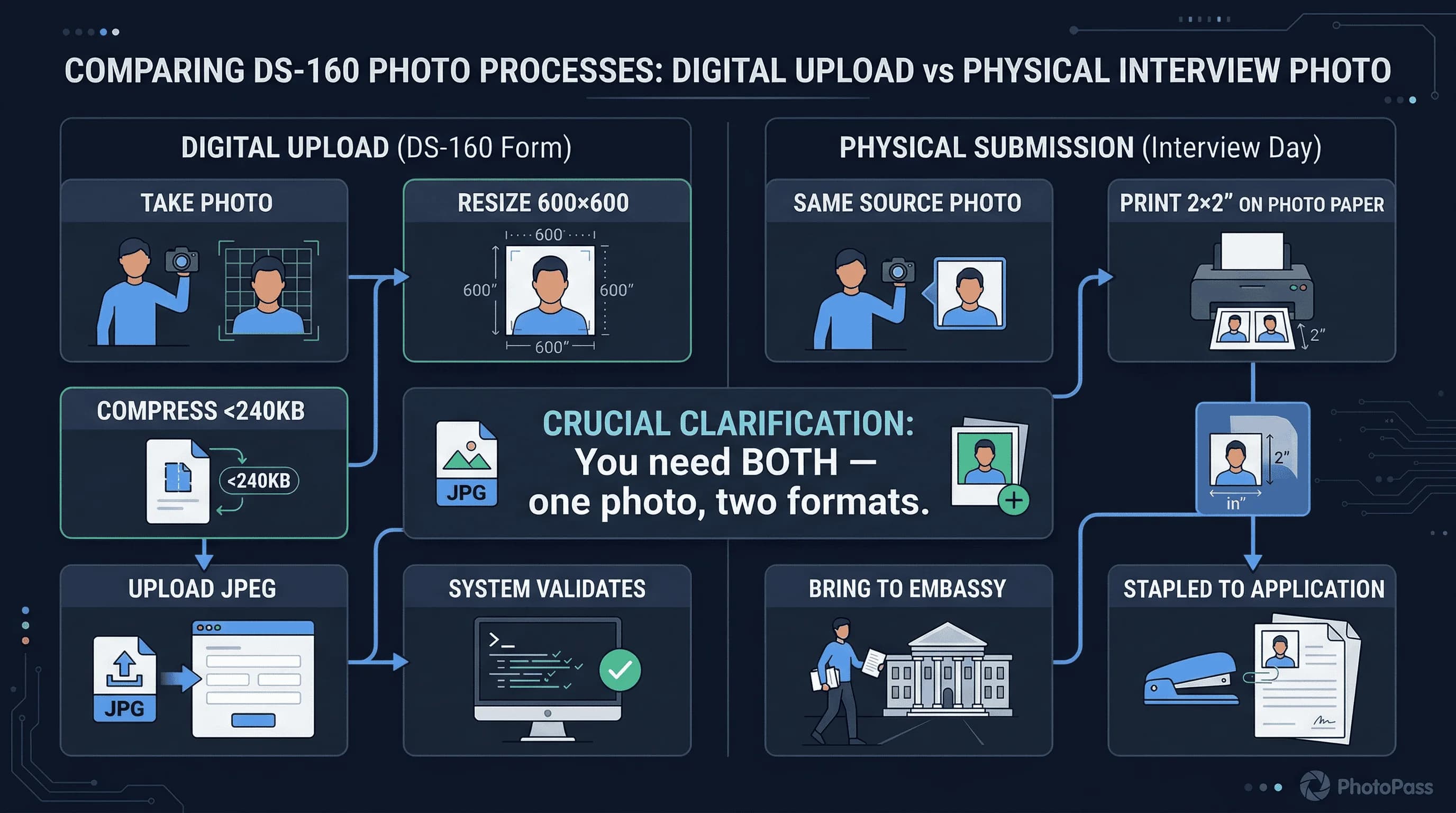
The DS-160 digital photo uploads to the online form. This goes into the system and gets attached to your application record. It must be a JPEG under 240KB at exactly 600×600 pixels. This photo gets processed by automated systems and appears on the consular officer's screen during your interview. The system validates it automatically.
The physical passport photo you bring to the interview is separate. This gets stapled to your application and submitted physically. It must be a 2×2 inch print on matte or glossy photo paper. The specifications are similar but not identical to the digital version — and you need to provide both.
You can use the same source photo for both — one gets resized for digital upload, the other gets printed. But you need to prepare each separately. Don't make the mistake of thinking one file works for both purposes.
Note that if you're applying for both a visa and renewing your passport, you may need even more photos. Check the specific requirements for each application. The digital version must meet pixel-perfect requirements. The print version must meet physical printing standards.
How to Get Your DS-160 Photo Right the First Time
Don't let a photo error delay your visa application. The DS-160 upload system rejects non-compliant photos, and fixing it takes time you may not have before your interview date.
passportsize-photo.online creates compliant DS-160 photos in minutes. Upload any photo, AI adjusts it to meet every State Department specification, and you download a ready-to-upload JPEG. Use our passport photo checker to verify compliance. Compare requirements for US passport photos if you also need to renew your passport.
Frequently Asked Questions About DS-160 Photos
What are the exact DS-160 photo size requirements?
The DS-160 requires exactly 600×600 pixels, which equals 2×2 inches at 300 DPI. This translates to a physical size of 2 inches by 2 inches when printed.
Can I wear glasses in my DS-160 photo?
No. Glasses are not permitted in DS-160 photos. This includes prescription glasses, sunglasses, and tinted lenses. Remove them before taking your photo.
What file format does the DS-160 accept?
The DS-160 only accepts JPEG format. PNG, BMP, GIF, and other formats get rejected. Save your photo as JPEG before uploading.
How Do I Reduce My DS-160 Photo File Size to Under 240KB?
Most photo editing software offers JPEG compression options when saving. Reduce the quality slightly (around 80%) or resize the image to smaller dimensions. The goal is under 240KB.
Can I take my DS-160 photo with a smartphone?
Yes. Modern smartphones produce high enough resolution. Ensure good lighting and a white background. Edit the photo to meet specifications before uploading. Most phones can capture 600×600 pixel images easily — just verify the final dimensions before saving.
What Happens If My DS-160 Photo Is Rejected?
The DS-160 system tells you exactly what failed. Common issues include wrong size, file too large, or background problems. Fix the specific issue and upload again.
Do I Need a Different Photo for the US Visa Interview?
Yes. You need a digital photo for the DS-160 upload and a physical 2×2 inch print to bring to your interview. Both must meet specifications but in different formats. Many applicants underestimate this requirement.
Can I Retake My DS-160 Photo If It Fails Validation?
Yes. You can upload a new photo as many times as needed during DS-160 completion. However, you cannot change your photo after submitting the form. Review carefully before final submission.