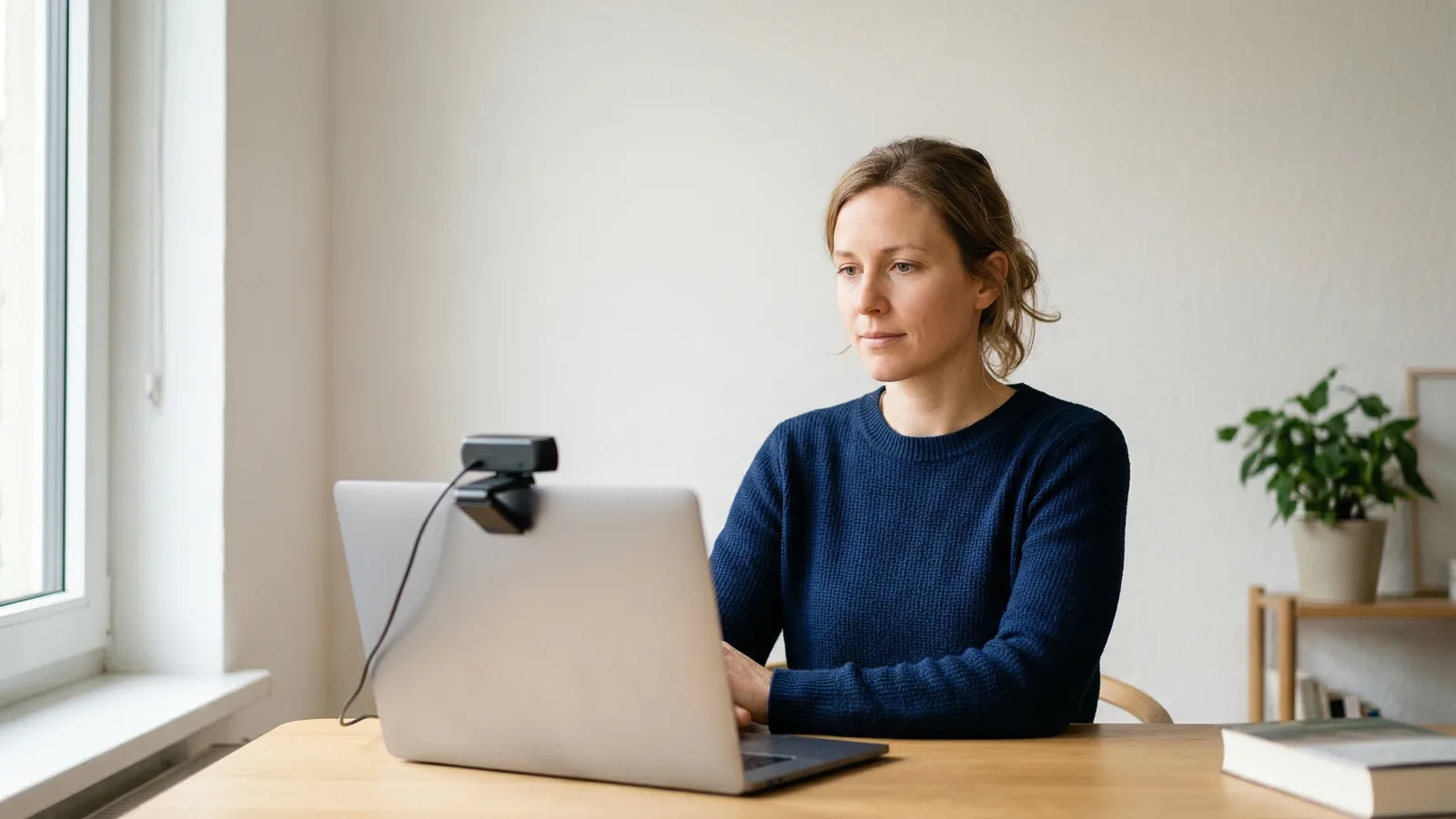
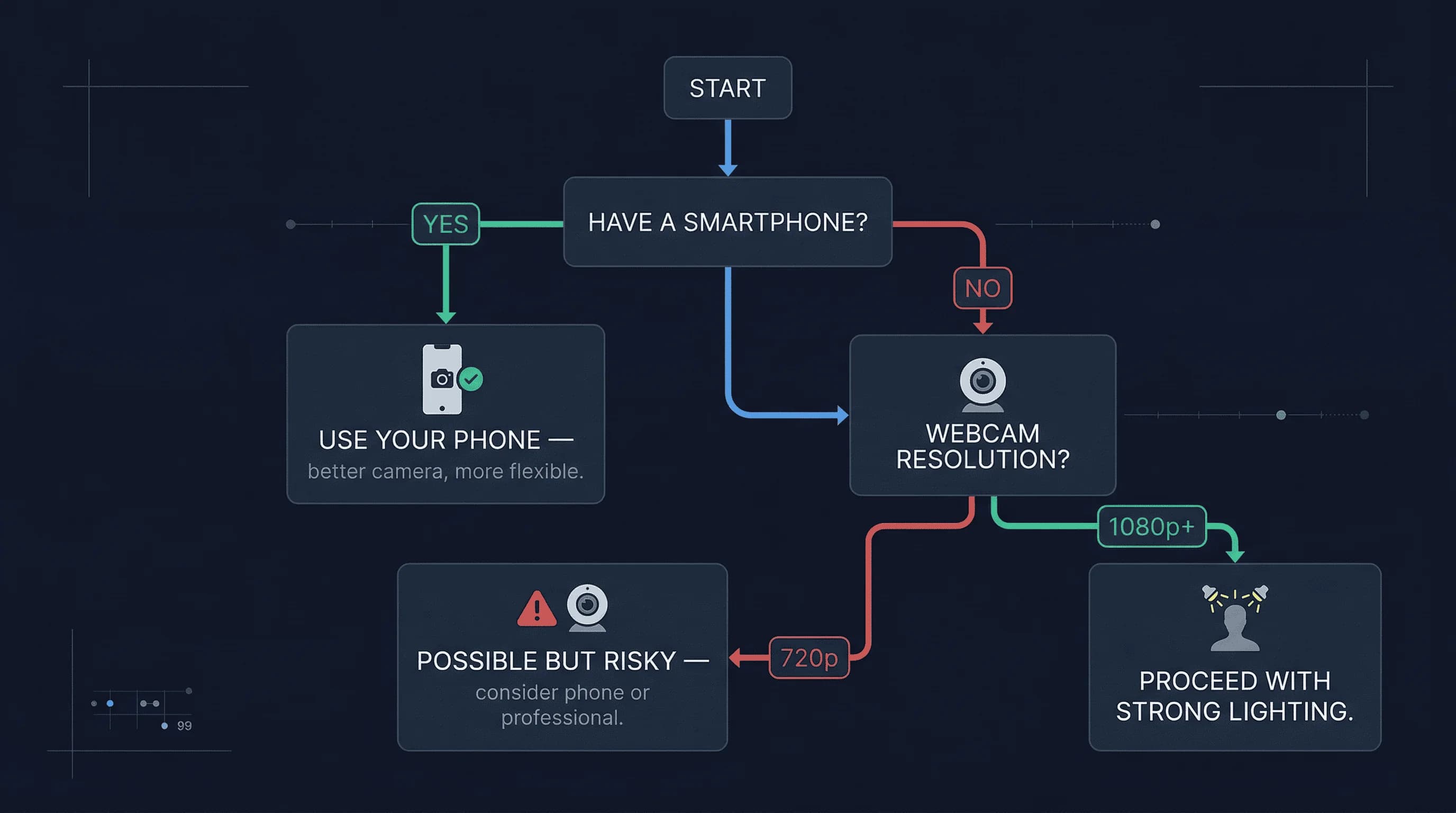
Webcams are not the ideal tool for passport photos. Most built-in laptop webcams and even many external USB webcams produce images that barely meet the minimum resolution requirements. However, if you already have a decent webcam and don't want to use your phone, you can get a compliant photo with the right setup.
Here's how to do it on Mac and Windows, and why you should think twice before relying on a webcam.
Webcam Resolution for Passport Photos: The Honest Assessment
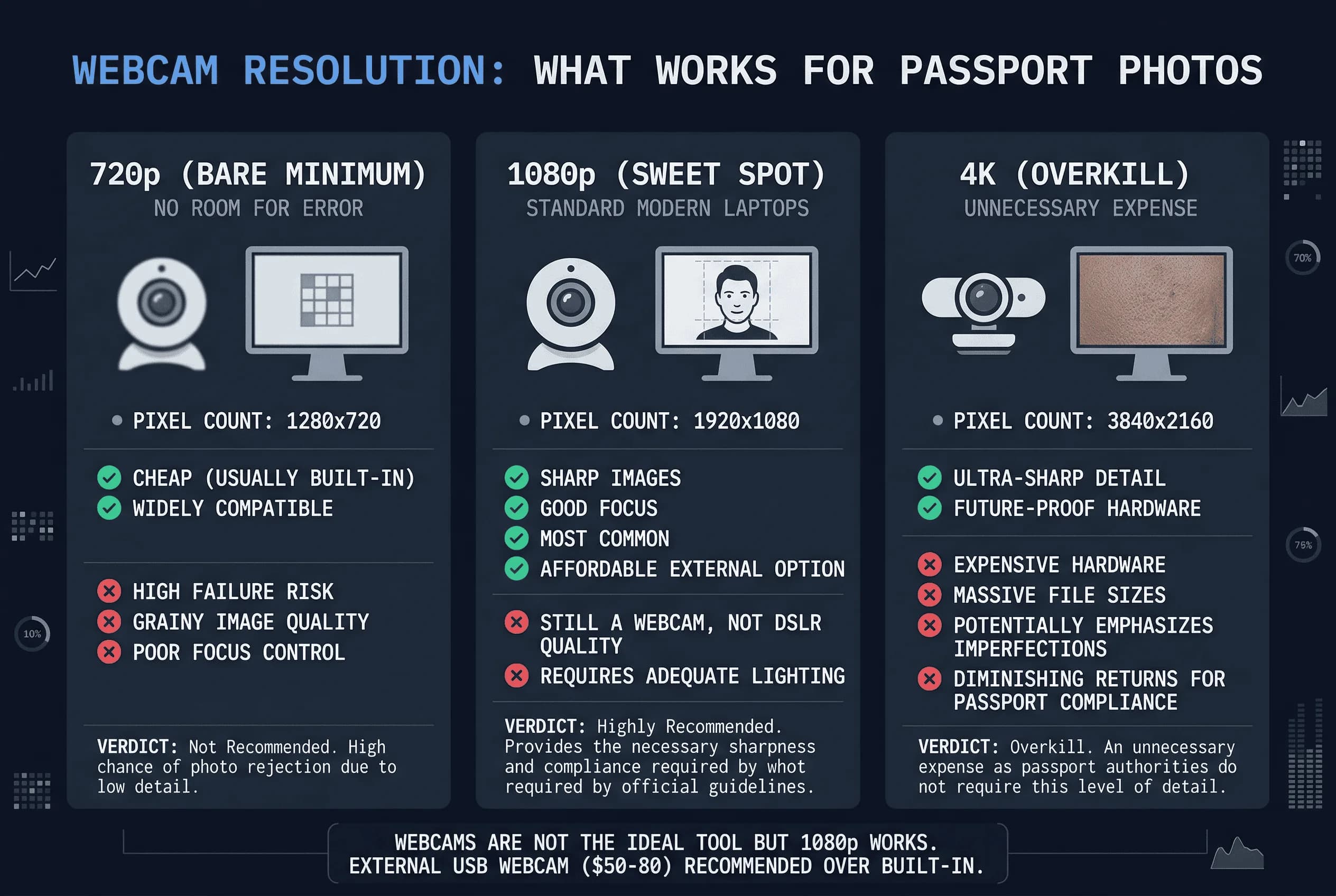
Most webcams fall into one of these categories:
- 720p (HD) — Found on older laptops. This is technically enough for passport photos at 2×2 inches, but it's the bare minimum. You'll have no room for error.
- 1080p (Full HD) — Standard on modern laptops and external webcams. This works well and gives you some flexibility.
- 4K — Premium external webcams. Excellent quality, but expensive and unnecessary.
For passport photos, 1080p is the sweet spot. 720p can work but leaves almost no margin for cropping or minor positioning errors.
Get a compliant passport photo online
What You Need to Take a Passport Photo with a Webcam
- External USB webcam (preferred) — Built-in laptop cameras are usually 720p or low-quality 1080p. A Logitech C920 or similar external webcam (around $50-80) produces much better results.
- Bright lighting — This is critical. Webcams struggle in low light, producing grainy images. You need strong, even lighting.
- White background — White poster board or white wall.
- Mac or Windows computer — Either works, though the software differs slightly.
- Tripod or mount — Most external webcams come with a clip or tripod mount.
Mac: Taking a Passport Photo with Photo Booth
Step 1: Open Photo Booth on Your Mac
Search for "Photo Booth" in Spotlight (Cmd + Space) or find it in the Applications folder.
Step 2: Set Up Your Background and Lighting
Position your webcam so it faces you at eye level. Set up your white background behind you. Ensure bright, even lighting—use a window or position lamps on each side.
Step 3: Adjust Webcam and Timer Settings
Click the camera icon in the bottom right to switch to your external webcam if you have one. Enable the 3-second timer using the timer icon.
Step 4: Take the Photo in Photo Booth
Click the red record button. The timer will count down, and the photo will capture.
Step 5: Save as High-Quality JPEG
Click the thumbnail of your photo in the bottom left. Then go to File > Export to save it as a high-quality JPEG.
Mac: Taking a Passport Photo with QuickTime
Step 1: Open QuickTime Player
Search for "QuickTime" and open the app.
Step 2: Start New Movie Recording
Go to File > New Movie Recording (or press Cmd + Control + N).
Step 3: Select Your External Webcam in QuickTime
Click the downward arrow next to the record button and select your external webcam if applicable.
Step 4: Capture a Frame from QuickTime Video
QuickTime records video, not photos. Here's the workaround: start the recording, pause it after one frame, then take a screenshot (Cmd + Shift + 4). The screenshot will be saved as a PNG.
Step 5: Convert the PNG Screenshot to JPEG
Open the PNG in Preview, then go to File > Export > JPEG to save as a JPEG file.
Windows: Taking a Passport Photo with the Camera App
Step 1: Open the Windows Camera App
Click the Start menu and type "Camera" to find the built-in Camera app.
Step 2: Select Your Webcam in Camera App
Click the camera swap icon to select your external webcam if you have one.
Step 3: Set Resolution and Timer in Camera App
Click the settings gear icon. Set the photo quality to the highest available resolution. Enable the timer (usually a clock icon).
Step 4: Take the Photo in Camera App
Click the shutter button. Your photo will be saved to your Pictures > Camera Roll folder.
Webcam Tips for Better Passport Photos
Lighting is everything. Webcams have small sensors that need lots of light. Position a bright lamp directly in front of you, slightly above eye level. Add a second lamp to the side if possible.
Sit 3 feet back. Most webcams have a wide-angle lens. Sitting too close distorts your face. Three feet is the sweet spot.
Look at the lens, not the screen. Your eyes should connect with the camera lens, not look down at your preview.
Use the highest resolution setting. Check your webcam or camera app settings and max out the resolution.
Fix the Mirror Effect on Webcam Passport Photos
Most webcam software mirrors your image by default — like looking in a mirror, text appears backward and your face is flipped. This is fine for video calls but not acceptable for passport photos. A mirrored image subtly changes your facial proportions and can be detected by automated systems.
On Mac (Photo Booth): Photo Booth mirrors the preview but saves the photo flipped back to normal. However, check the saved file — if text in the background appears backward, the image is still mirrored. To flip it: open in Preview → Tools → Flip Horizontal.
On Windows (Camera): The Camera app may mirror the preview but save correctly. Open the saved photo and check — look for any visible text or asymmetric elements. If mirrored, open in Paint → Image → Flip Horizontal.
External webcam software: Logitech Capture, OBS Studio, and other tools have mirror/flip settings. Check the settings before capturing your photo. OBS Studio specifically: right-click your source → Transform → Flip Horizontal.
Cropping Your Webcam Photo to Passport Size
Webcam photos are typically 16:9 (widescreen) or 4:3 ratio — neither matches the 1:1 square needed for US passports or the 35:45 rectangle needed for European passports.
After capturing your photo:
- Open it in Preview (Mac) or Paint (Windows)
- Crop to a square for US (1:1 ratio) or a 35:45 rectangle for most other countries
- Centre your face with your head at 50–69% of the vertical frame for US photos
- Resize to 600×600 pixels for US or 413×531 pixels for 35×45mm countries
- Save as JPEG
If your webcam only captured 720p (1280×720), you have just 720 pixels of vertical resolution. After cropping to a square, you'd get a 720×720 image — that's enough for the 600×600 pixel US requirement, but only barely. There's no room for cropping error.
Why Phones Are Better Than Webcams for Passport Photos
This guide exists, but honestly—your phone camera is almost certainly better than your webcam:
- Higher resolution (12-50MP vs 2-8MP)
- Better low-light performance
- No cables or software setup
- More accurate colors
- Wider aperture for sharper faces
If you have a smartphone from the last five years, use it instead. The photo quality will be noticeably superior.
How to Verify Your Webcam Passport Photo
After capturing your webcam photo, upload it to passportsize-photo.online's free passport photo checker to verify it meets requirements. Pay extra attention to the resolution check—if your webcam is only 720p, there's less room for error.
Webcams can produce compliant passport photos, but they require more setup and care than phone cameras. If you're using a 1080p external webcam with excellent lighting, you can get a good result. However, if your laptop only has a 720p webcam, consider borrowing a friend's smartphone instead. Once you've captured your photo, check it against US passport photo requirements before submitting.